Boards: organise bookmarks by project
One giant pile of bookmarks gets hard to use fast. Boards fix that by giving each project, course or interest its own page, so what you need is always one click away and everything else stays out of the way.
What a board is
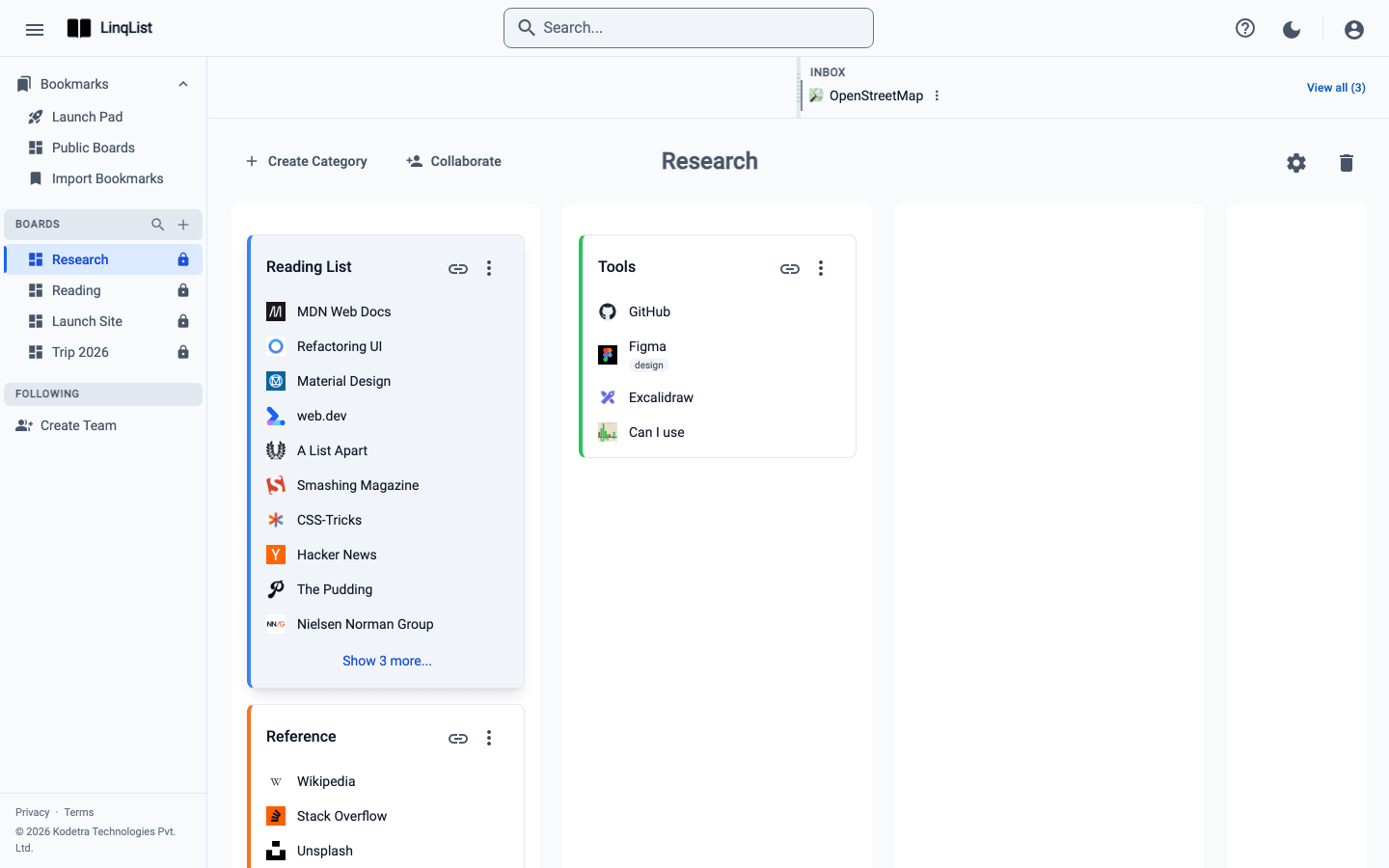
A board is a page of links. Inside it you will find columns (the vertical lanes side by side), and inside those, categories that hold your bookmarks. You do not add or rename columns yourself; they are simply lanes for arranging your categories. We cover categories in their own guide.
Create a board
- Open the left sidebar. If it is hidden, click the menu icon at the top left (Toggle navigation sidebar) or press Cmd+B (Ctrl+B).
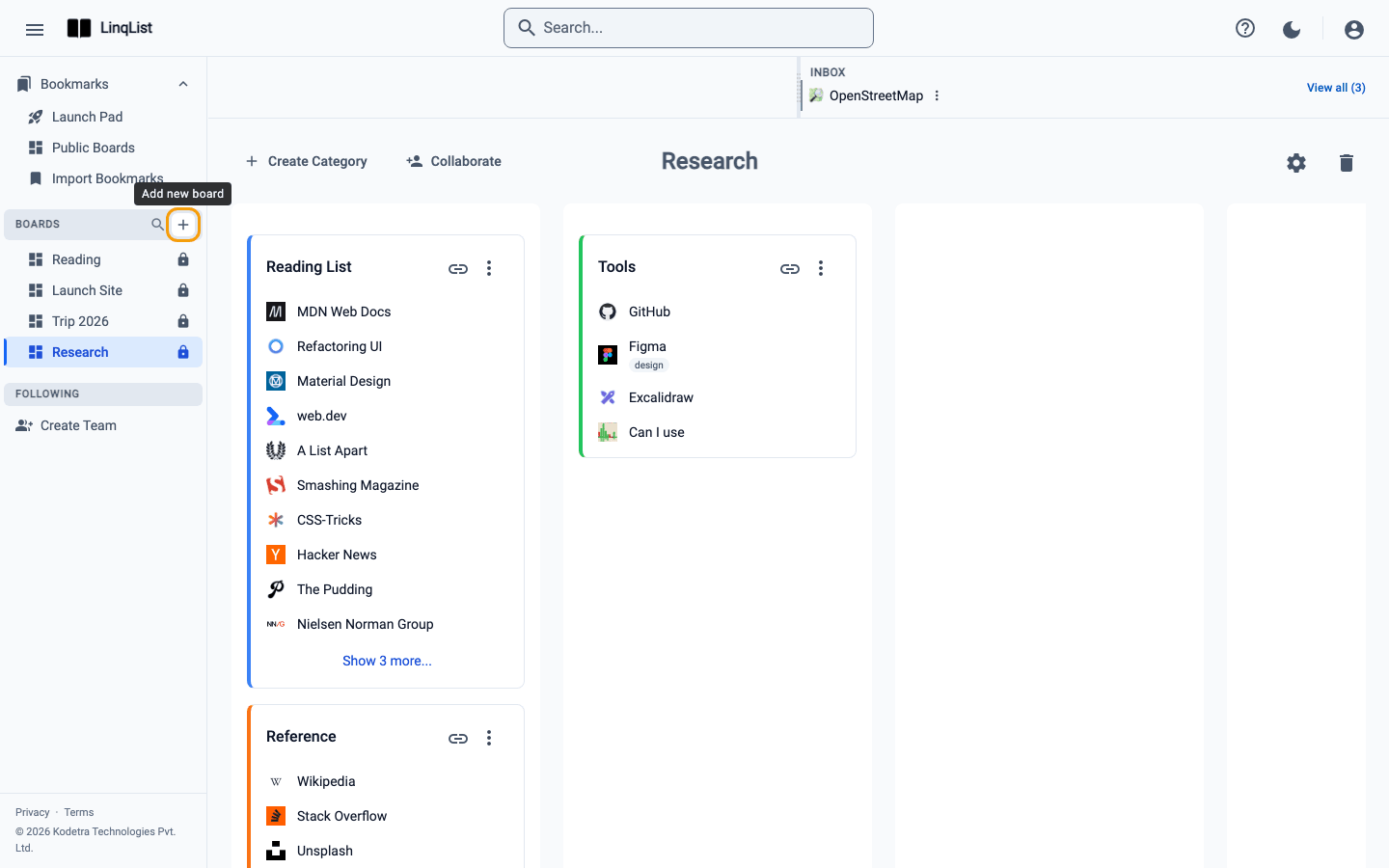
- Under Bookmarks, find the Boards heading and click the + button (Add new board).
- Type a name in Board Name. It must be 2 to 15 characters; the form tells you if it is too short or too long.
- Click Create Board. The new board opens and appears in the sidebar list.
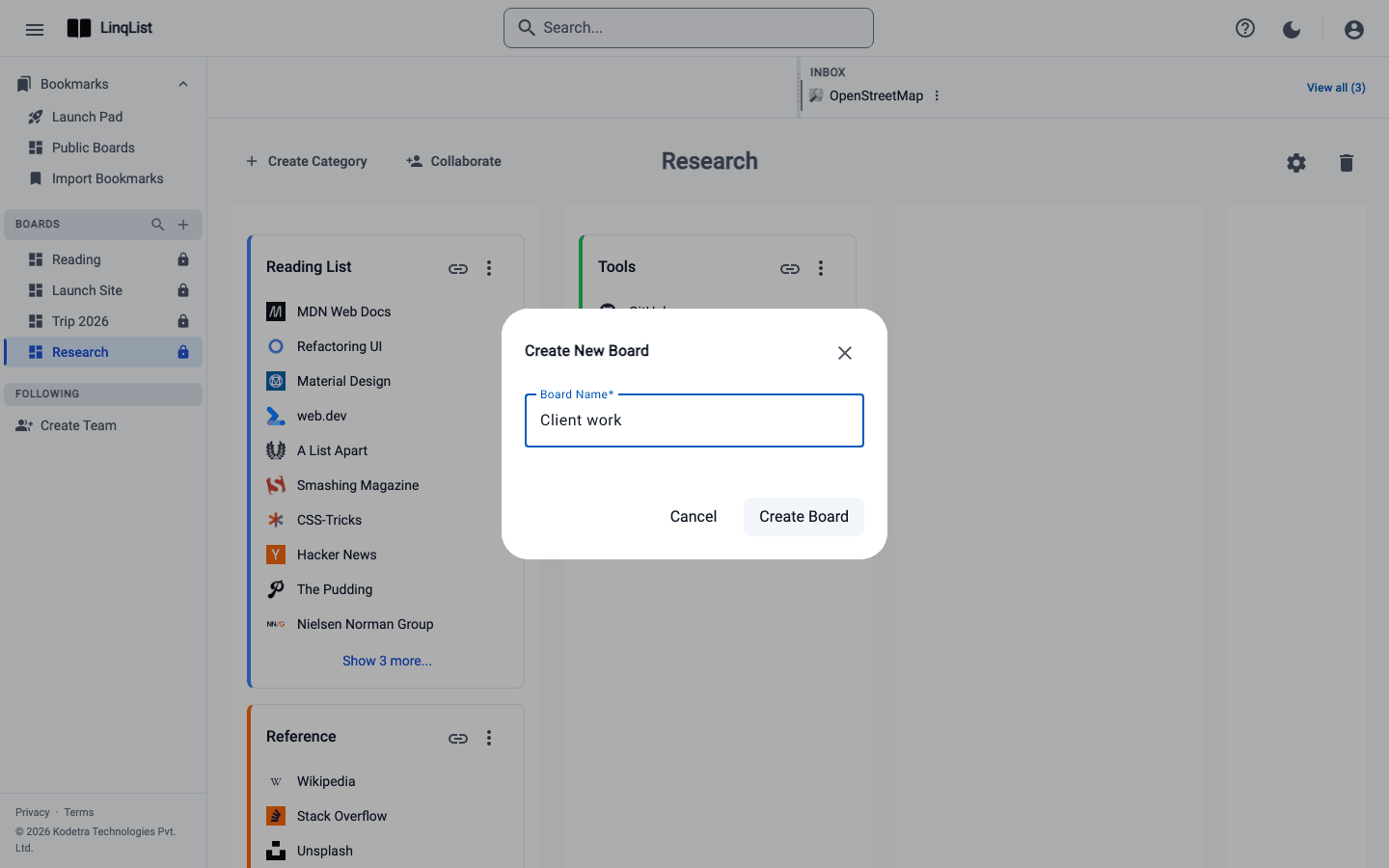
If you belong to a team workspace, the dialog also shows a Location menu so you can choose Personal or a team. Teams are covered in a separate post.
Rename a board
- Open the board and click the Settings icon (the gear) in the board header.
- Click the pencil next to the board title (Edit board title).
- Type the new name (2 to 15 characters) and press Enter, or click away, to save. The x in the box cancels.
- Click Done Editing to close settings.
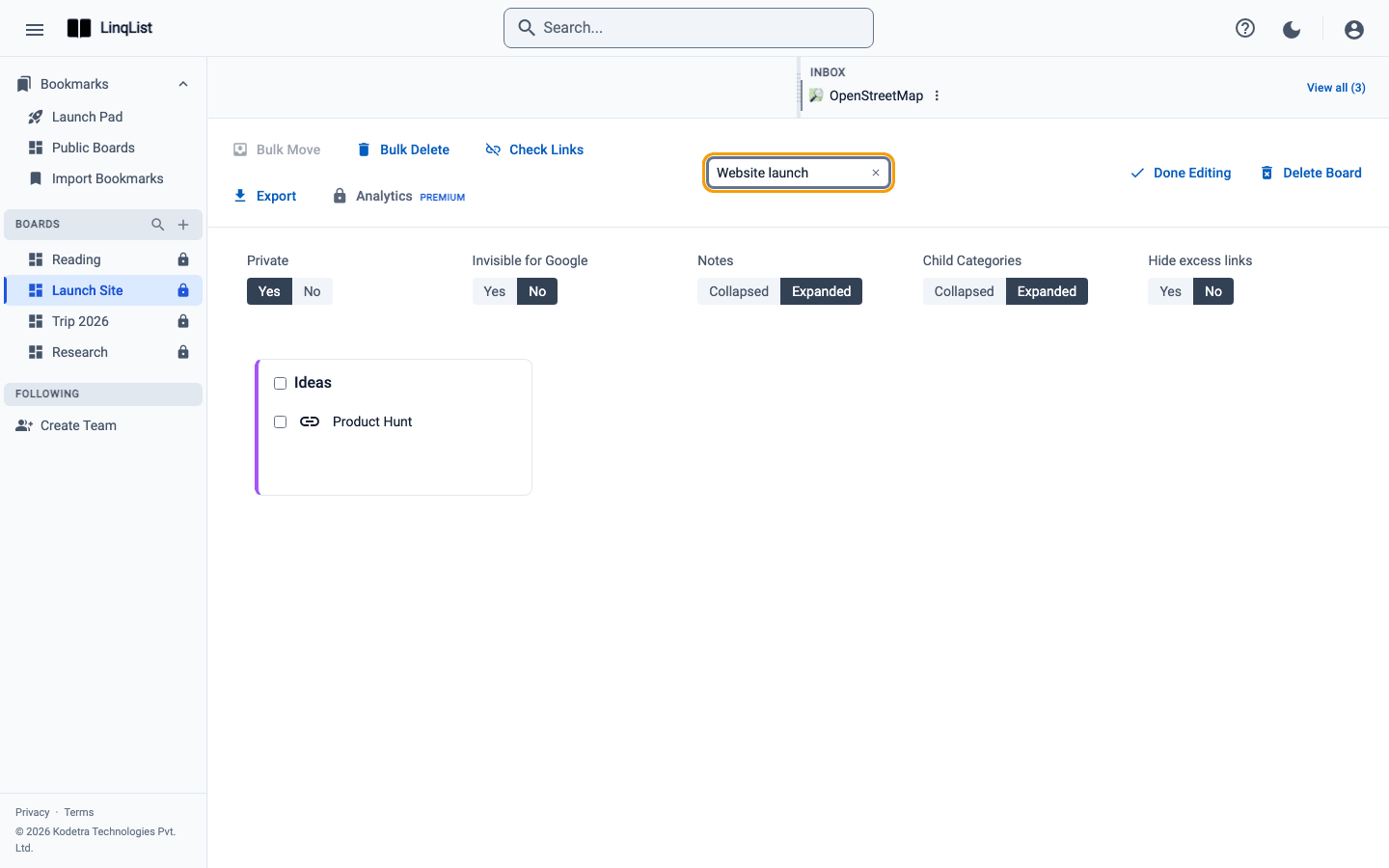
Settings also hold Private and Invisible for Google, which control who can see the board (see Share a board publicly), and the Bulk Move and Bulk Delete tools for handling many links at once.
Switch between boards
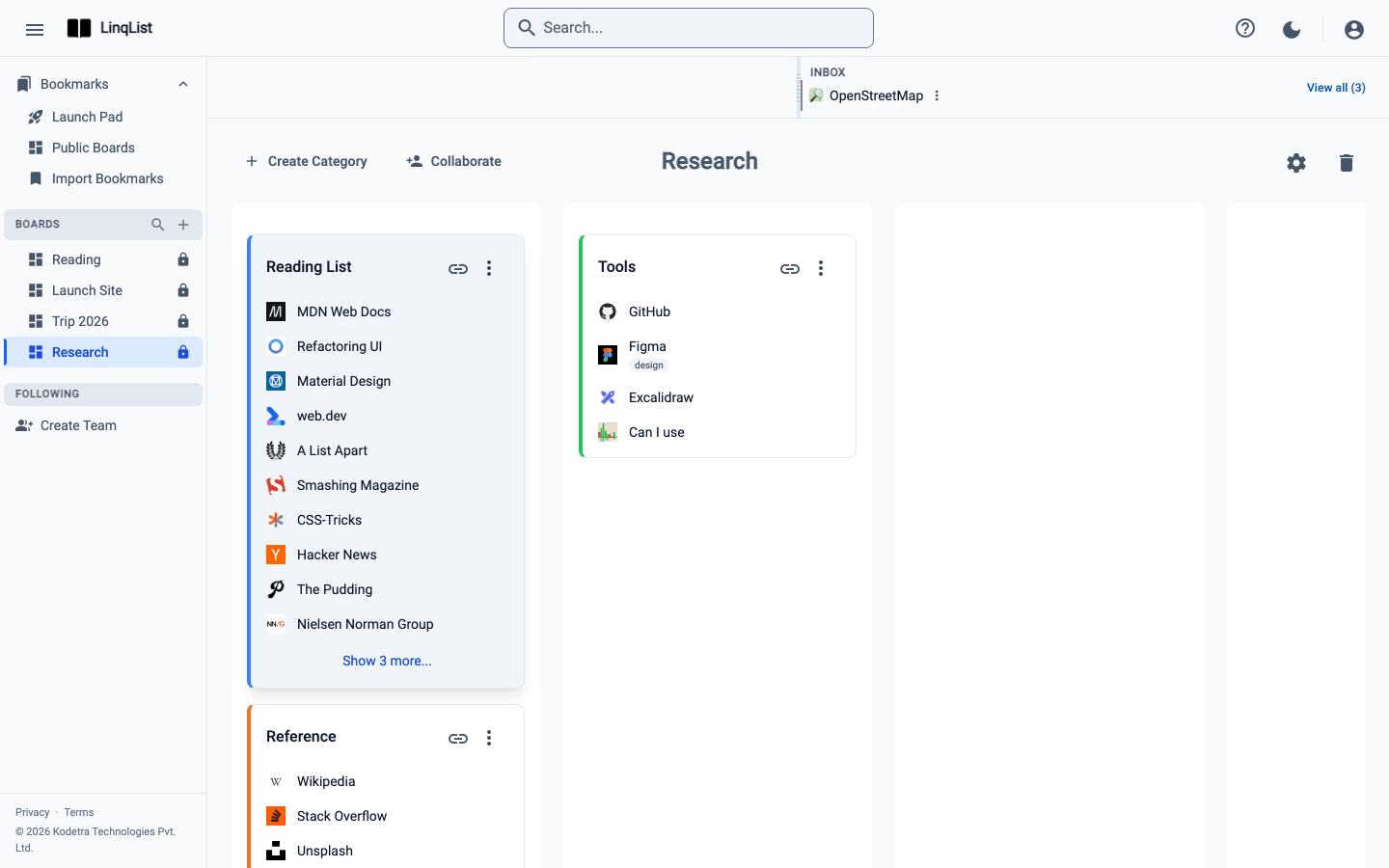
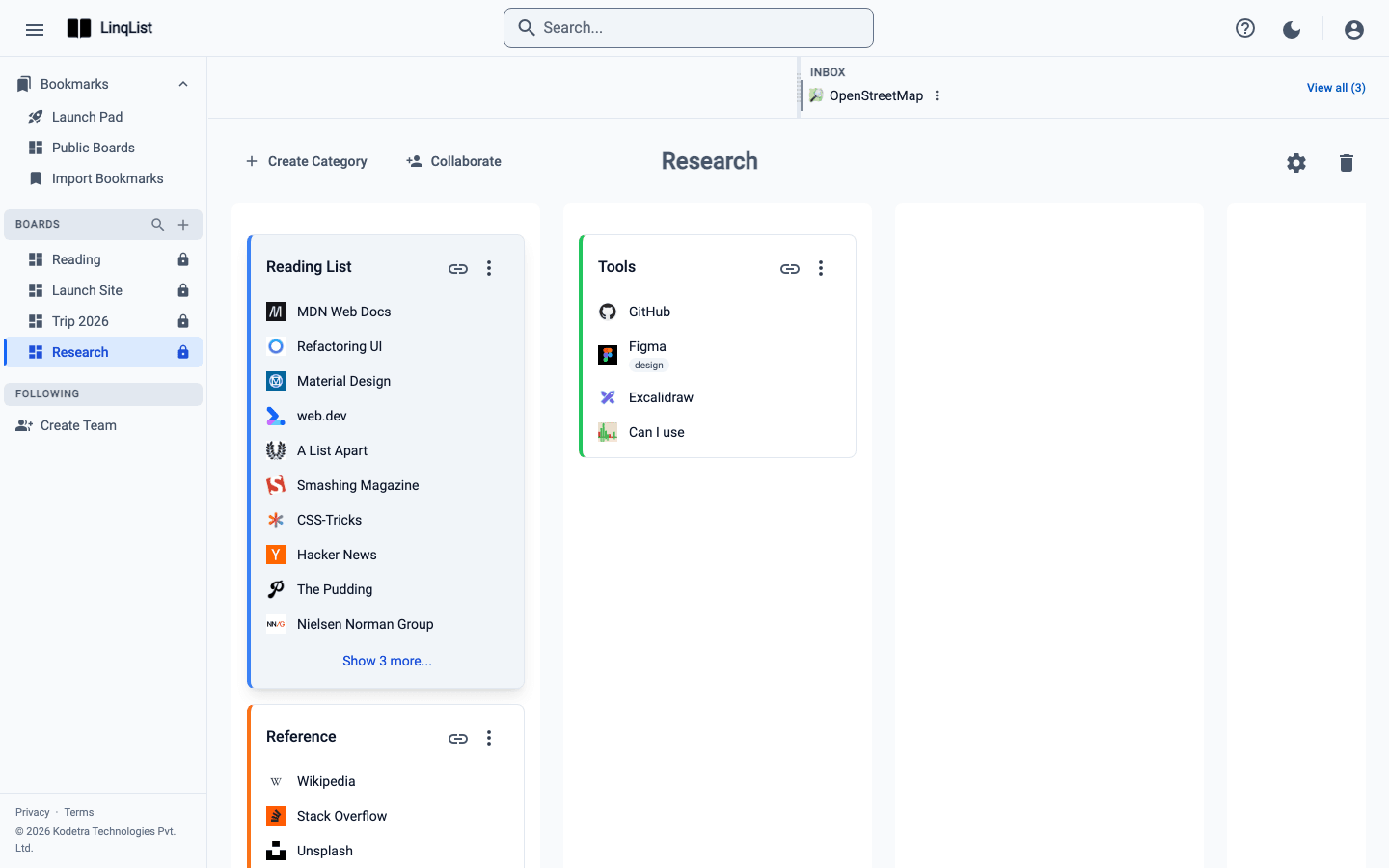
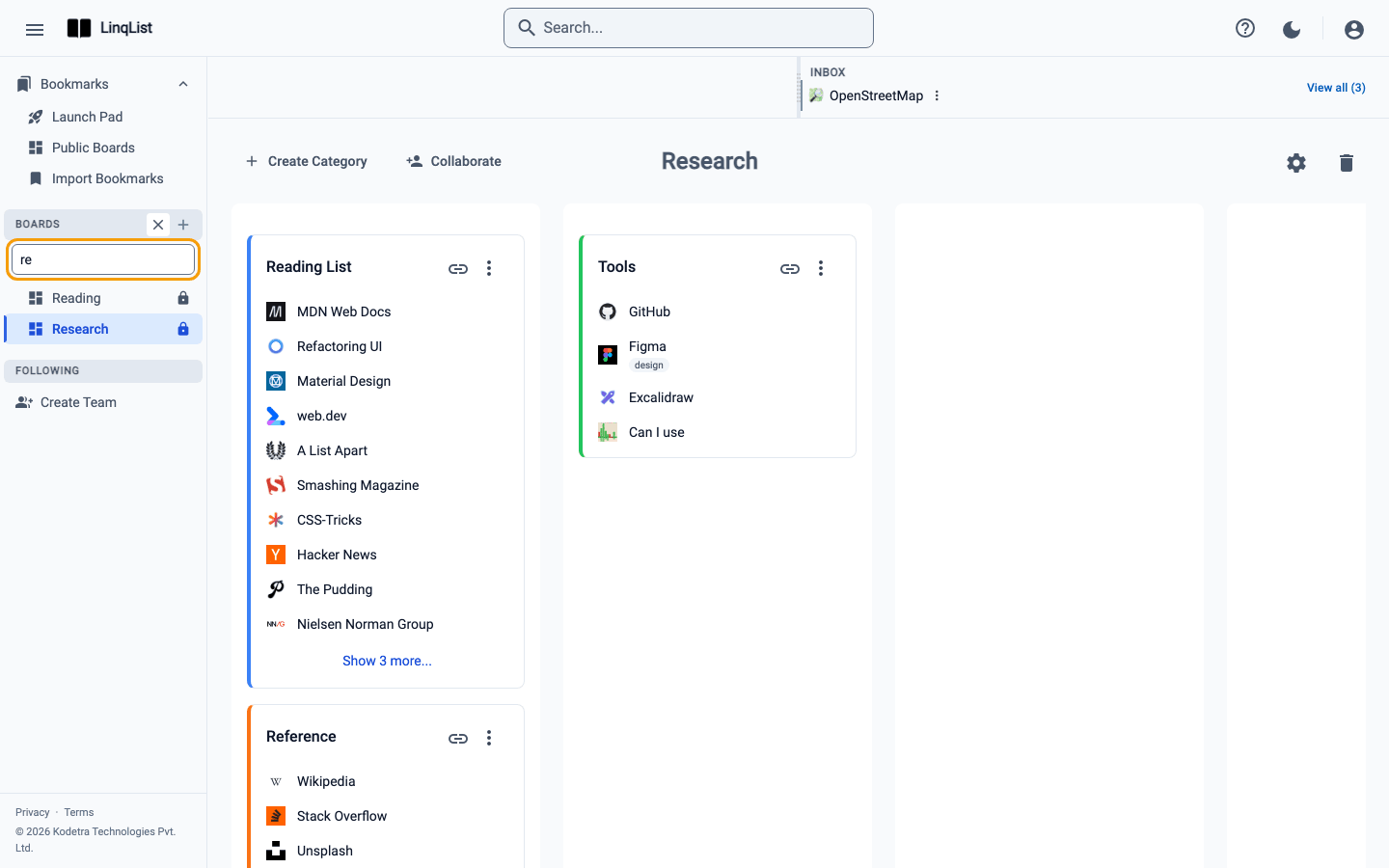
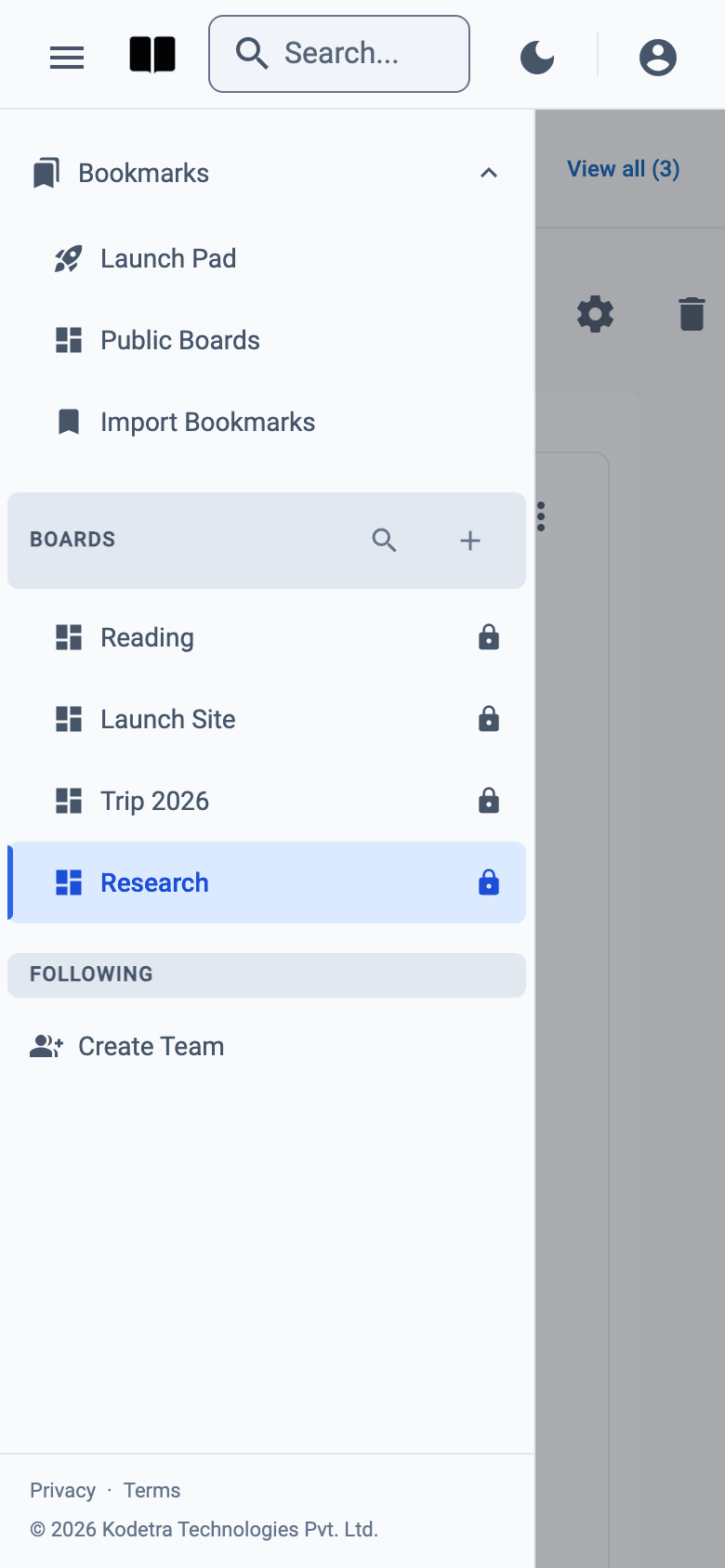
Your boards are listed in the sidebar under Boards. Click a name to open it. With many boards, click the small search icon beside Boards to reveal a Filter boards… box that narrows the list as you type. A lock icon marks private boards.
On a phone-sized screen the sidebar slides in over the page. Tap the menu icon, pick a board, and it closes again.
Tips
- Name boards after outcomes ("Launch site") rather than topics ("Web"); they stay useful longer.
- Start with fewer boards than you think you need. Categories handle sub-topics.
- The Free plan includes 1 board with up to 50 bookmarks. Paid plans allow more boards; check the pricing page for the current limits.
How many boards do you need?
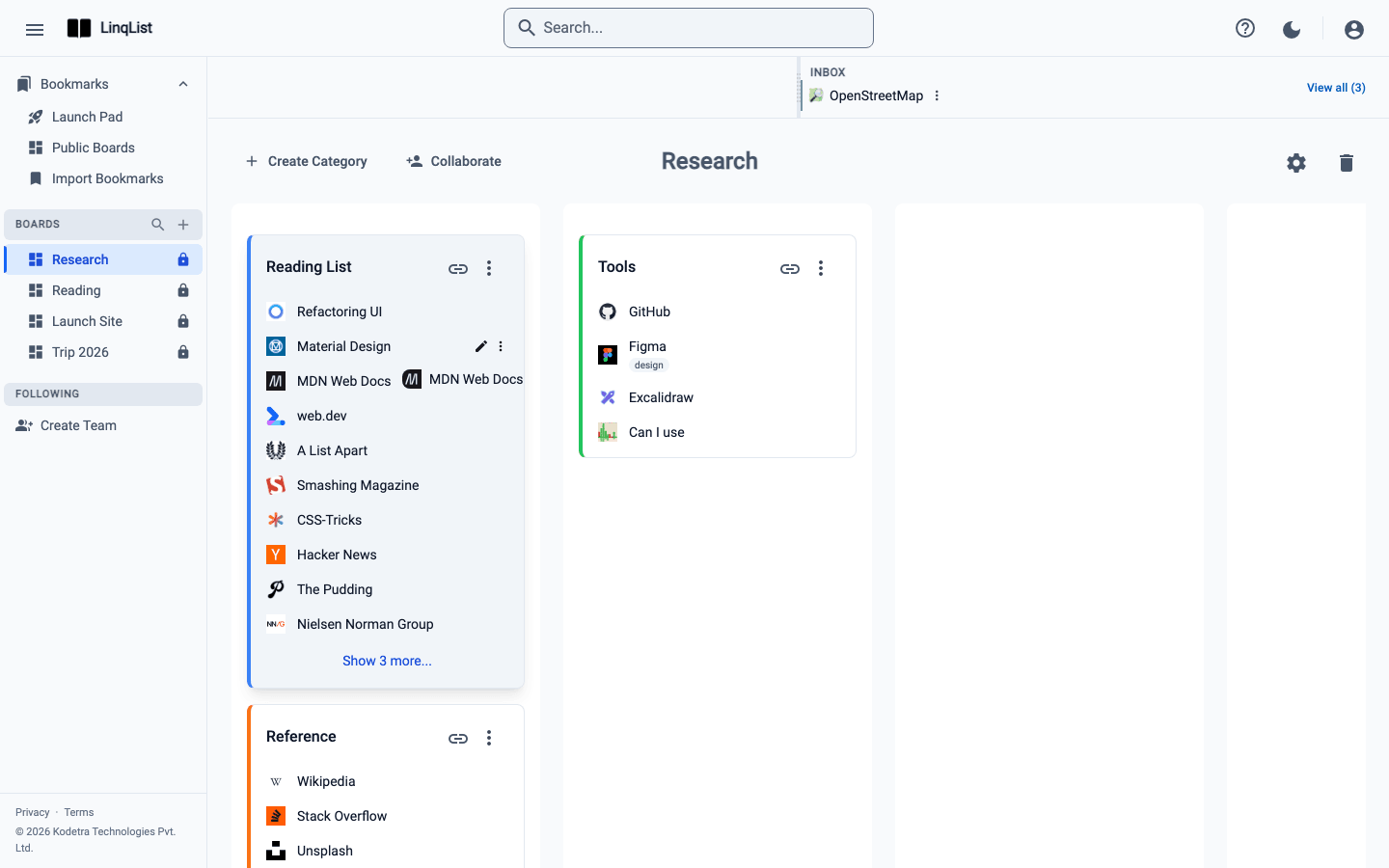
There is no single right answer, but a few patterns work well. One board per active project keeps work links together and lets you archive the whole idea by simply ignoring the board when the project ends. One board per area of life (work, home, learning) suits people who prefer fewer, broader pages and let categories do the sorting. And a single catch-all board is a perfectly good start if you are on the Free plan, which includes one board. The beauty of categories and dragging is that you can reshuffle later without losing anything.
Delete a board you no longer need
Open the board and click the trash icon (Delete board) in the header, or Delete Board at the bottom of the settings panel. LinqList asks you to confirm first. Only the board's owner sees this option, so collaborators cannot remove it by accident.