Getting started with LinqList in 5 minutes
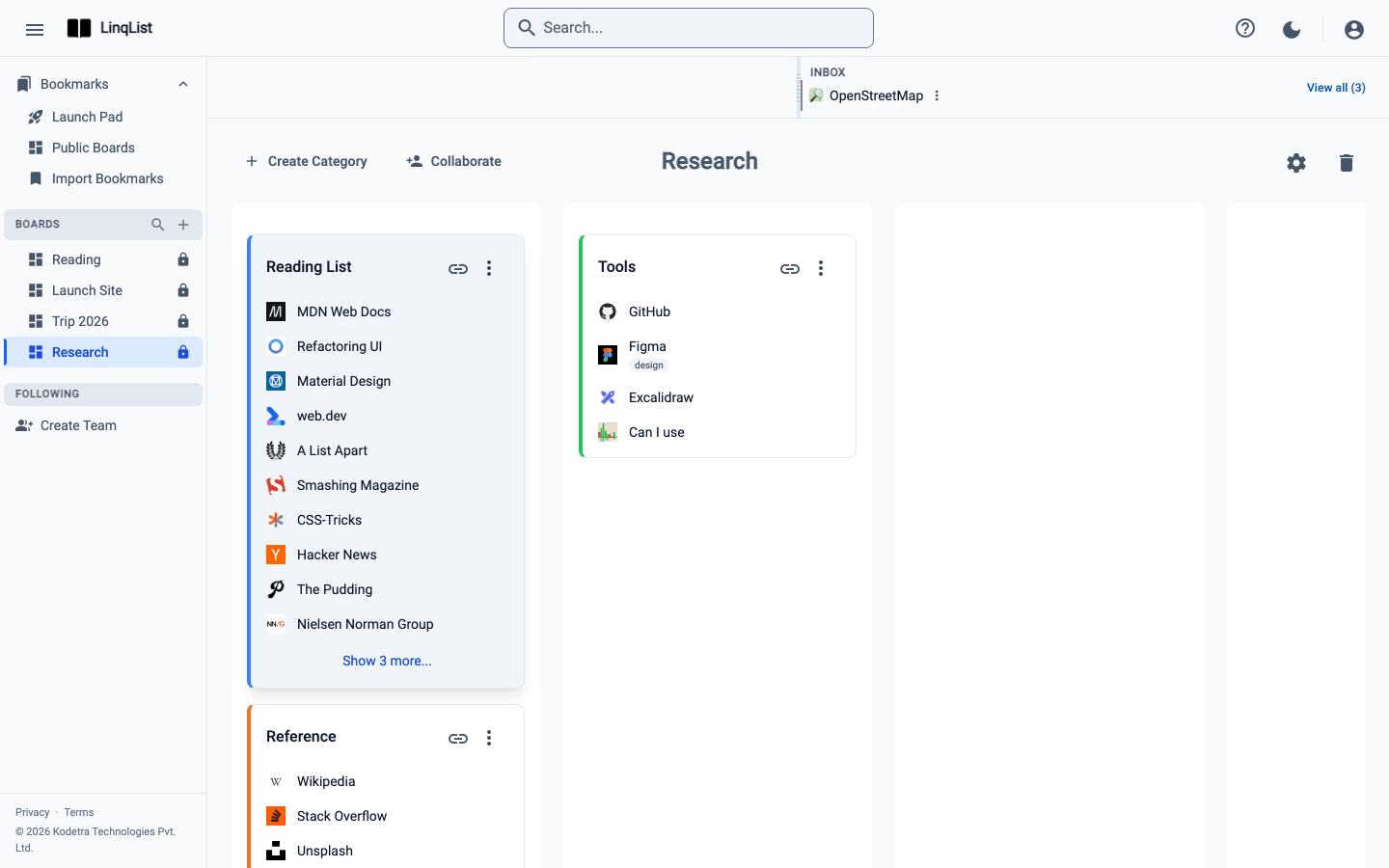
Browser bookmark bars work until you have a few hundred links and no idea which folder anything is in. LinqList keeps links on visual boards you can scan at a glance, and it works in any browser. This walkthrough takes you from a new account to your first saved page.
Create your account
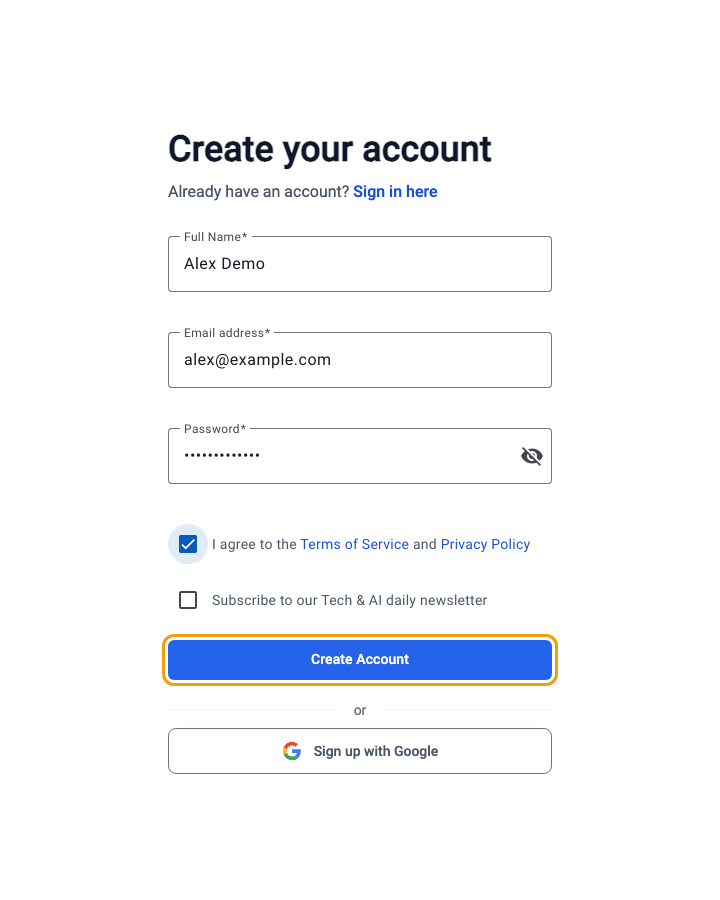
- Go to linq-list.com and choose Get Started (or open the sign-up page directly at /auth/register).
- Fill in Full Name, Email address and Password (at least 6 characters), then tick the box to accept the Terms of Service and Privacy Policy.
- Click Create Account. If you would rather skip the form, use Sign up with Google.
Create your first board
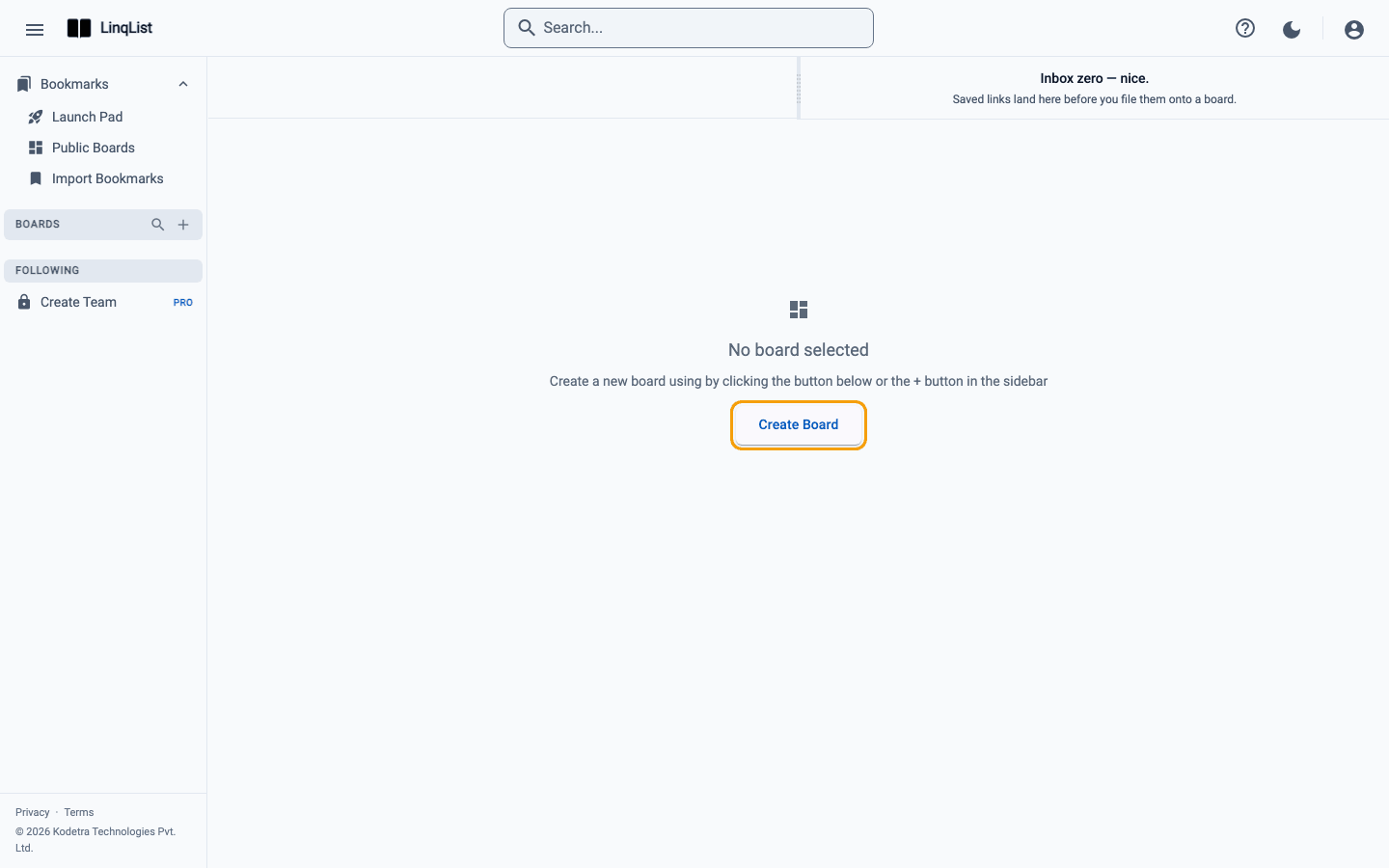
A board is a workspace for one topic, such as a project, a course or a trip. A brand-new account has no boards yet, so the board page shows an empty state.
- Click Create Board. You can also use the + button next to Boards in the left sidebar.
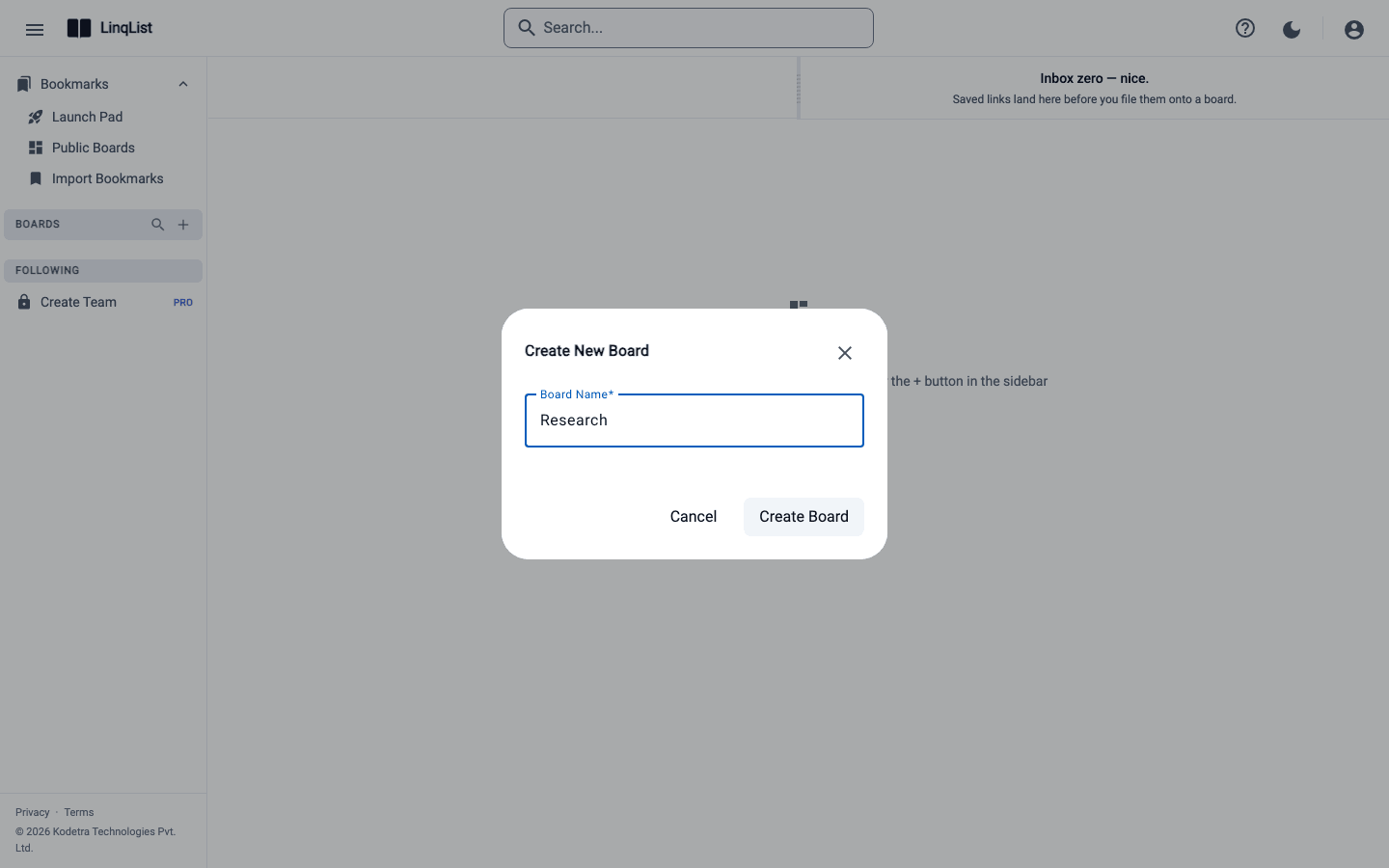
- Type a name in Board Name. Names are 2 to 15 characters, so keep them short, like "Research" or "Trip 2026".
- Click Create Board in the dialog. Your new board opens straight away.
Add a category and a bookmark
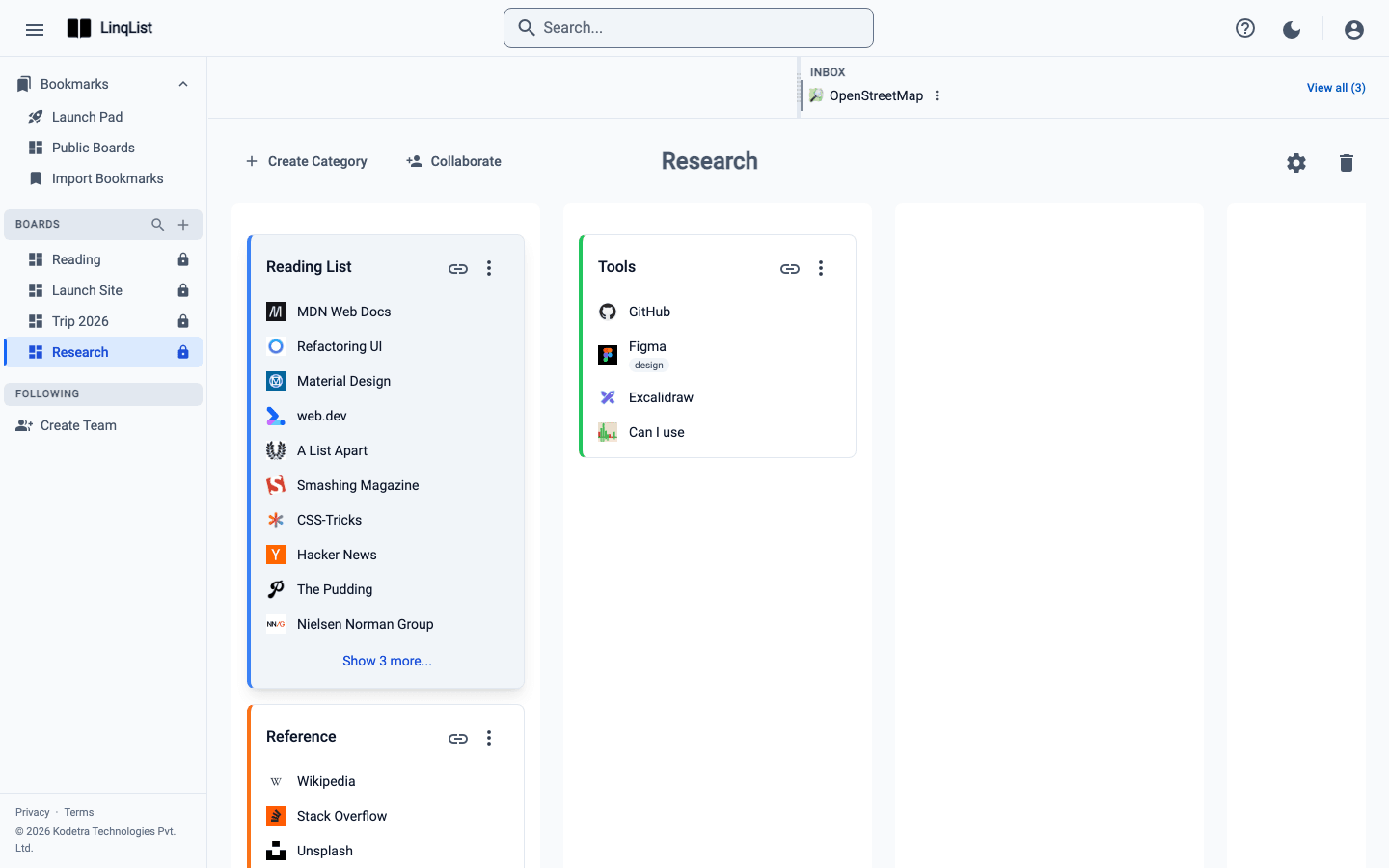
Inside a board, links live in categories, which are the coloured cards you see on the page.
- Click Create Category, type a name such as "Reading list", pick a colour, and click Add Category.
- On the new category card, click the link icon in the card header. Two fields appear: Enter URL and Enter Title.
- Paste a web address, add a title if you like, and click the check mark to save.
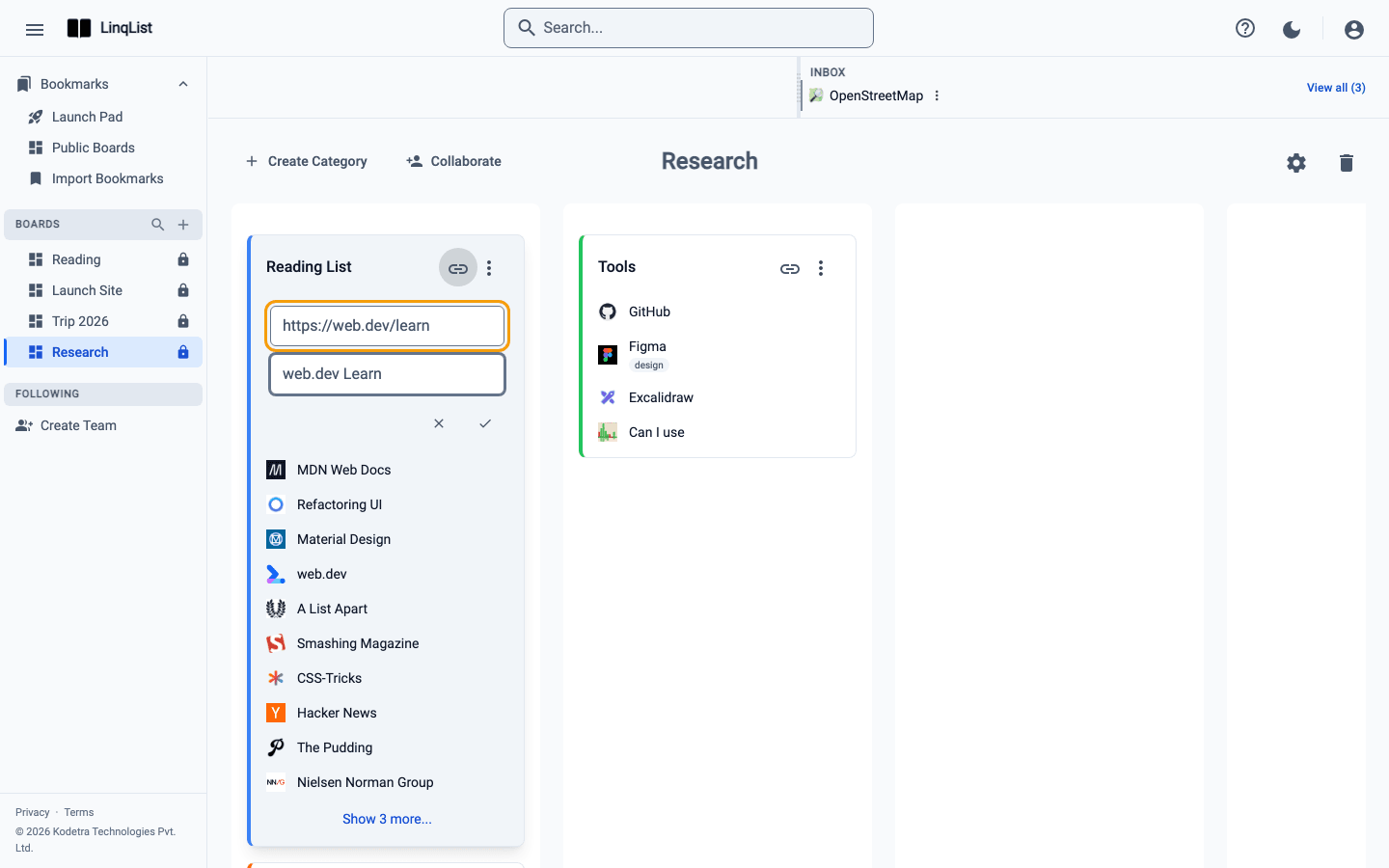
Your link is now a row on the card. Click it to open the page in a new tab.
Install the browser extension
The extension is what makes LinqList fast: one click saves the page you are on. LinqList supports Chrome, Firefox, Edge, Opera, Brave, Kiwi and Vivaldi.
- On the landing page, click Add to Chrome, or install from your own browser's extension store by searching for LinqList.
- Open the extension and sign in with the same account. In the web app you may also see a "Complete Your Setup" banner with an Install Extension button; it does the same thing.
- Visit any web page. A round blue button with a plus sign appears in the bottom-right corner. Click it and the page is saved.

Saved pages land in your Inbox first, a holding area from which you file them onto a board when you have a minute. Our extension guide covers the details.
A note on plans
The Free plan includes 1 board with up to 50 bookmarks, which is plenty to try the workflow. Paid plans raise those limits; the pricing page has the current numbers.
A simple habit to start with
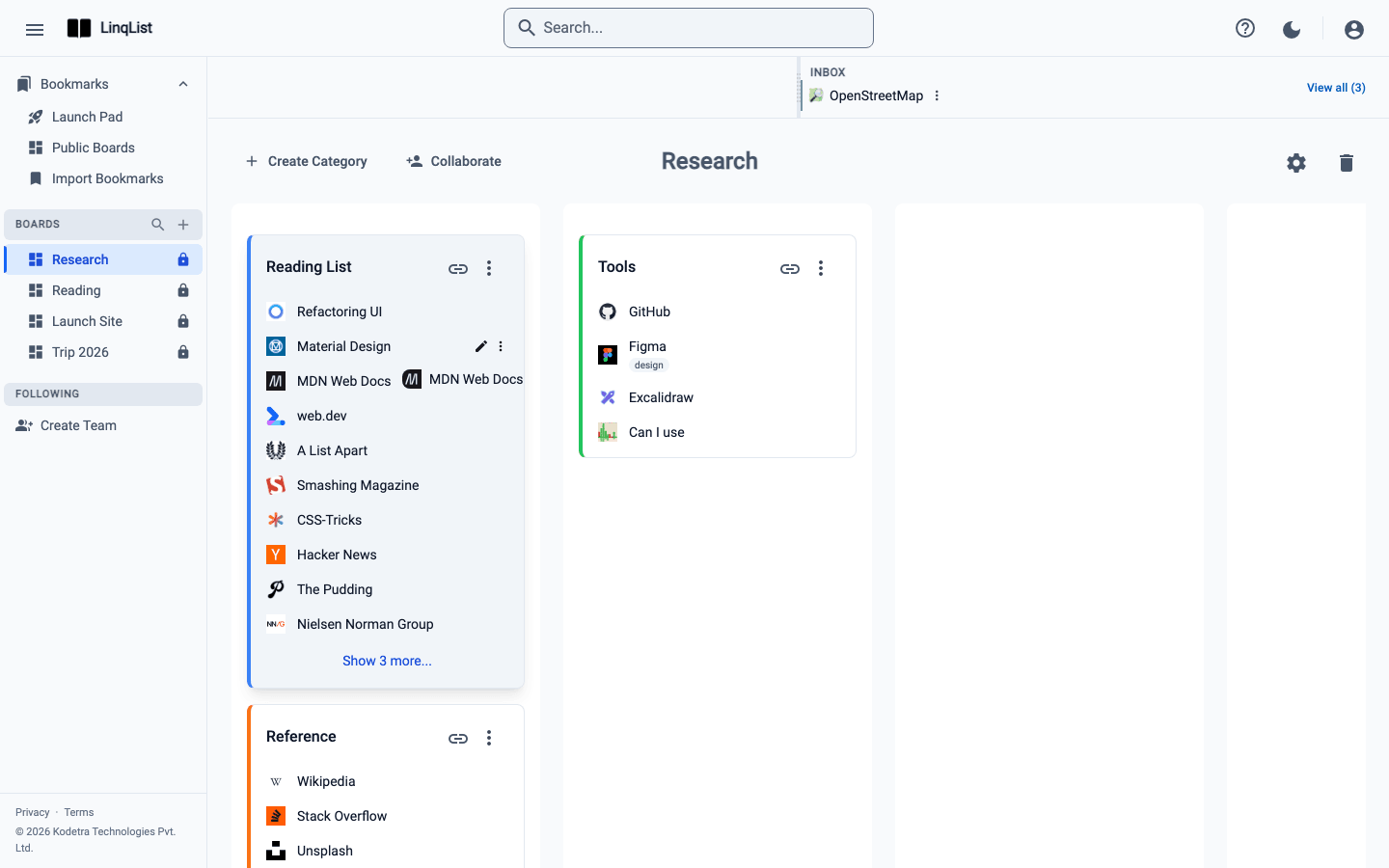
The people who stick with LinqList tend to follow one routine. Save pages as you browse, using the extension button, without thinking about where they go. Once a day, or once a week, open the Inbox and drag each saved page onto a category. It takes a couple of minutes, and it means your boards only ever contain links you chose to keep. If you would rather file things immediately, the extension popup lets you pick a board and category at the moment you save.
If something goes wrong
- Forgot your password? Use the forgot-password link on the sign-in page and follow the email.
- Saved a page but cannot see it? Check the Inbox before assuming it is lost; new saves wait there until you file them.
- The extension button is missing? Reload the page, and make sure you are signed in to the extension.