Categories: group links inside a board
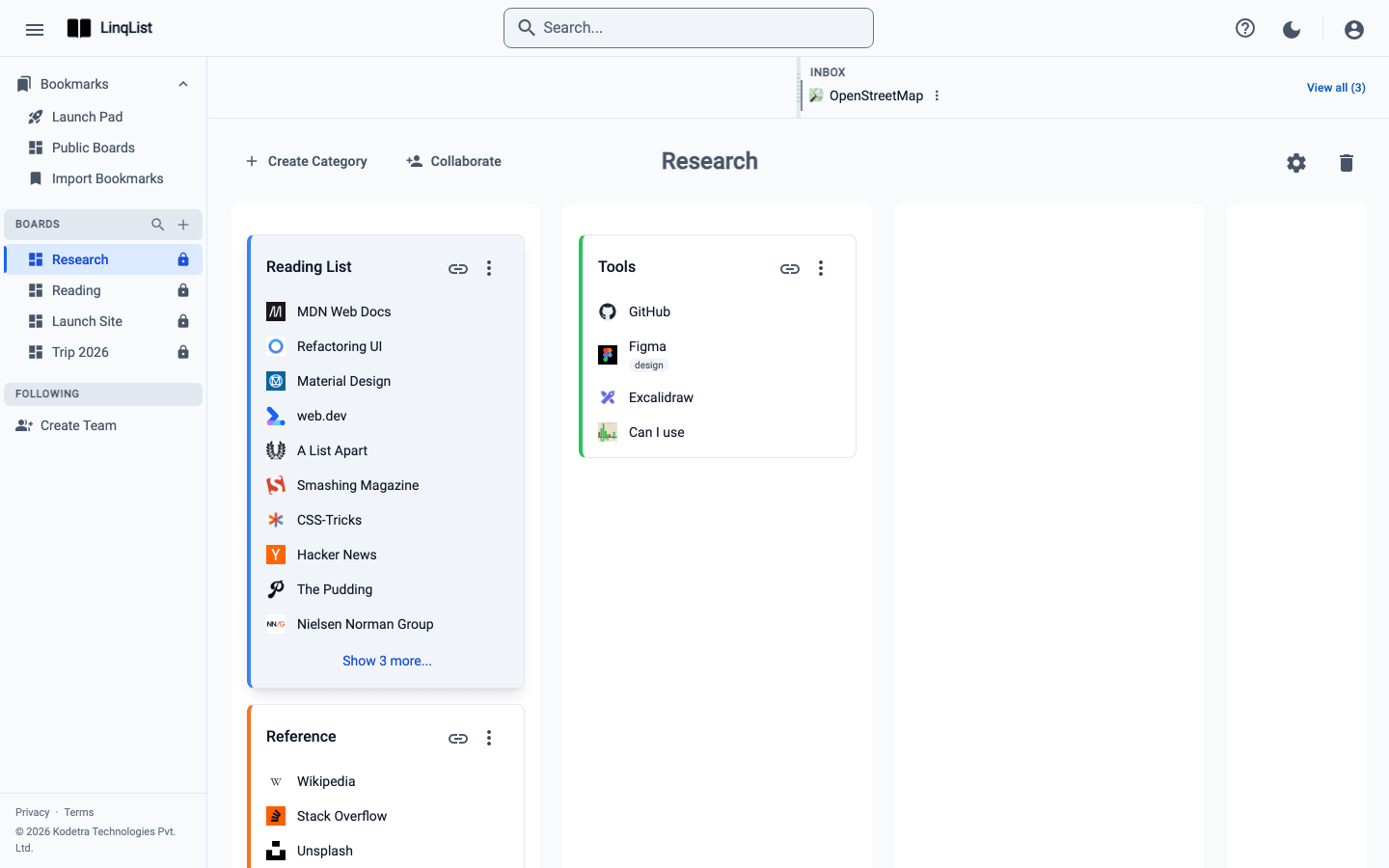
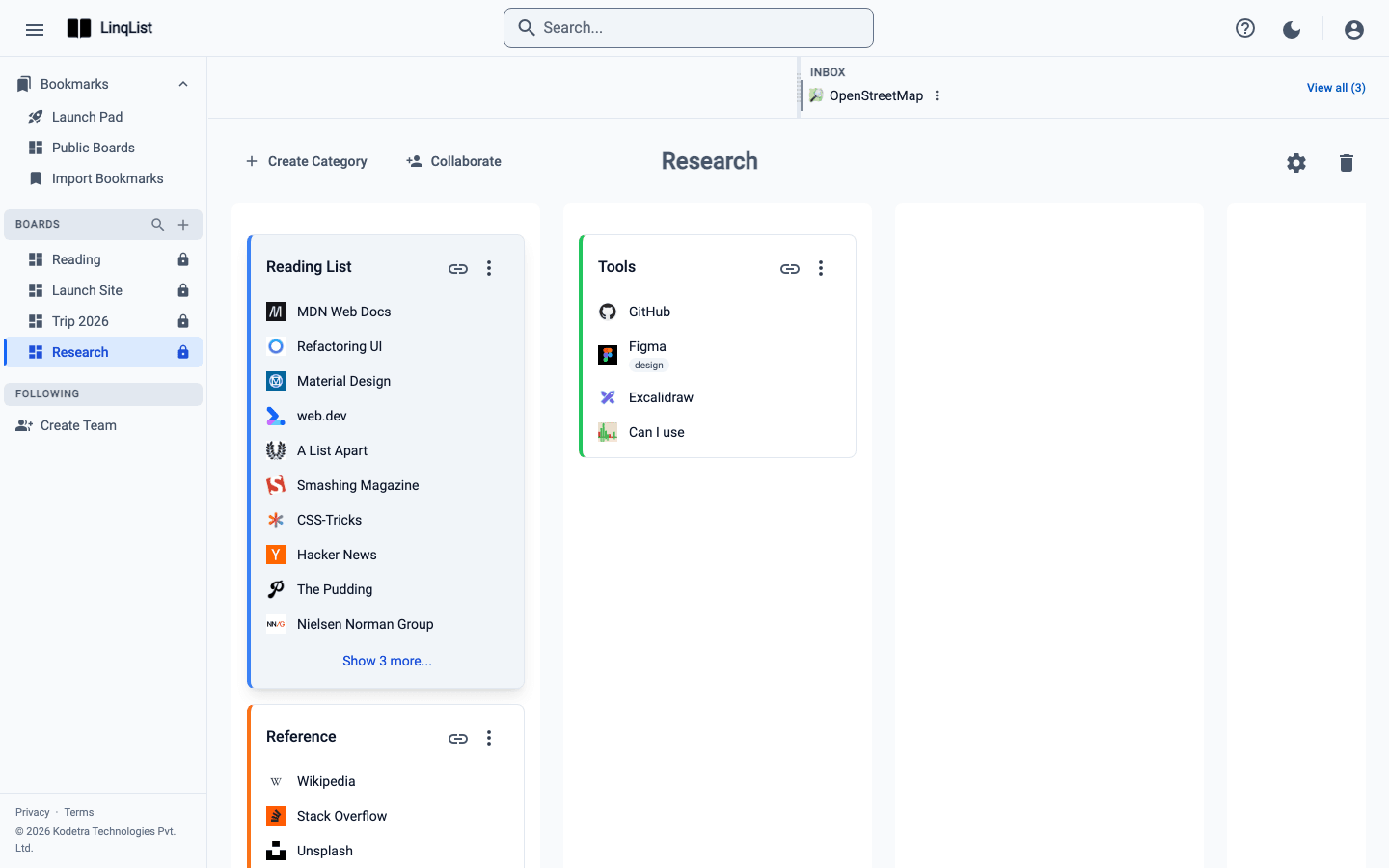
A board with forty loose links is still a mess. Categories are the cards inside a board that group related links, each with its own colour, so you can see at a glance where things belong.
Create a category
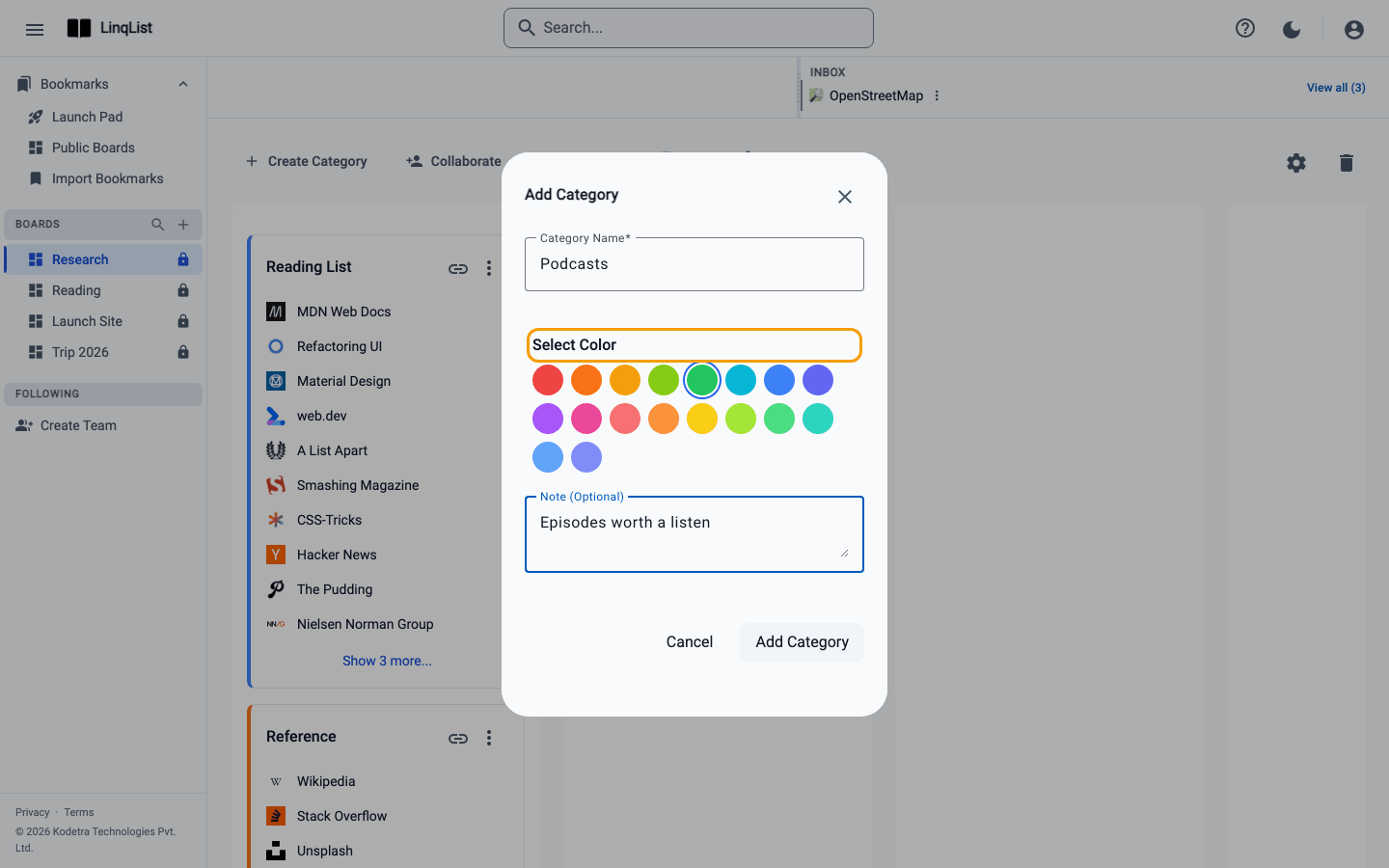
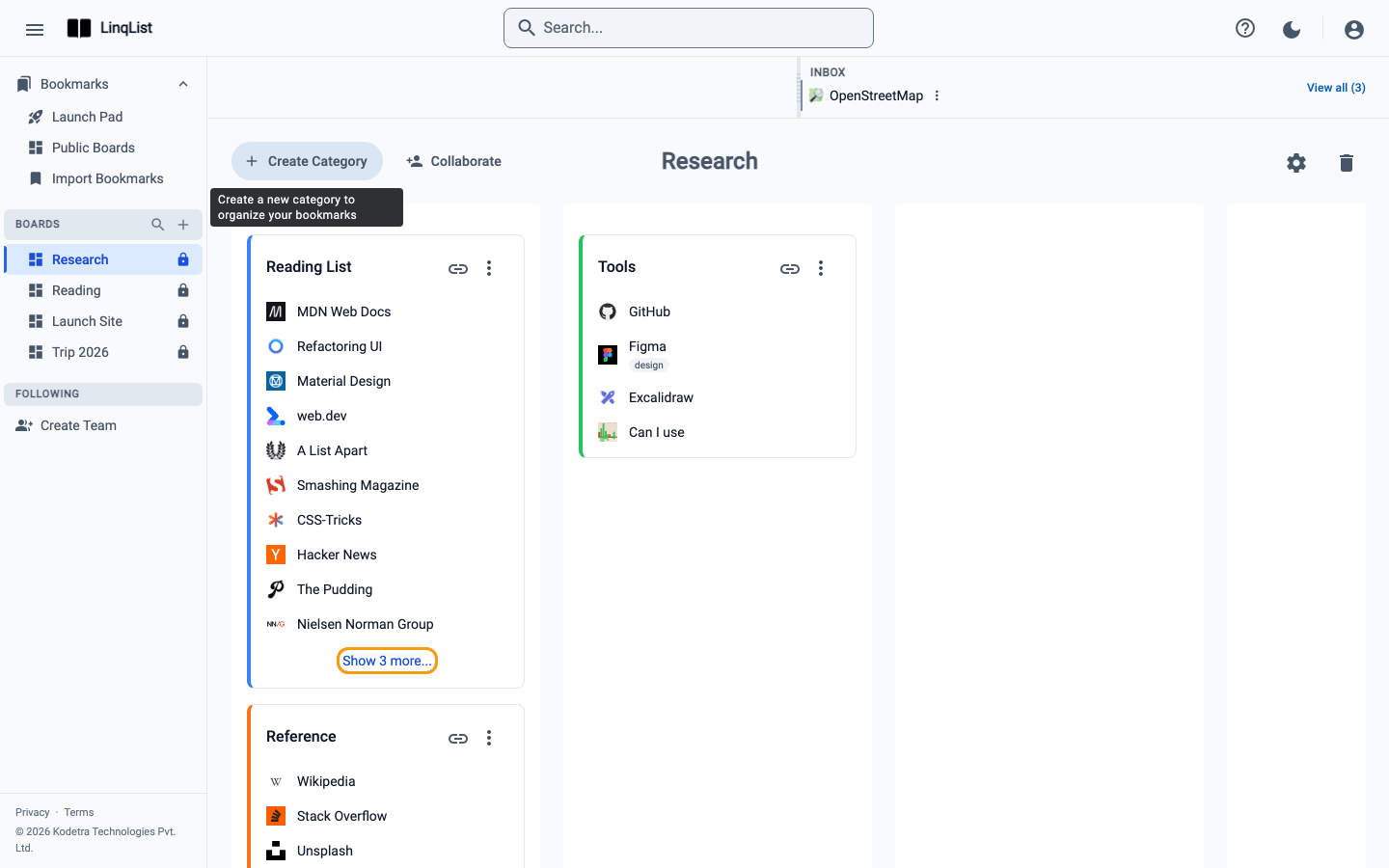
- Open a board and click Create Category in the board header.
- Type a name in Category Name. It needs 2 to 20 characters.
- Under Select Color, click one of the 18 swatches. The chosen colour shows a ring around it.
- Add a short Note (Optional) if you want a reminder of what belongs here.
- Click Add Category. The new card appears in the first column.
The colour appears as a stripe down the left edge of the card, which makes a busy board much easier to scan. Many people use one colour per kind of thing: blue for reading, green for tools, orange for things to do.
Add bookmarks to a category
Click the link icon in a category's header to open the inline form, enter a URL and a title, then click the check mark. You can also save pages with the browser extension and file them later. Long categories show the first 10 links, with a Show more link at the bottom and Show less to fold it back.
Edit a category
- Click the three-dot menu in the category header.
- Choose Edit Category.
- Change the name, colour or note, then save.
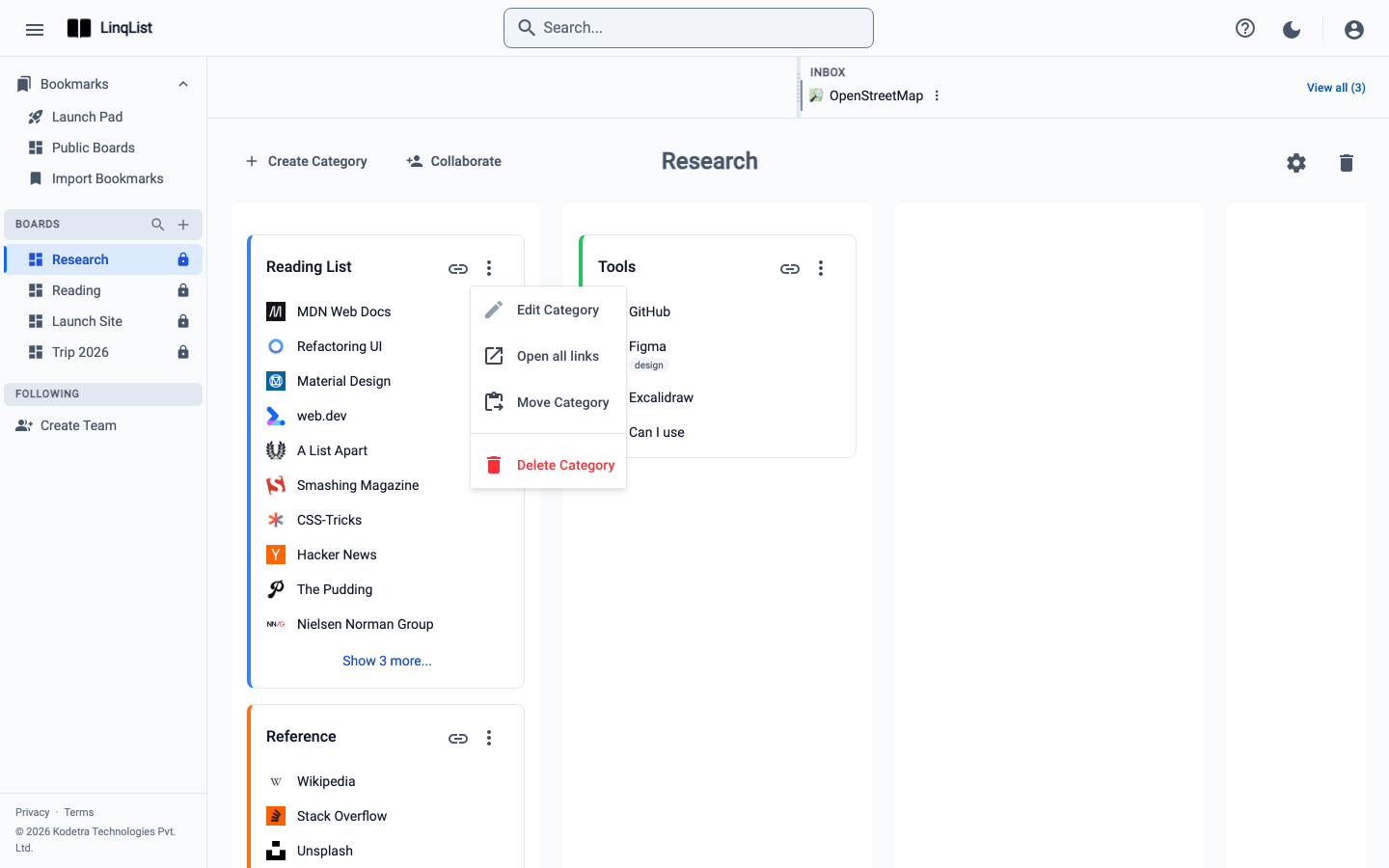
The same menu has Open all links, which opens every bookmark in the category in its own tab (your browser may ask to allow pop-ups the first time), Move Category, which sends the whole category with its links to a column on another of your boards (owners and admins only), and Delete Category, which asks you to confirm first.
Move a bookmark to another category
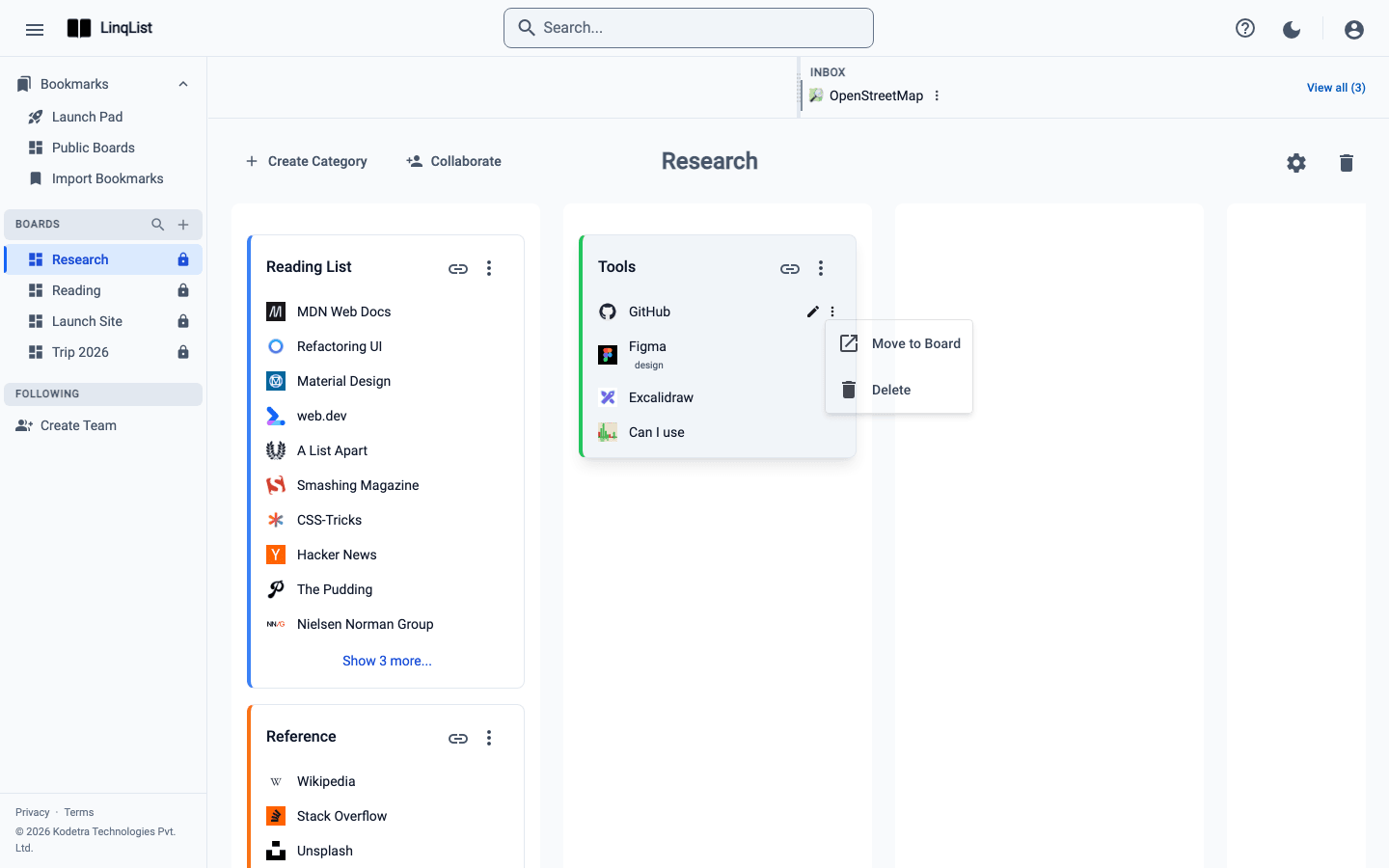
The easiest way is to drag it onto another card; see the drag and drop guide. If you prefer menus, hover over a bookmark, click its three-dot icon and pick Move to Board. That option is for sending a link to a different board and a category on it, and it is available to the board owner and admins.
Reorder categories
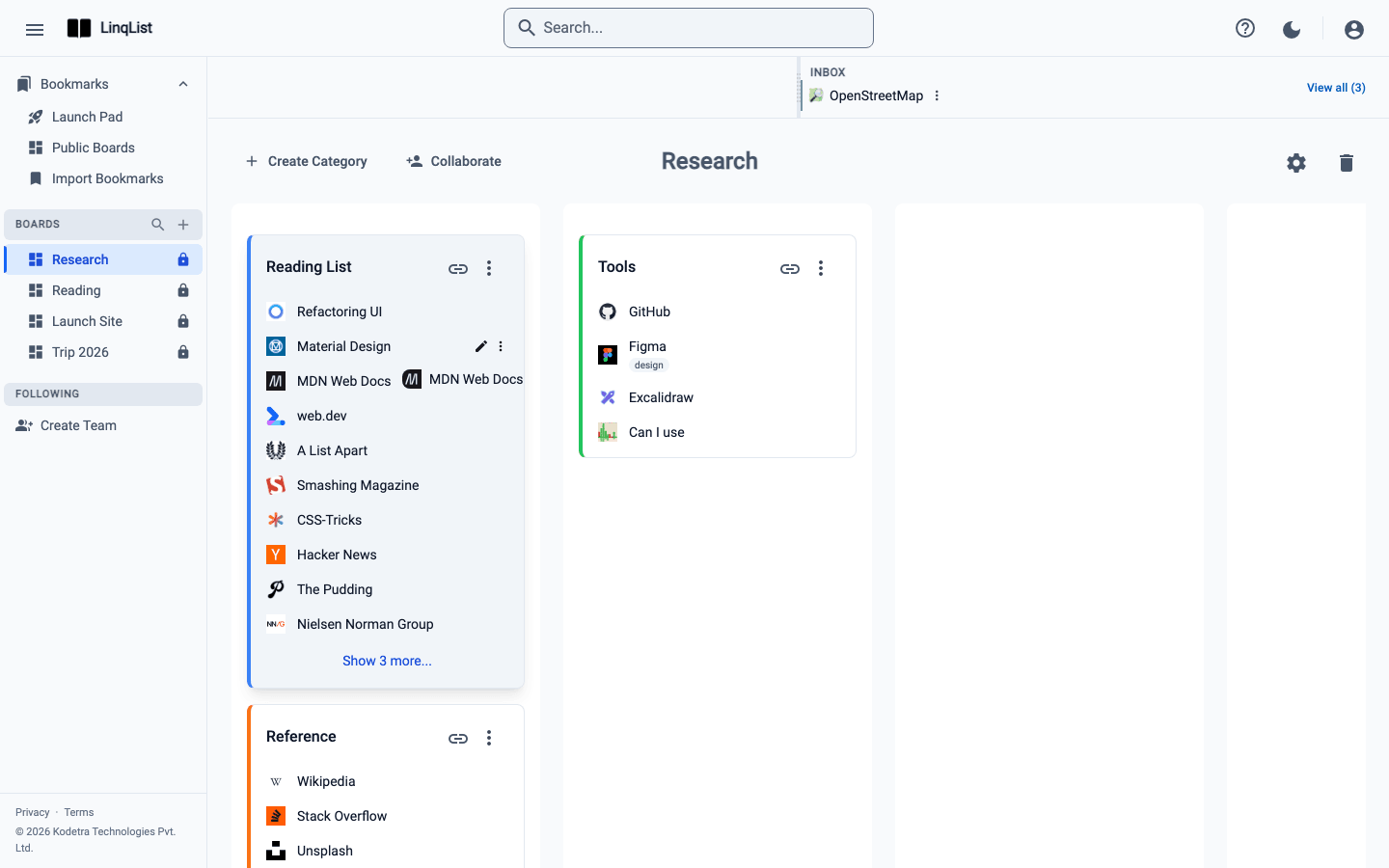
Drag a category card by its header up or down within a column, or across to another column. The new order is saved automatically.
Tips
- Keep categories to a handful per column; too many and the board scrolls forever.
- Use the note field for context ("only articles from 2025 onward").
- To tidy a board quickly, create the categories first, then drag the links in.
Ideas for category names
Good categories answer "when would I want this?" rather than "what is this?". For a research board you might use "To read", "Reference" and "Tools". For a trip, "Flights", "Places to stay" and "Things to do". For a project, "Inspiration", "Docs" and "Competitors". If a category passes about fifteen links, that is usually a sign to split it in two.
Notes and who can edit
The optional note on a category is a good place for a one-line reminder, such as why you made the group. On boards shared with you as a viewer you can read and open links, but the add and edit buttons are hidden, so category changes are for owners, admins and editors.