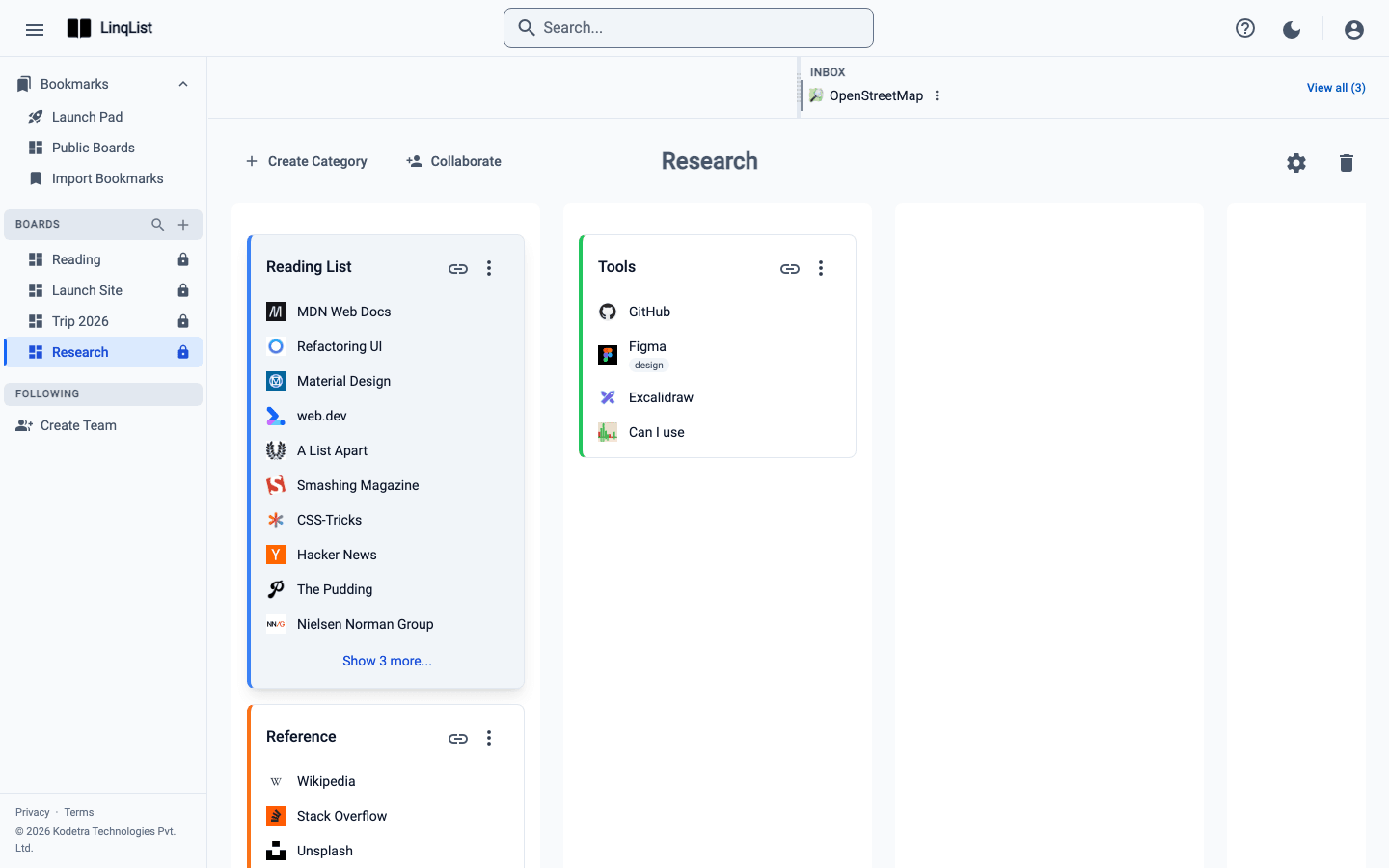
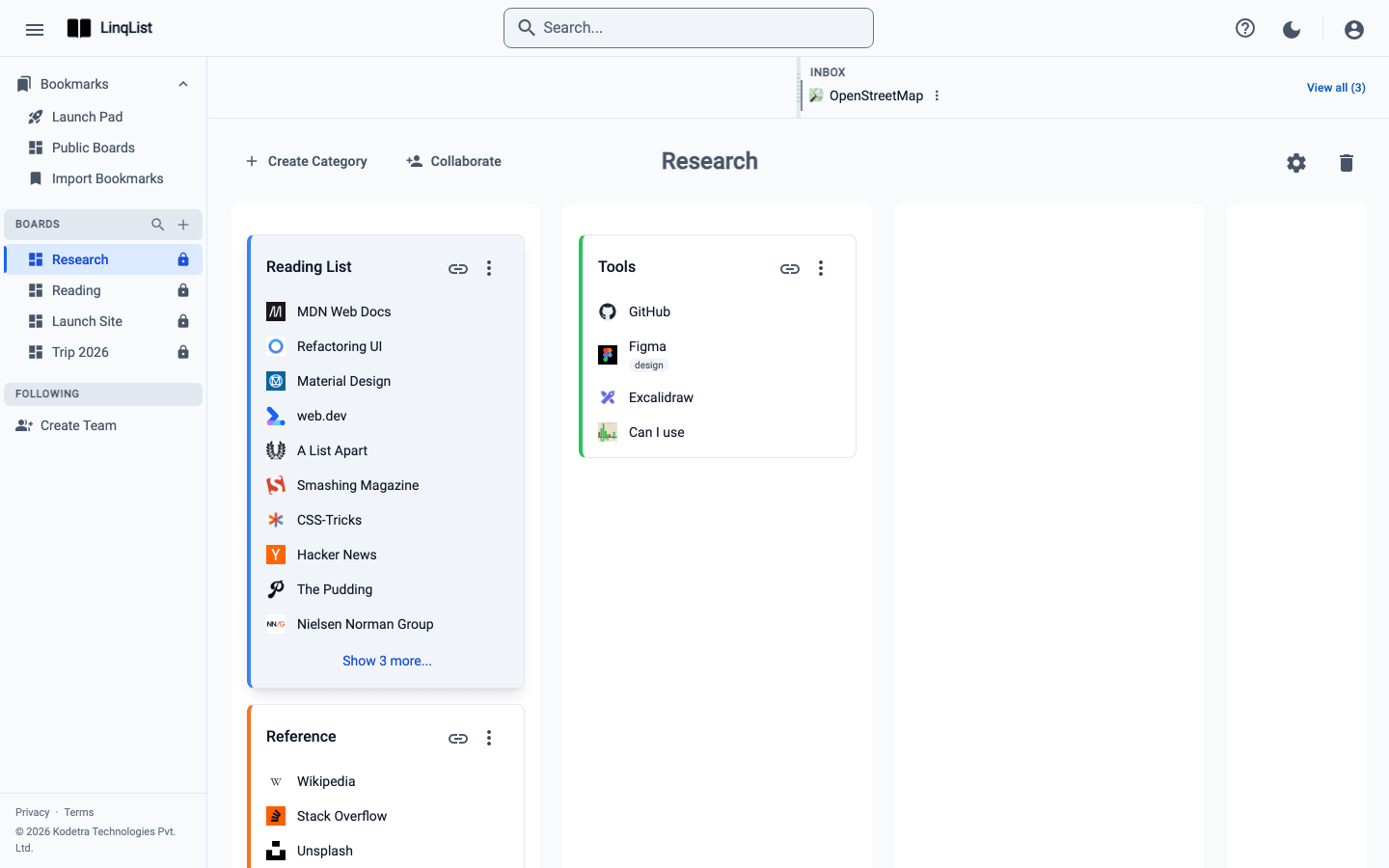
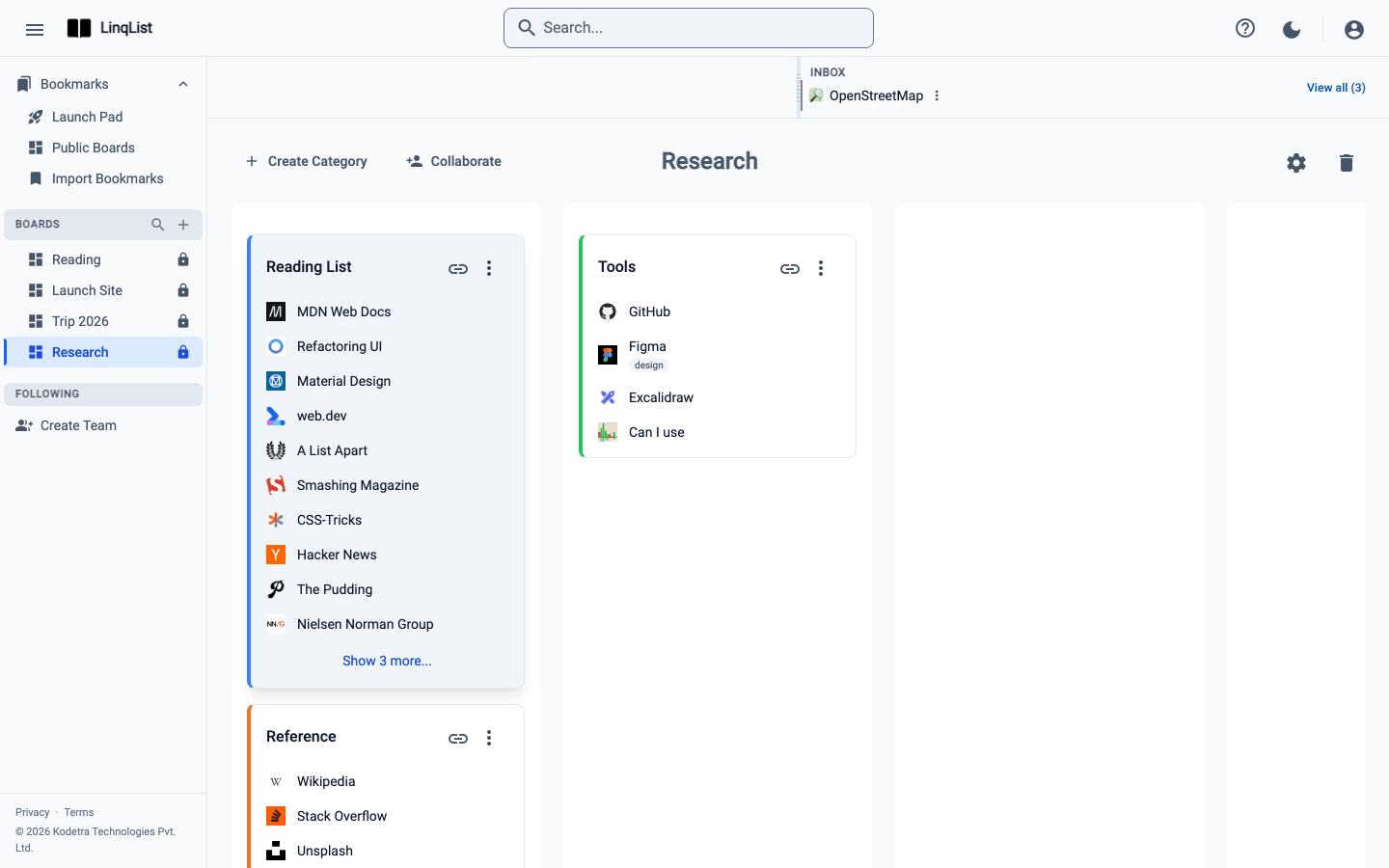
Drag and drop to organise
Sorting by hand is the fastest way to teach a board how you think. LinqList lets you drag almost everything, and every change is saved as soon as you drop.
What you can drag
- Bookmarks within a category to change their order.
- Bookmarks from one category to another, even in a different column.
- Categories up and down within a column to reorder them.
- Categories from one column to another.
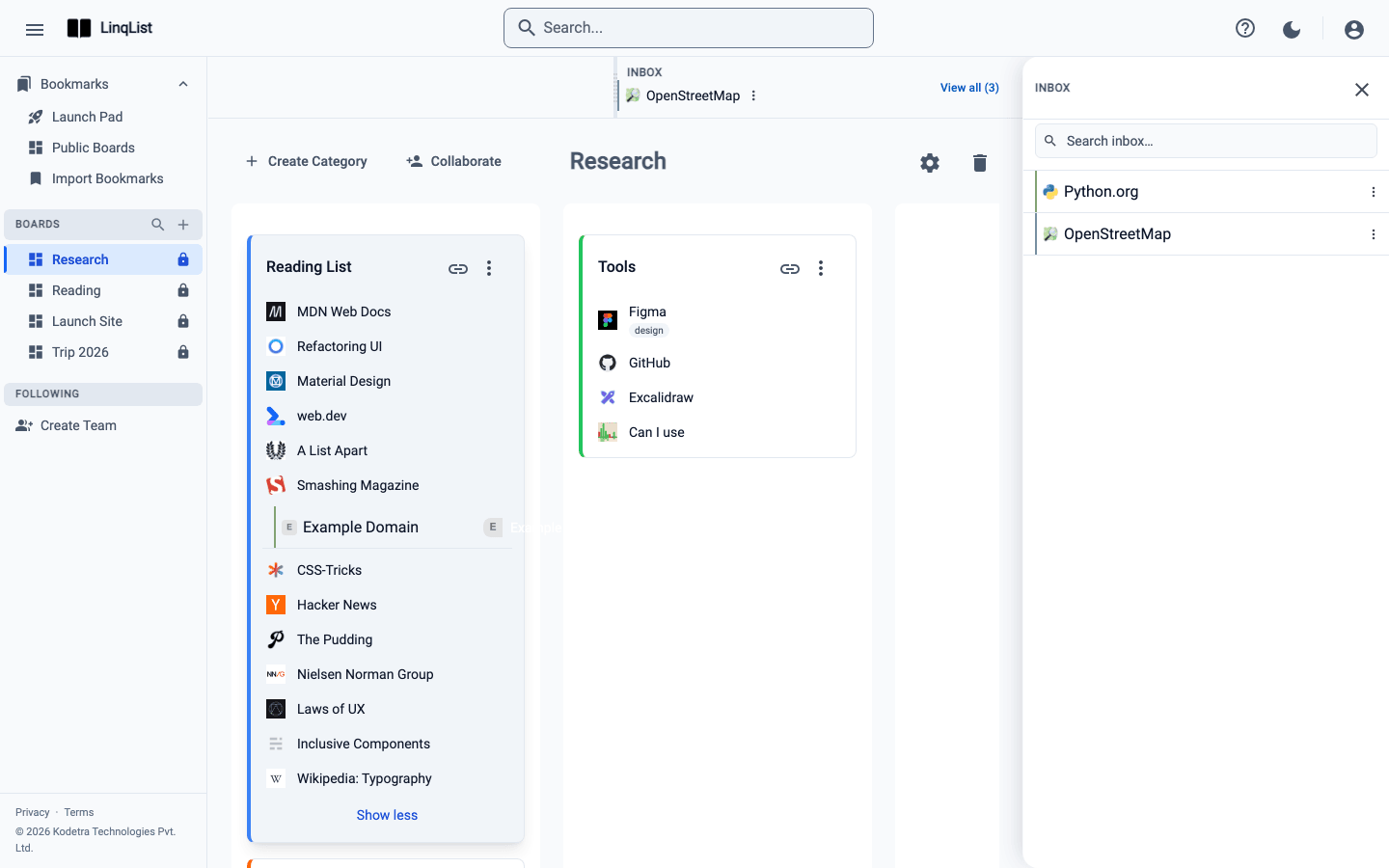
- Inbox items onto a category, to file a saved page.
Reorder bookmarks
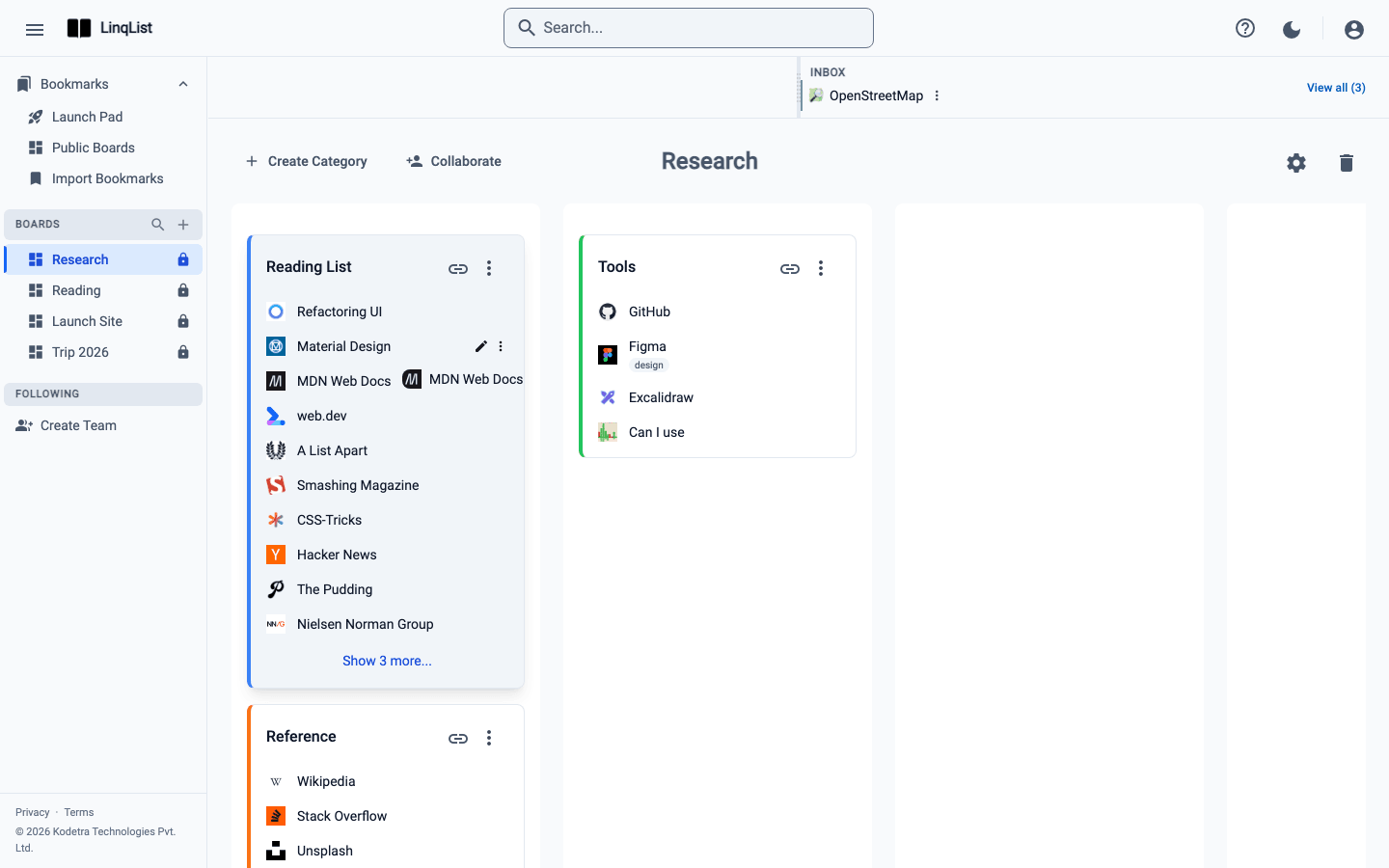
- Point at a bookmark row, press and hold the mouse button, and start moving.
- A floating copy of the row follows your pointer and a gap opens where it will land.
- Release to drop it in place.
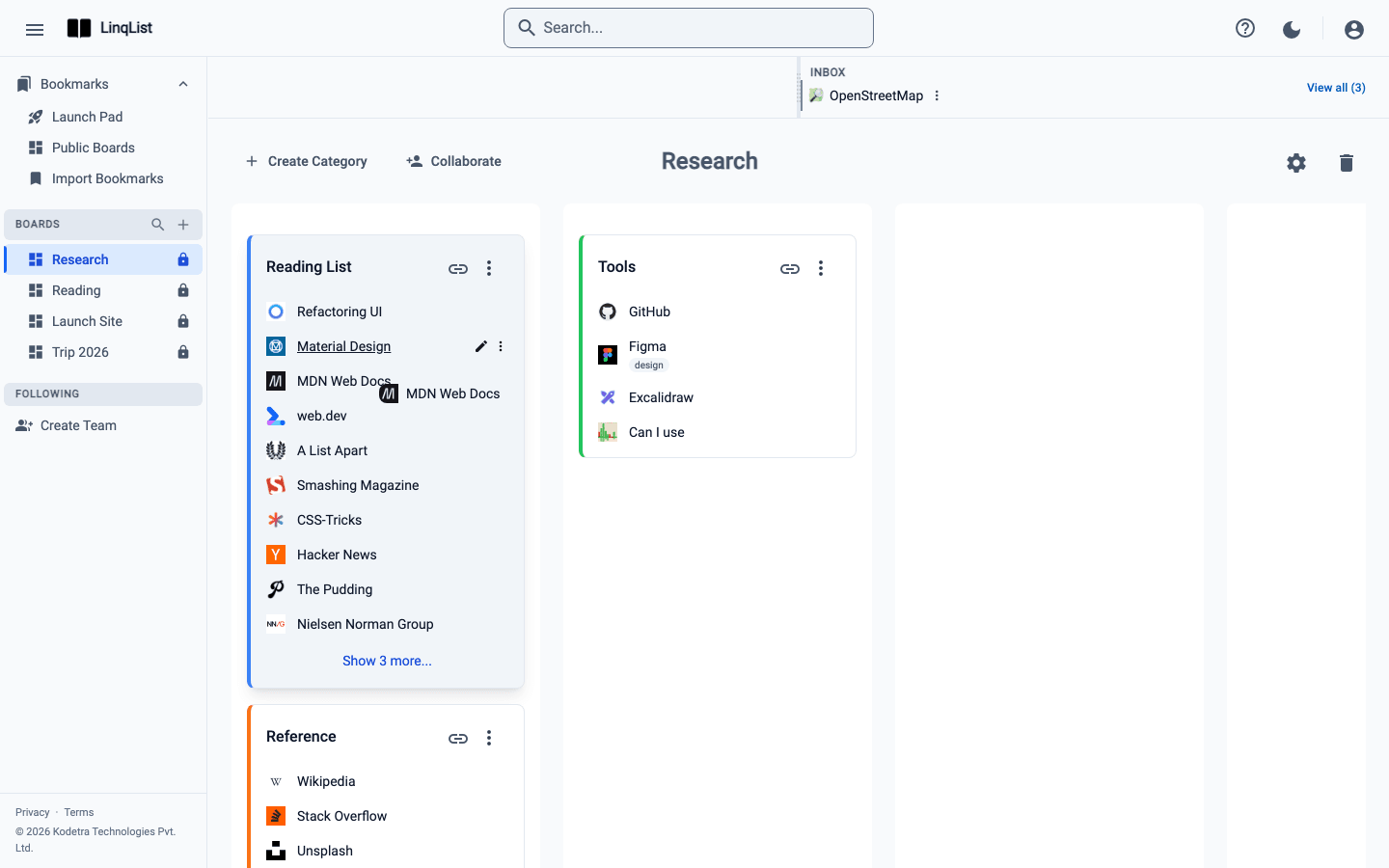
Move a bookmark to another category
Drag the bookmark out of its card and over any other category on the board. The other card makes room; drop the row and it belongs to the new category. You can drop it at a specific position in the list, not just at the end.
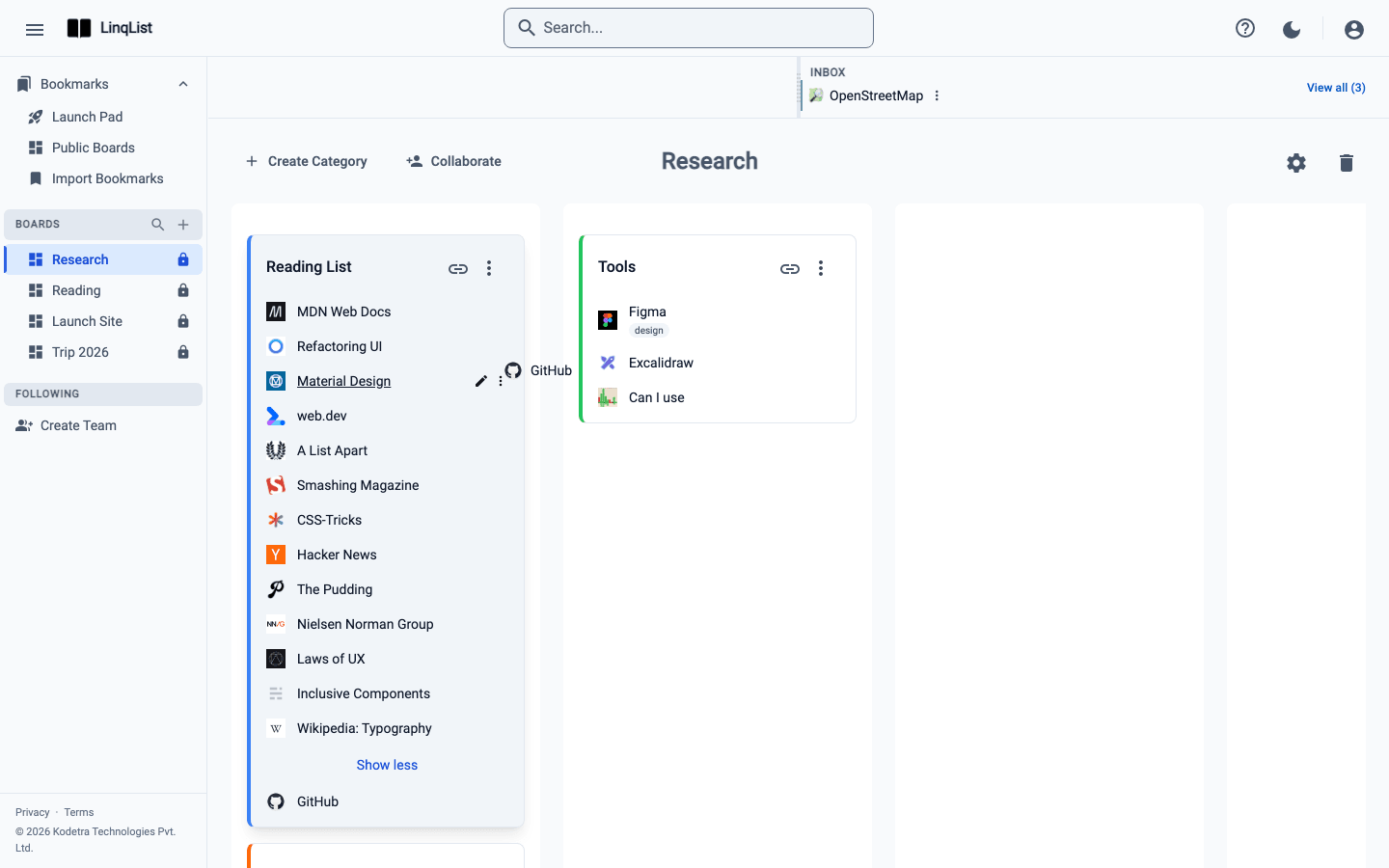
Bookmarks can only be dropped onto other categories on the same board. To send one to a different board, use the bookmark's three-dot menu and Move to Board.
Rearrange categories and columns
Grab a category card by its header area and drag it. Drop it above or below another card to reorder, or into a different column to move it there. Your columns are the lanes side by side, and they are fixed; you rearrange the categories inside them.
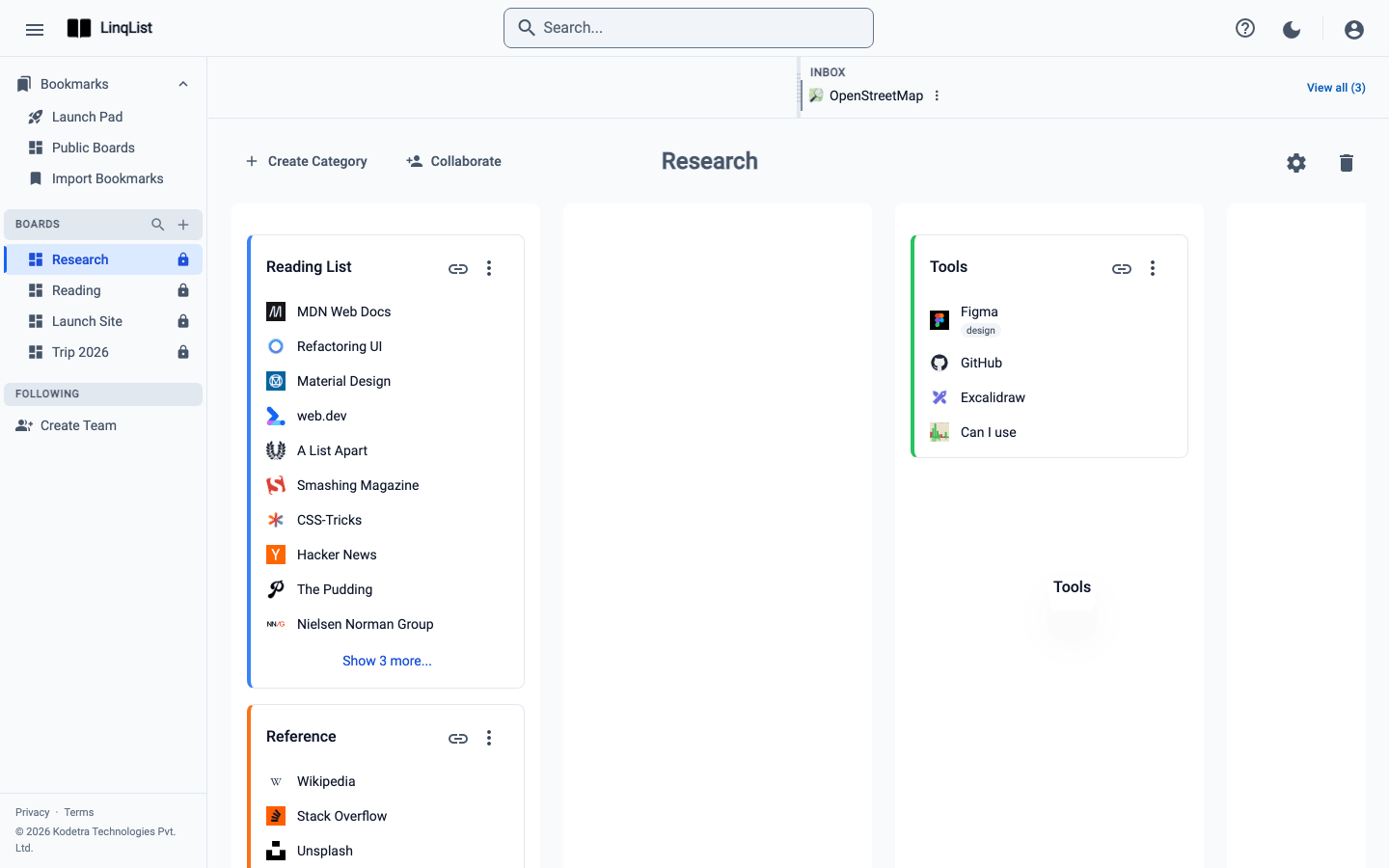
To send a whole category to a different board, use its three-dot menu and choose Move Category: pick the target board, then a column on it. Moving within the same board is done by dragging. Move Category is available to the board owner and admins, and you need edit access on the target board.
File inbox items
Pages you save with the browser extension wait in the Inbox. Open it from the sidebar and drag an item straight onto a category. It leaves the inbox and becomes a bookmark in that spot.
Tips
- Drag slowly on the first try; the gap shows where the item will land.
- On boards shared with you as a viewer, the edit controls are hidden.
- Made a mistake? Drag it back. Nothing is deleted by dragging.
When dragging is awkward
Dragging long distances on a very tall board can be fiddly. A few tricks help. Zoom the browser out a step so more of the board fits on screen. Drop the item into a nearby category first and then drag again. If the item belongs on another board altogether, skip the drag and use the menus: the bookmark menu offers Move to Board and the category menu offers Move Category.
Why order matters
Order is saved, so you can use it. Put the links you open every day at the top of a category, and leave the occasional ones lower down. If a category has more than ten links, only the first ten show until you click Show more, so the top spots are the ones you see.