Dark mode and personalising your workspace
You will look at your bookmarks every day, so it helps if they look the way you like. LinqList has a light and a dark theme, category colours and a movable extension button.
Switch to dark mode
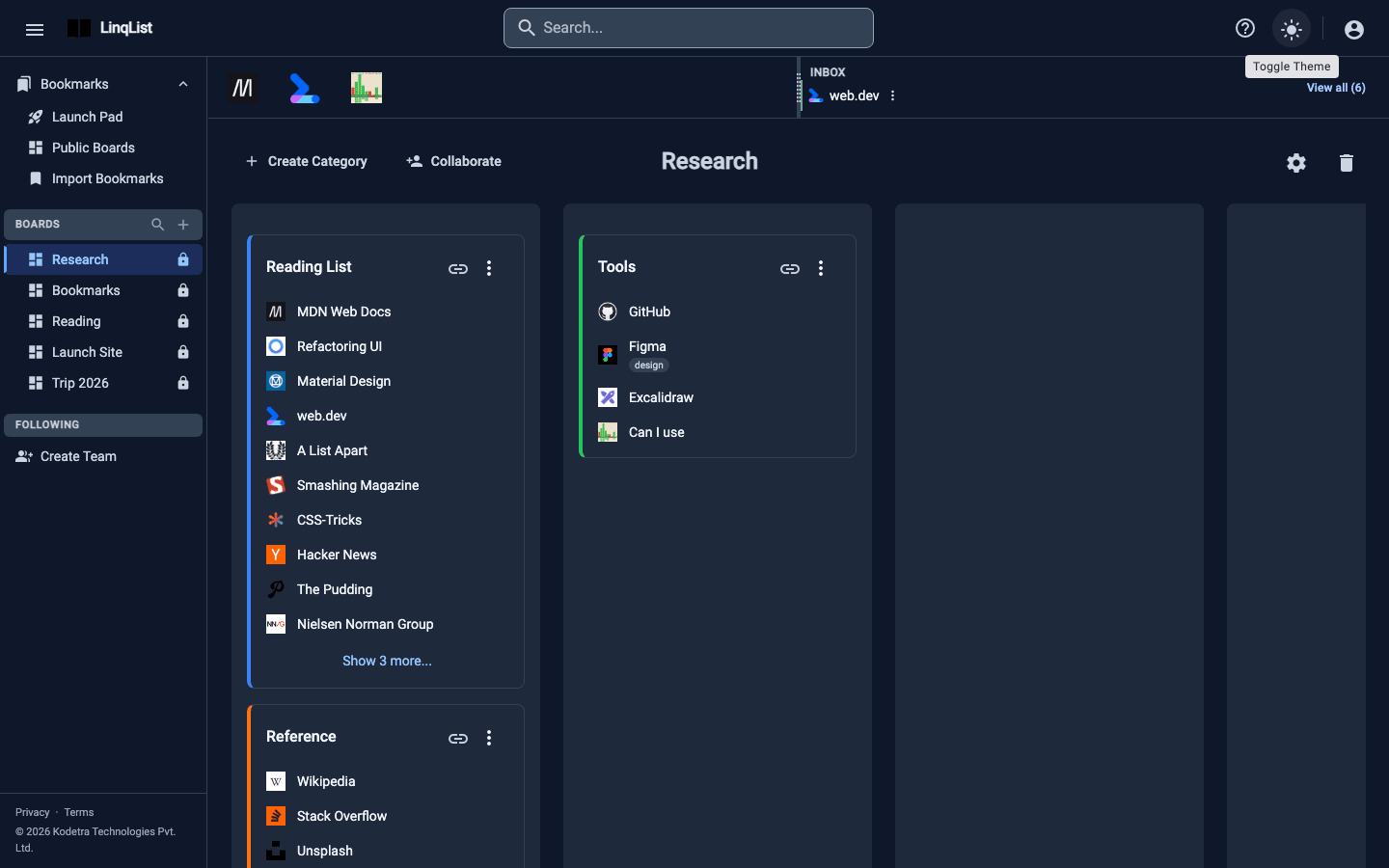
- Look at the right side of the top bar.
- Click the moon icon (Toggle Theme). The whole workspace changes at once.
- Click the sun icon that replaces it to go back to light.
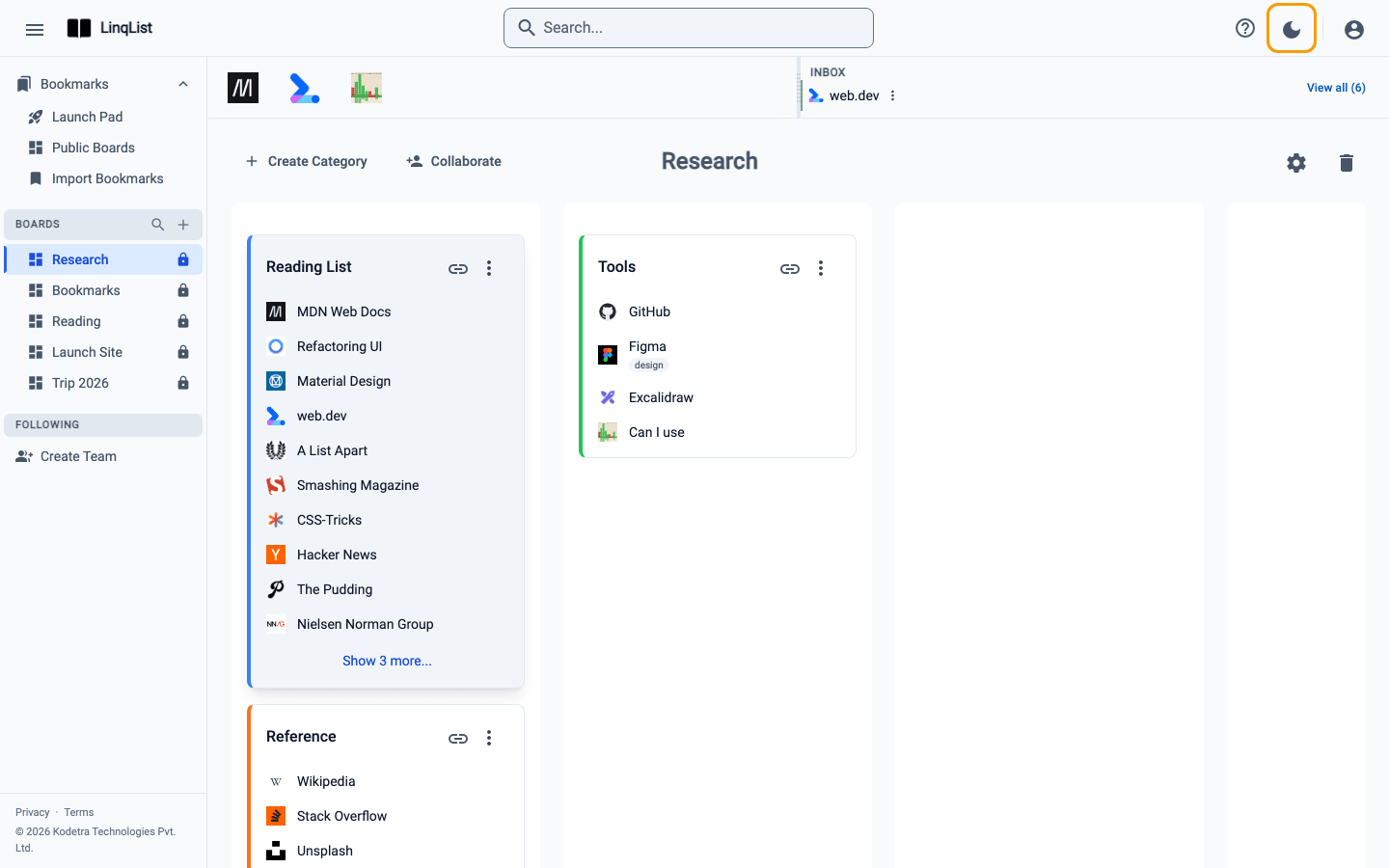
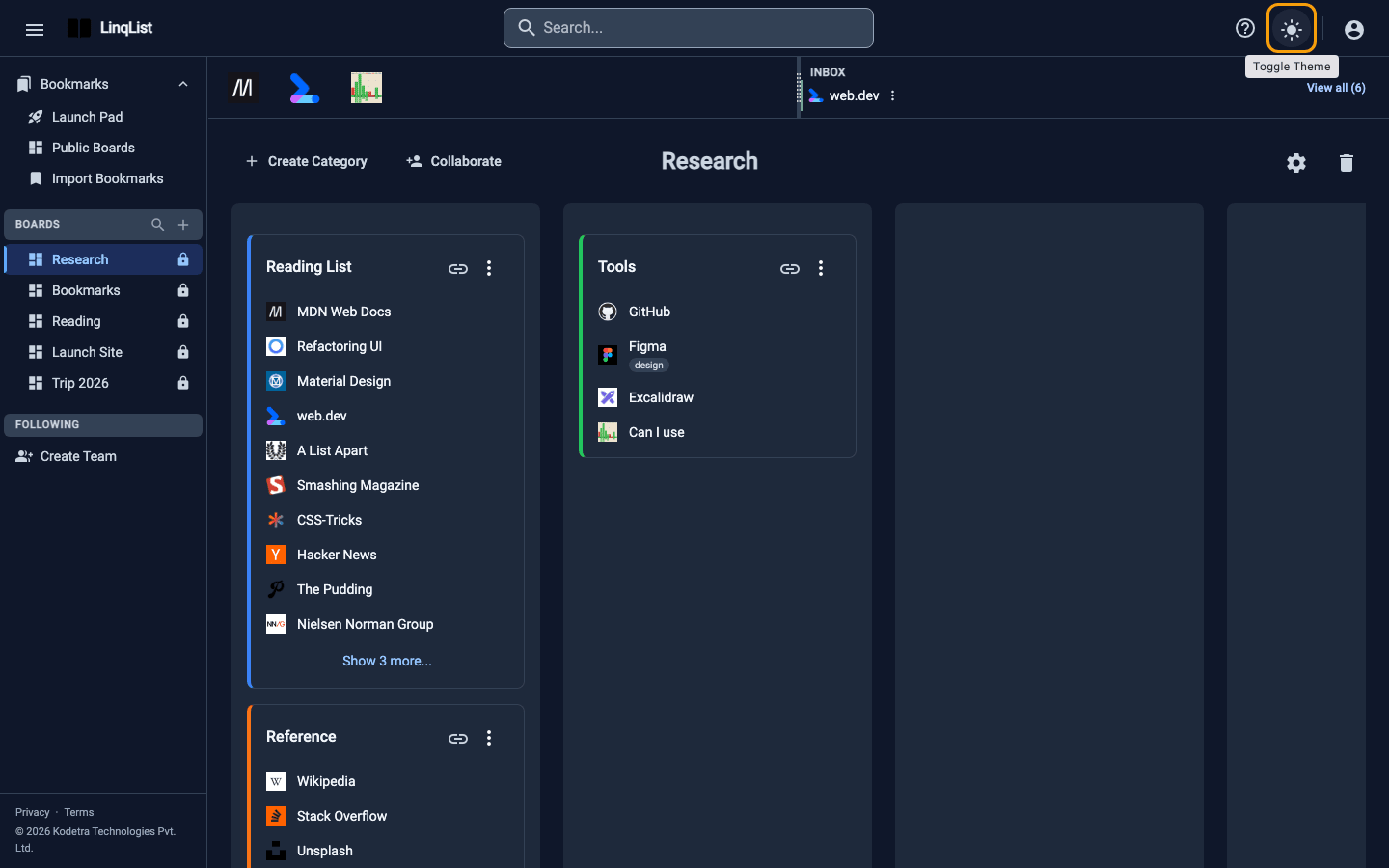
LinqList remembers your choice on this device. If you have never picked, it follows your system setting (the same light or dark preference your operating system uses) the first time you visit. The extension remembers your theme too, so its pages match.
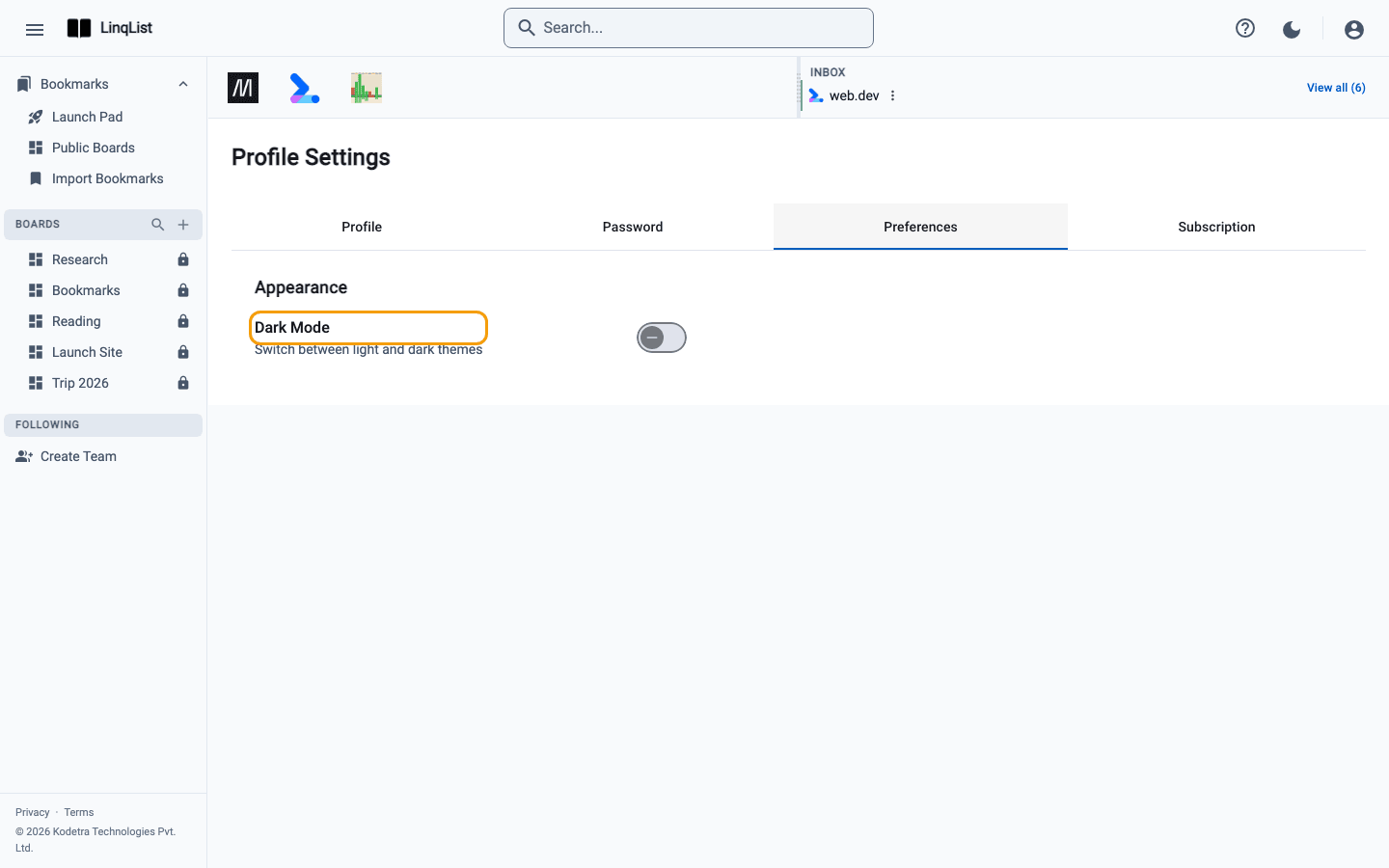
Prefer a settings page? Open Profile from the account menu, go to the Preferences tab and switch Dark Mode under Appearance. It is the same setting as the top-bar toggle, so use whichever is closer.
Colour your categories
Every category has a colour stripe. Open a category's three-dot menu, choose Edit Category and pick one of the 18 swatches. A consistent scheme makes boards faster to read, especially in dark mode where colours stand out. See Categories for more.
Move the extension button
The floating save button from the browser extension sits in the bottom-right corner by default. If it covers something, drag it elsewhere. It snaps to the nearest side edge and keeps its place on every page.
Set up your profile
- Open the account menu (person icon, top right) and choose Profile.
- In the Profile tab, use Update under Profile photo to upload a PNG, JPEG or WebP up to 5 MB.
- Fill in your name, bio and country and click Update.
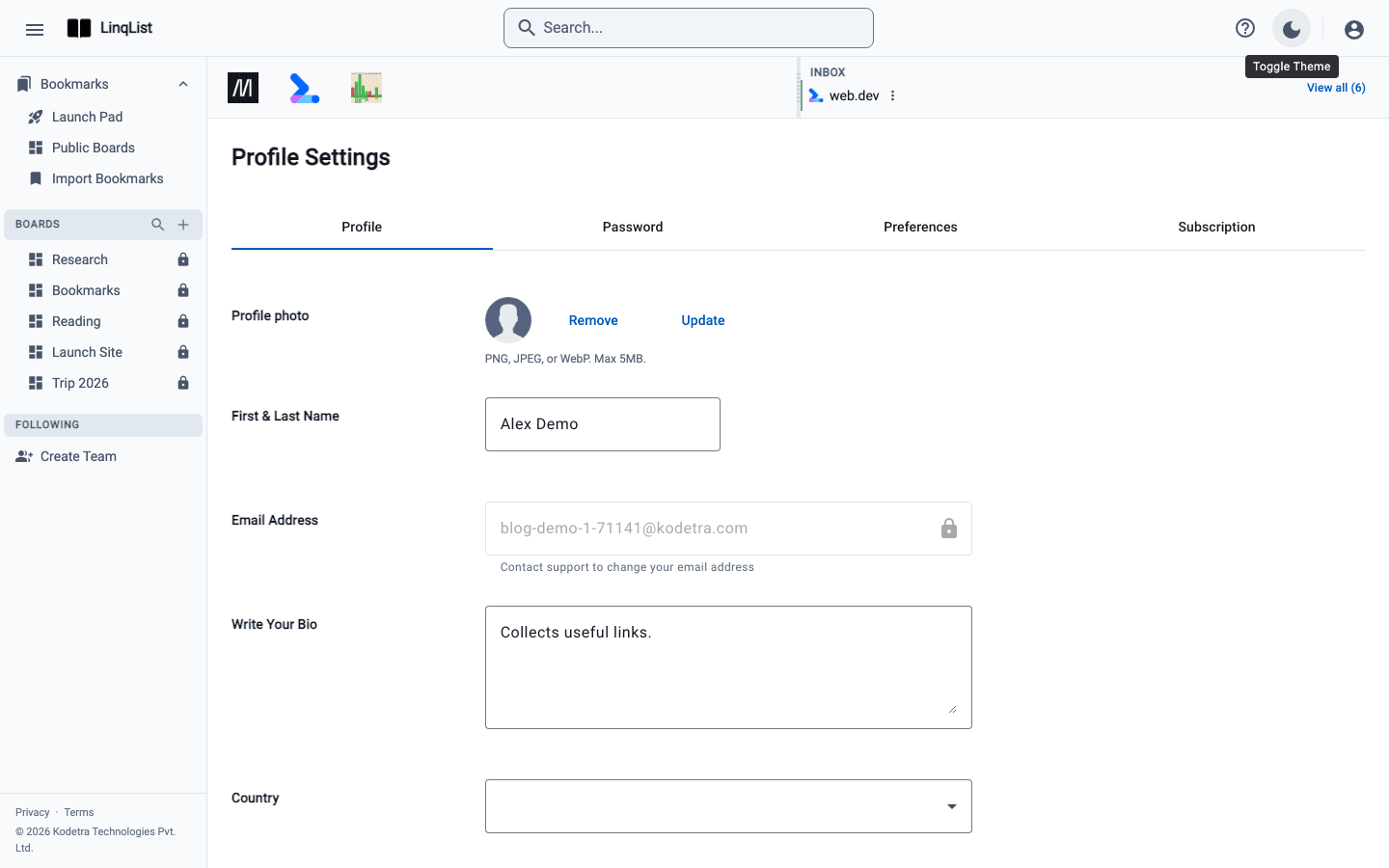
Your email address is locked; contact support if you need to change it.
Other small touches
- Press Cmd+B (Ctrl+B) to hide the sidebar and give boards more room.
- Press ? to see all keyboard shortcuts.
Why a dark theme helps
Dark mode is easier on the eyes in a dim room, and on many screens it saves a little battery. It is also a matter of taste, so LinqList does not force either. Because the setting is stored on the device, you can use dark on your laptop at night and light on a work machine in the day.
If the theme looks wrong
If the page shows the wrong theme after a change, reload once; the theme is applied as the page loads. Remember that the choice is per browser, so signing in on a new device starts from your system setting until you press the toggle there.