Follow public boards
Other people have already collected the links you are about to go looking for. LinqList lets you browse boards that their owners made public and follow the ones worth keeping an eye on. A followed board sits in your sidebar and shows the owner's current version every time you open it.
Find boards to follow
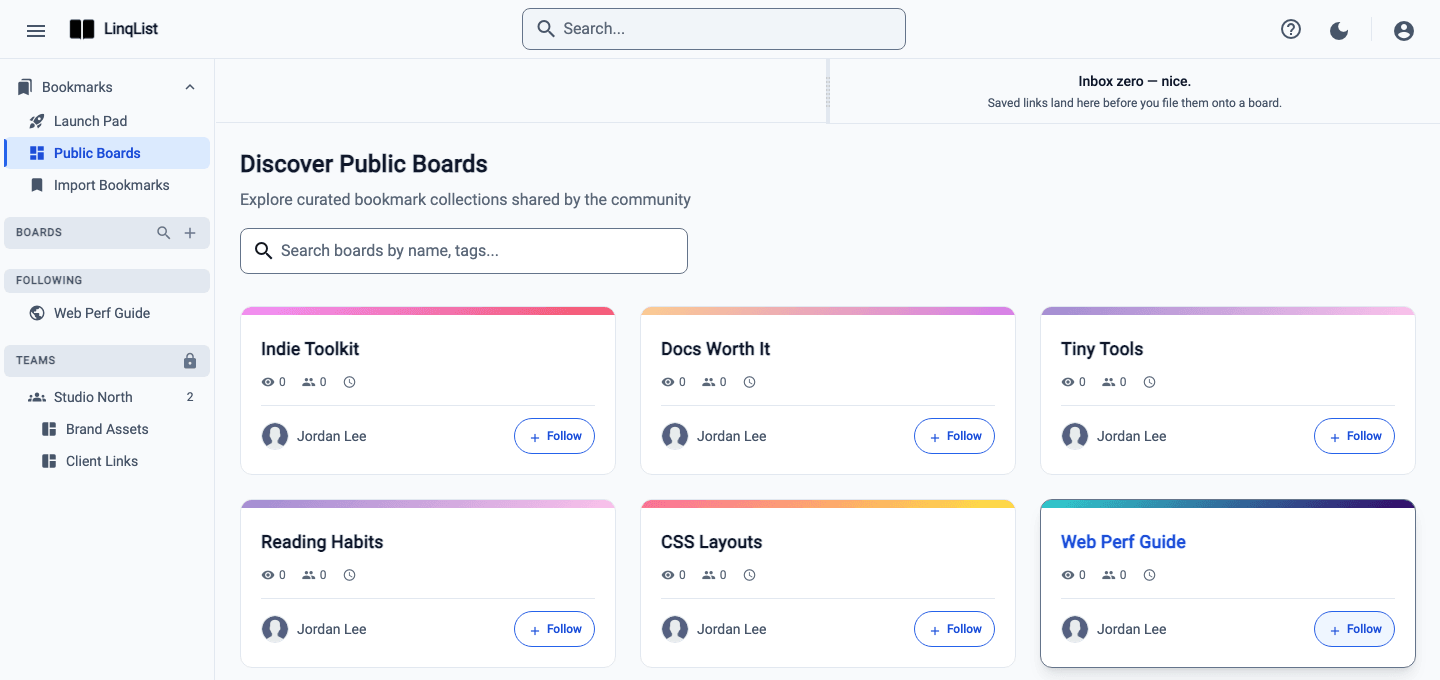
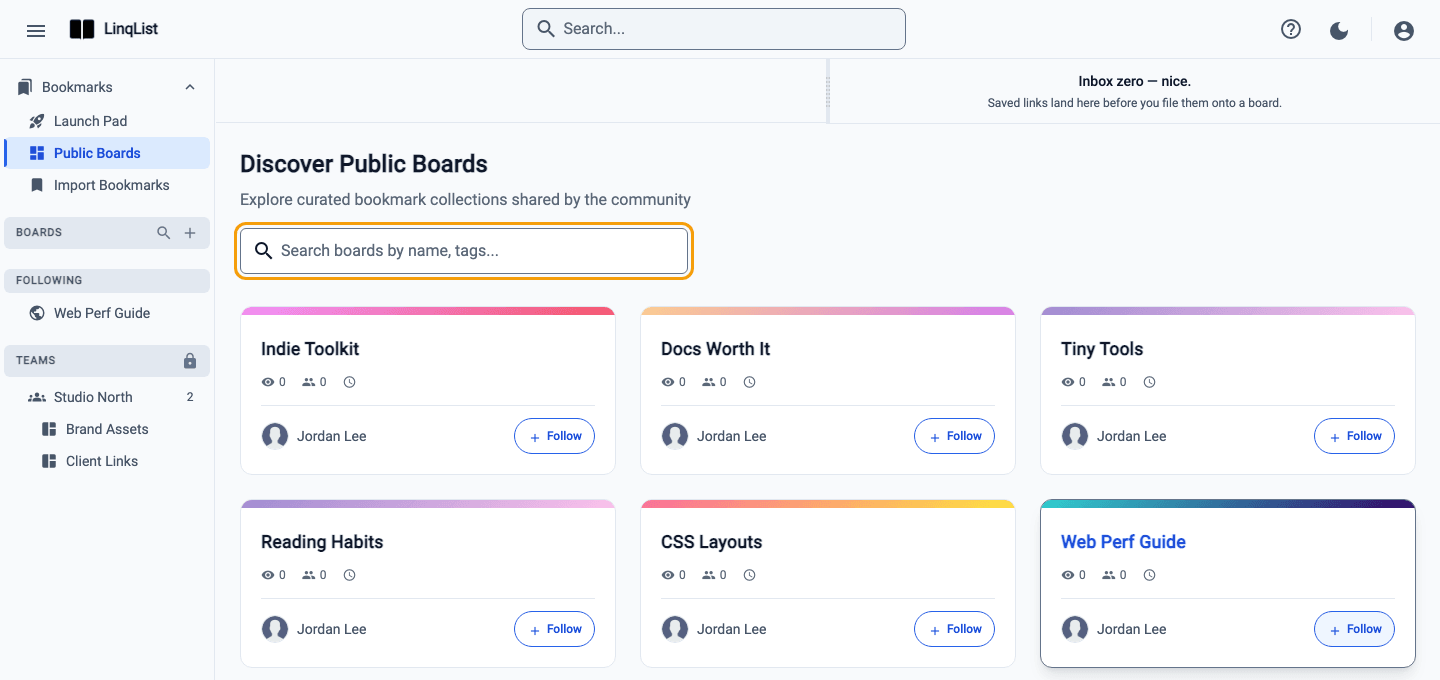
- Sign in and open Bookmarks in the sidebar, then choose Public Boards. The page is titled Discover Public Boards.
- Browse the cards, or use the search box (Search boards by name, tags...). Each card shows the title, the owner, and counts for views, followers and creation date.
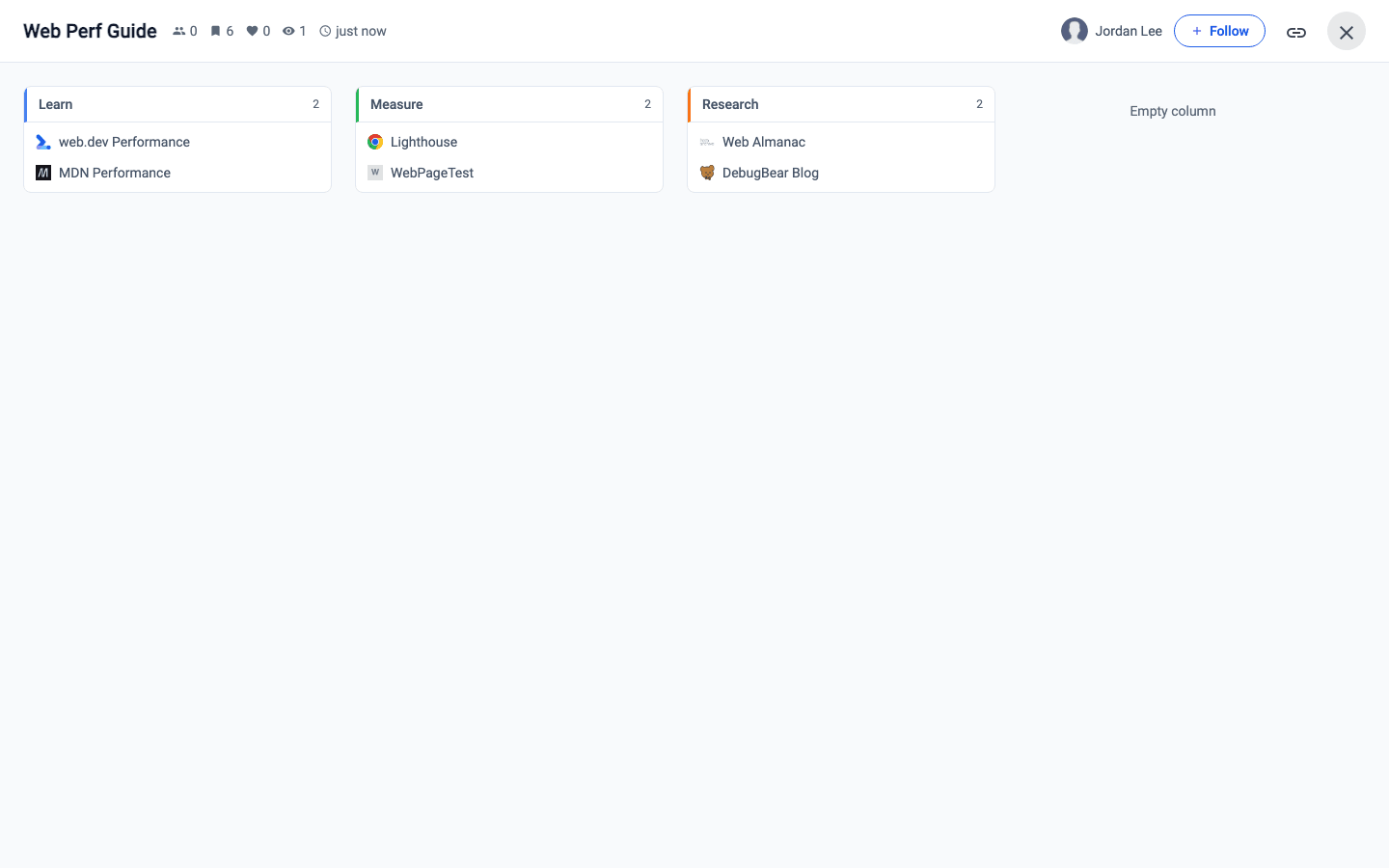
- Click a card to open a preview with the full contents, plus follower, bookmark, like and view counts and when the board was last updated.
Follow a board
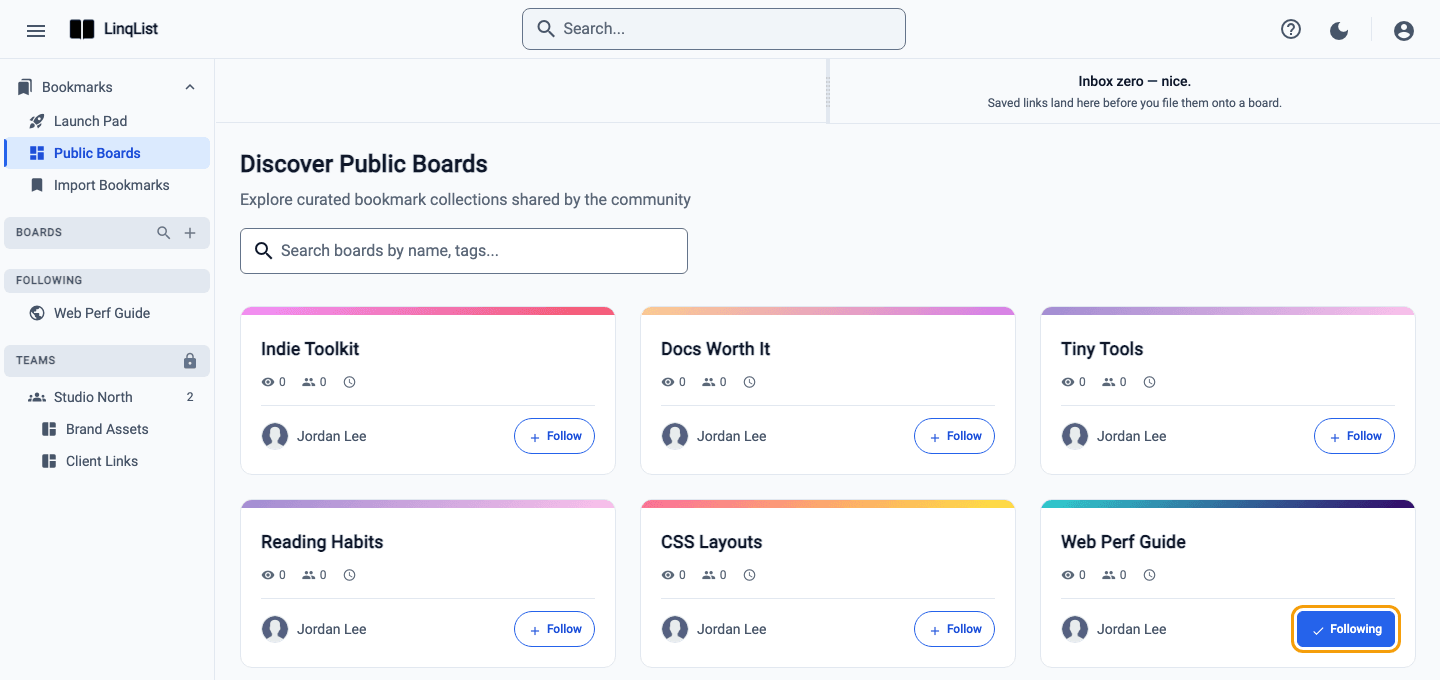
Click Follow, either on the card or in the preview. The button changes to Following. Your own boards are not listed here.
Open what you follow
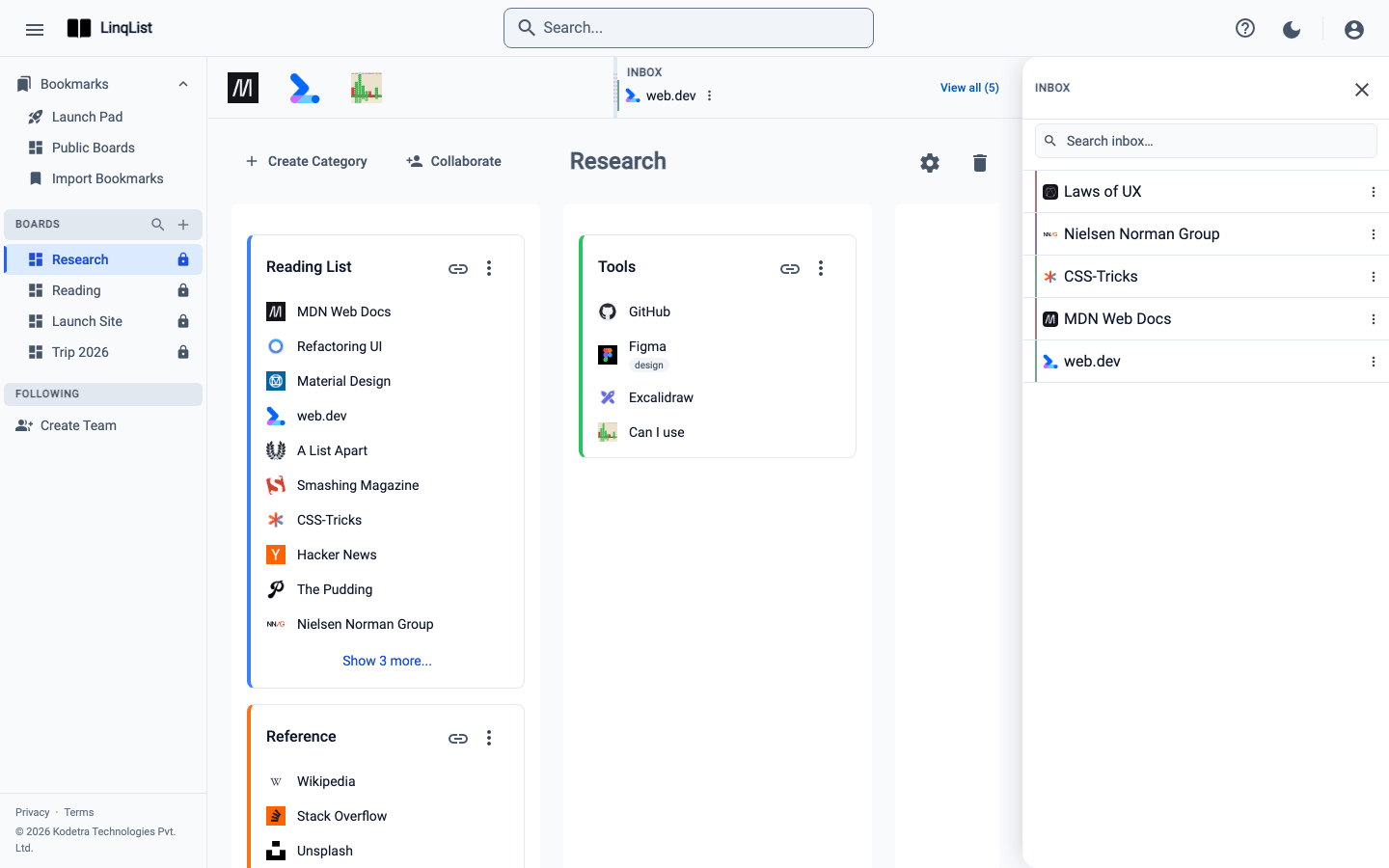
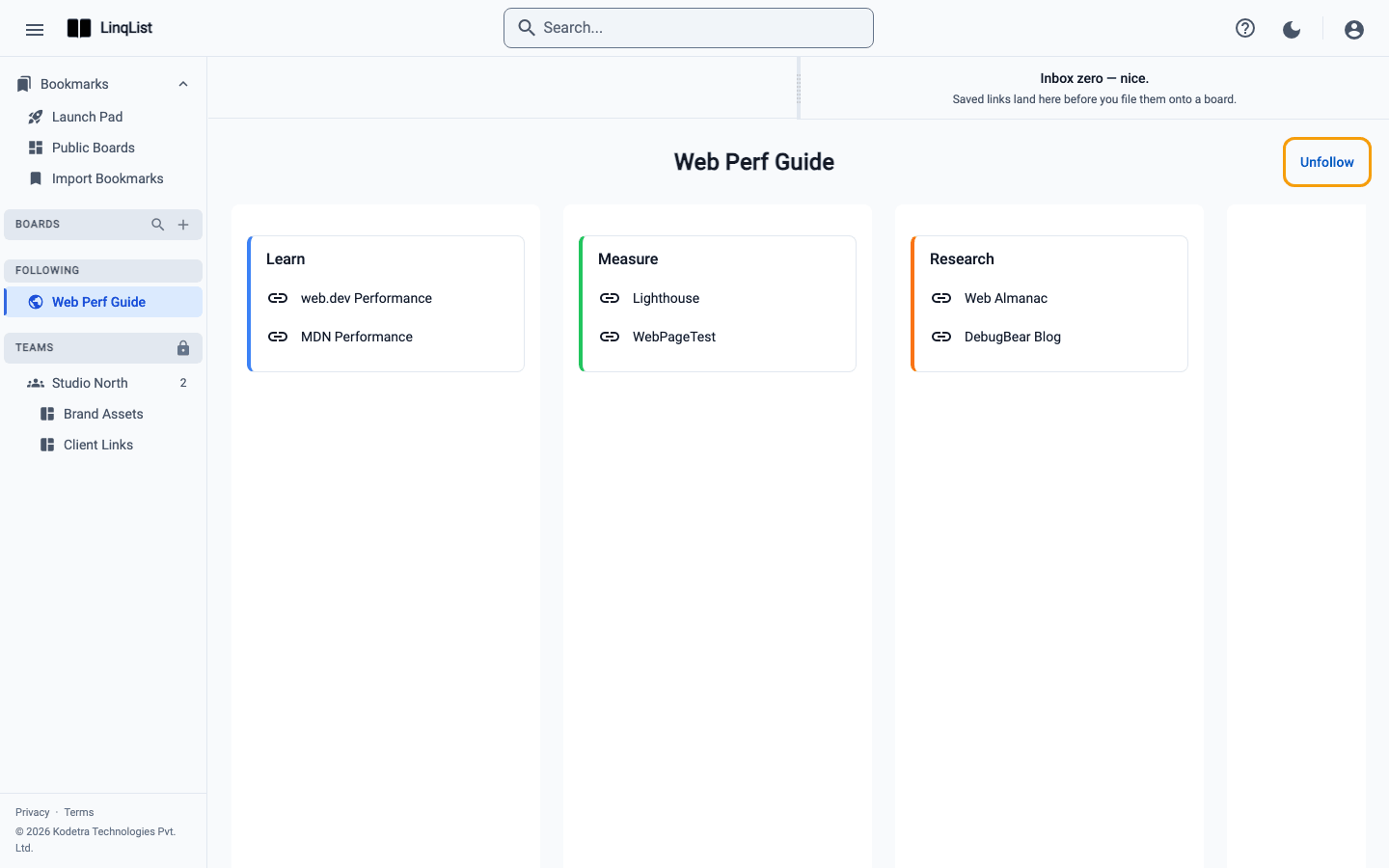
Followed boards are listed in the sidebar under Following. Click one to open it. You see the owner's bookmarks laid out by column and category. Categories with more than ten links show Show N more...; click it to expand and Show less to fold it back. Everything is read-only, and links open in a new tab.
Unfollow
Open the board from Following and click Unfollow. You can also go back to Public Boards, where the button reads Following and turns into Unfollow when you point at it.
About likes
Boards show a like count (the heart icon) in the preview and on the shared page. LinqList does not have a like button in the app right now, so you can only read the count. Follows, on the other hand, are yours to give, and the follower number on each card is the quickest way to tell which boards other people find useful.
Tips
- Following does not copy the board into your account; you always see the owner's current version.
- Want to keep your own copy of a few links? Open the followed board and save the ones you like with the extension, or add them to your own board.
- Want others to follow yours? Make it public and share the link.
Why follow instead of bookmarking one link
A single bookmark goes stale. A followed board does not: when the owner adds a link or reorganizes a category, you see the new version the next time you open it. That makes following a good fit for a curated reading list on a topic you are learning, a colleague's collection of tools, or a community resource that someone keeps up to date.
It also works the other way. The follower count on your own boards is a quick read on whether other people find them useful, and it is shown on the preview and on the shared page.
Finding good boards faster
- Read the signals. Follower and view counts on each card show what other people actually use.
- Search by name. Typing a topic such as design into the search box narrows the list quickly.
- Use the page controls at the bottom to show 5, 10, 25 or 50 boards per page.
- Can't see a Follow button? Sign in. Signed-out visitors can browse a public board but cannot follow it.