Quick links and the Inbox
Two small features keep LinqList from turning into a pile: the Inbox catches links you have no time to file yet, and Quick Links keep the sites you open every day one click away.
The Inbox: save now, sort later
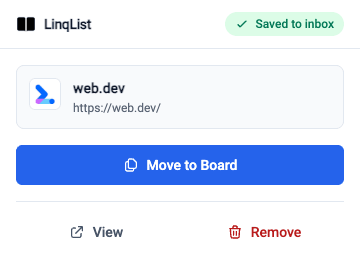
When you click the LinqList extension icon on a page, the page is saved to your Inbox straight away. The popup says Saving… and then Saved to inbox. You do not have to pick a board first.
- Click the LinqList icon in your browser toolbar on any page you want to keep.
- Wait for Saved to inbox. If it says Not saved, click Try again.
- To file it right away, click Move to Board, pick a Board, then a Category (or + New category), and confirm. Otherwise just close the popup, and the link waits in the Inbox.
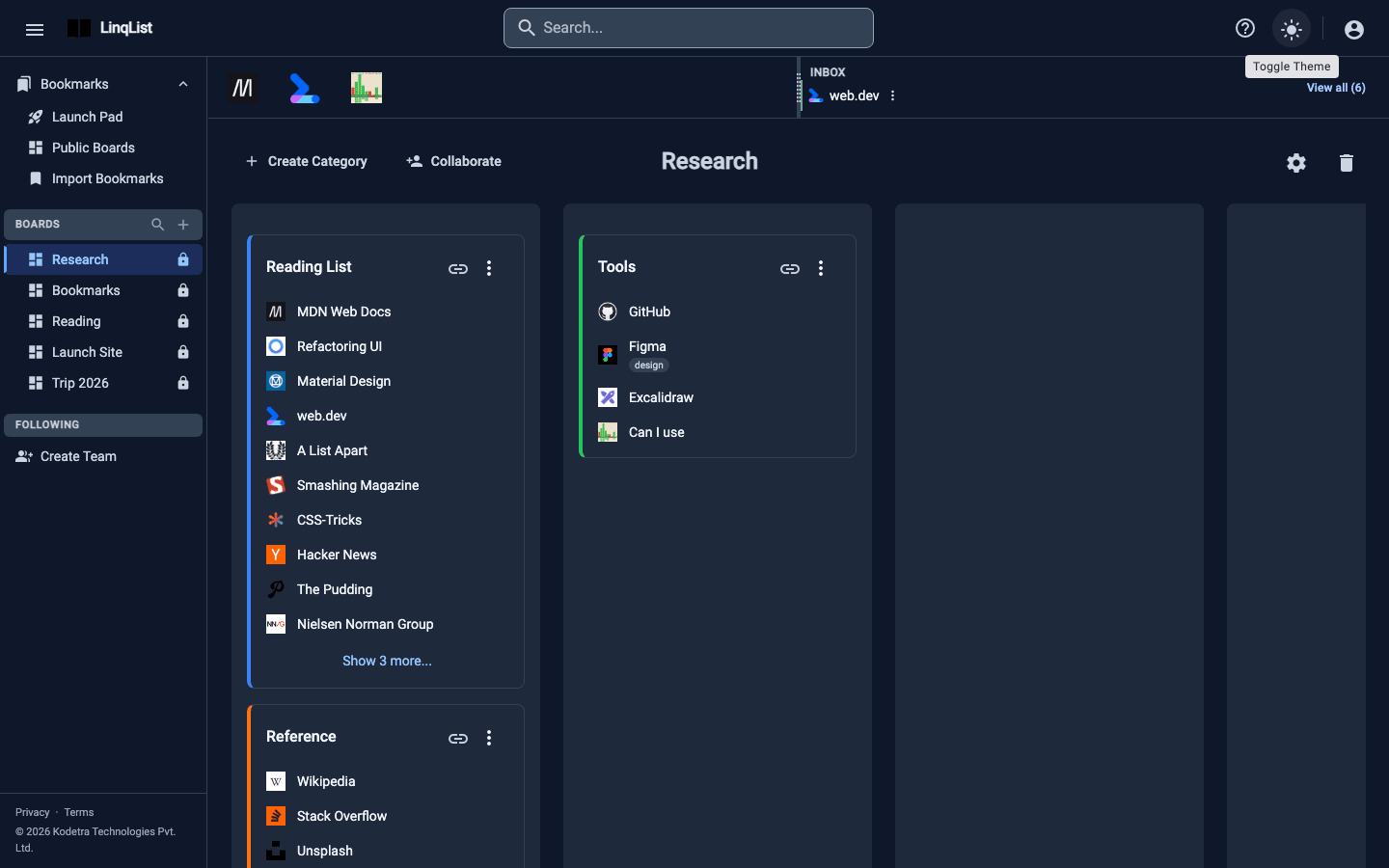
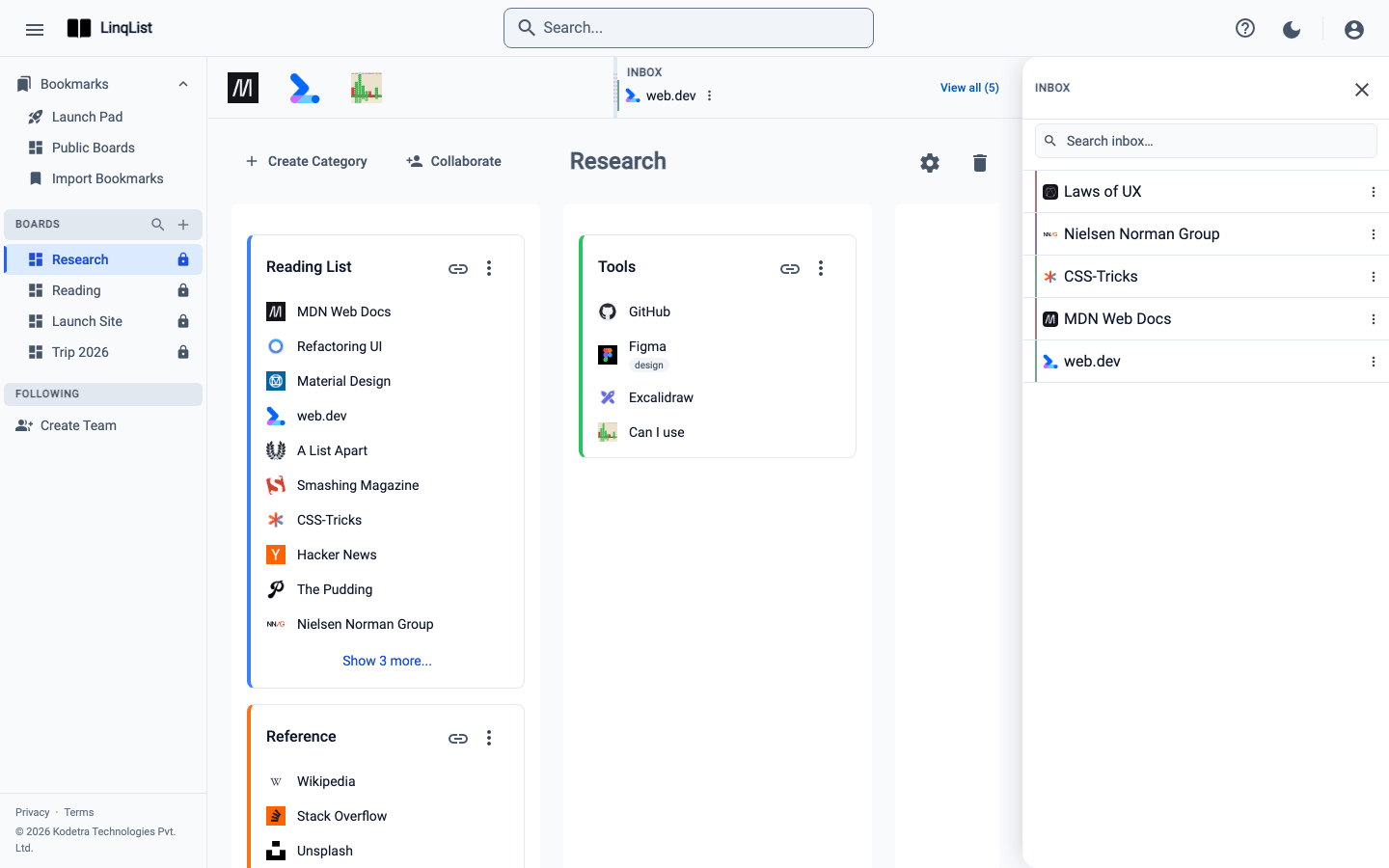
Back in the web app, the Inbox strip at the top of your boards shows your newest saved link and a View all (N) button. Click it to open the Inbox drawer on the right. When the Inbox is empty you will see Inbox zero — nice.
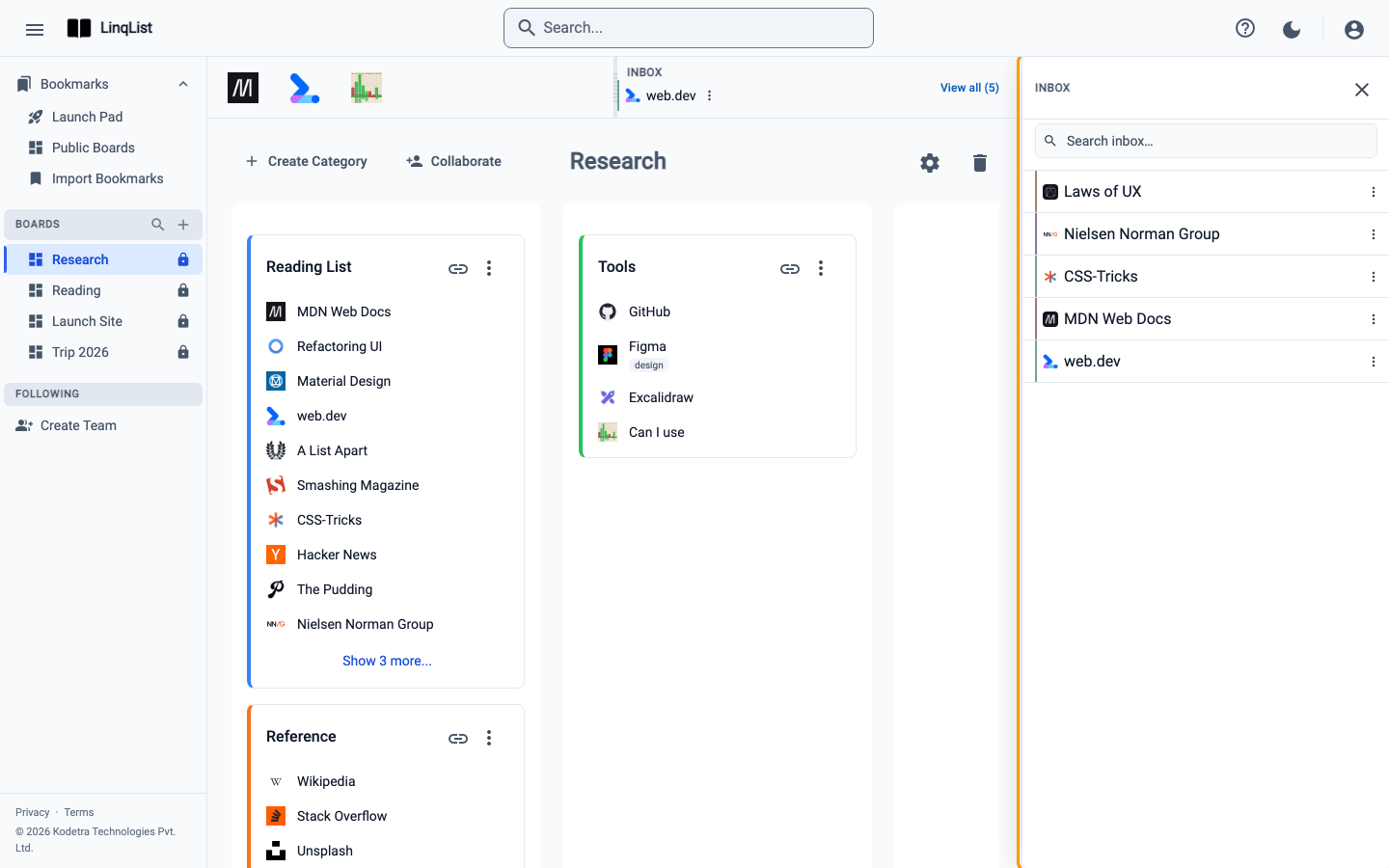
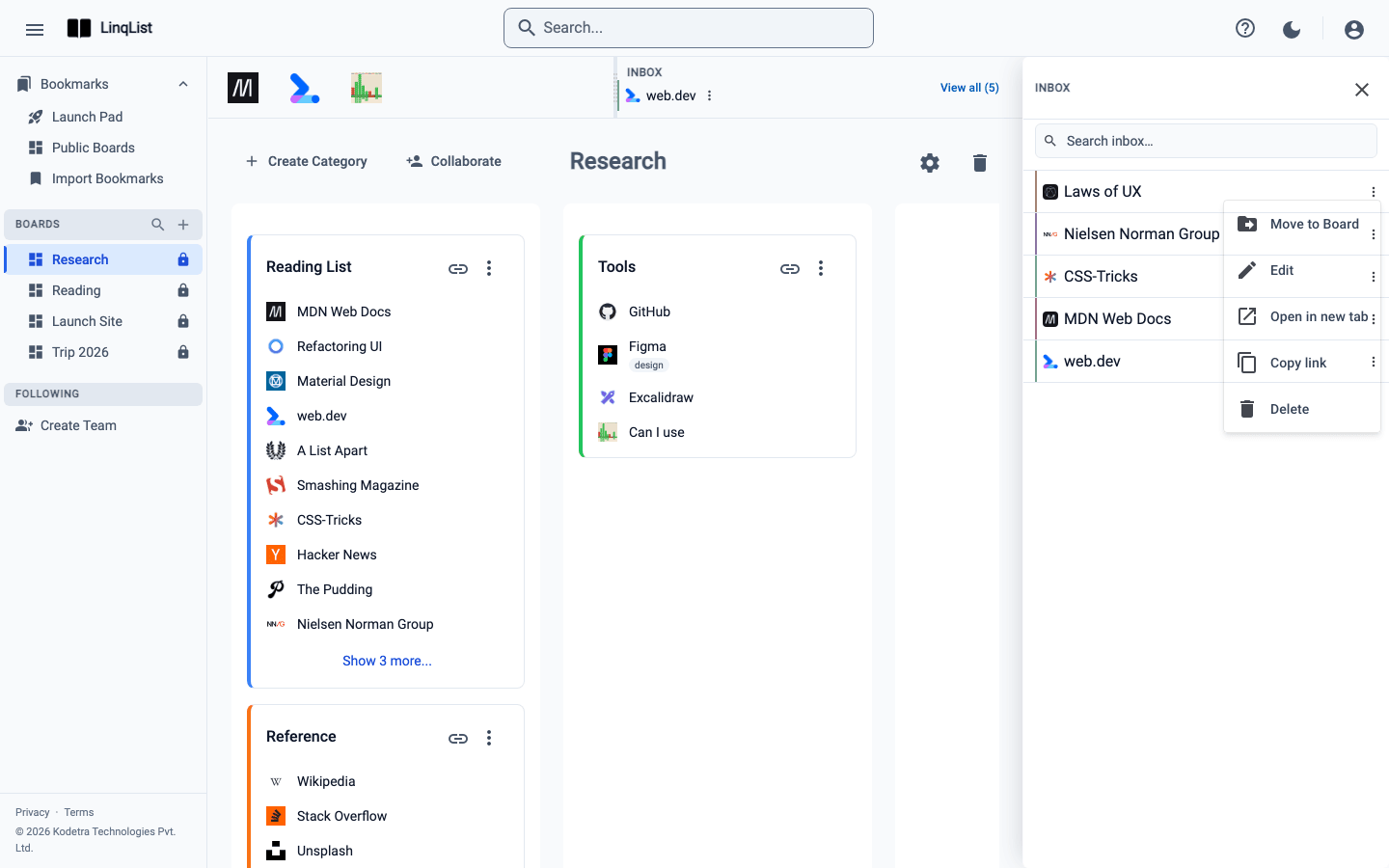
Each row has a three-dot menu with Move to Board, Edit, Open in new tab, Copy link and Delete. You can also drag a link from the Inbox onto a category on your board.
Quick Links: your daily sites
Quick Links live on the Launch Pad page (Bookmarks, then Launch Pad in the sidebar). Your quick links also show as a strip of icons across the top of your boards, next to the Inbox, so they are always a click away.
What you can do depends on your plan. Adding, editing and reordering your own is a Pro feature: on Free and Starter the Add Quick Link button shows a lock and a Pro badge and opens the plan dialog. Once you have quick links, switch the page between Grid view and List view with the buttons at the top.
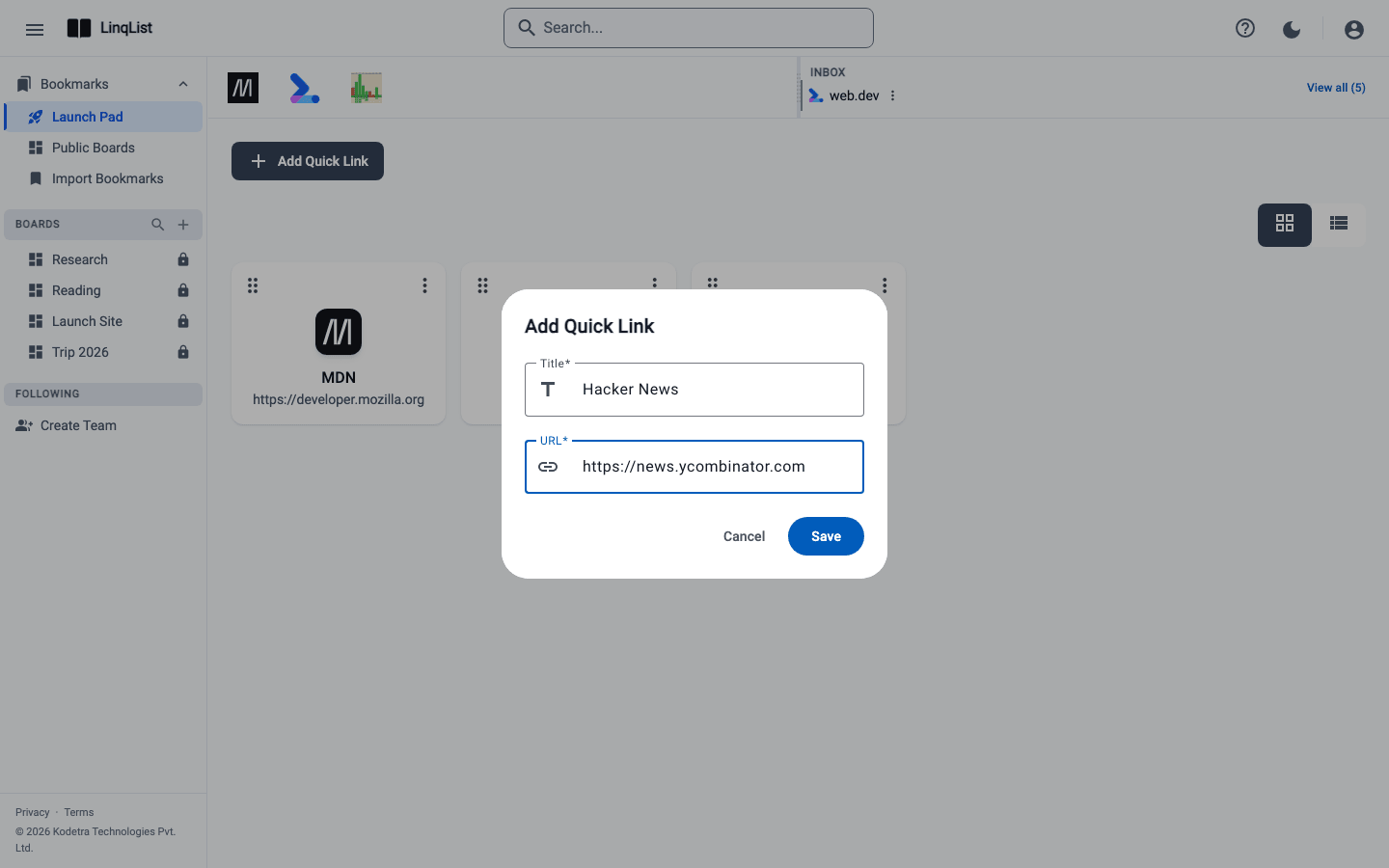
- On Pro or Premium, click Add Quick Link.
- Enter a Title (at least 2 characters) and a URL, such as
https://example.com, then click Save. - To reorder, drag a card by its grip handle (the six dots). The order is saved.
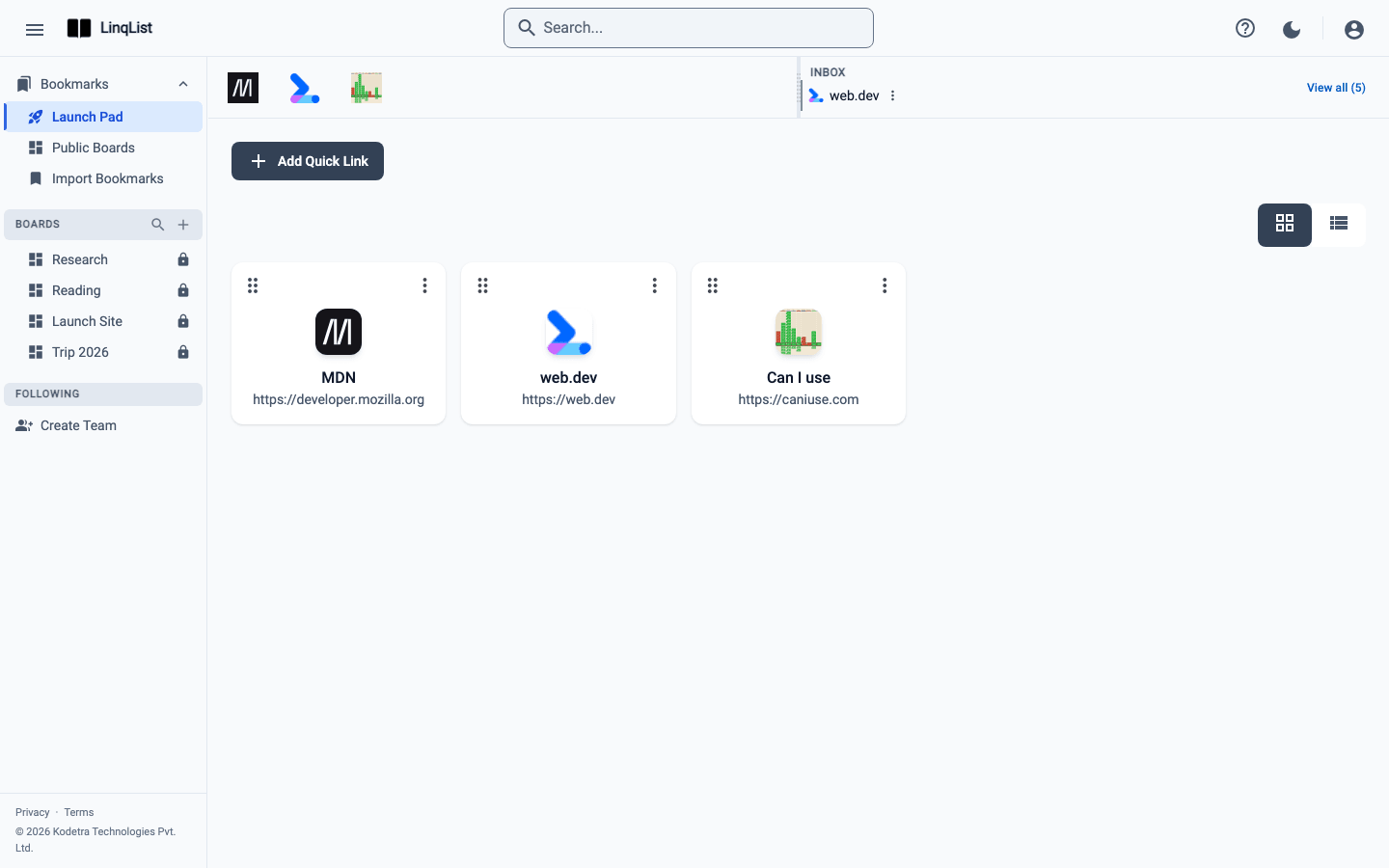
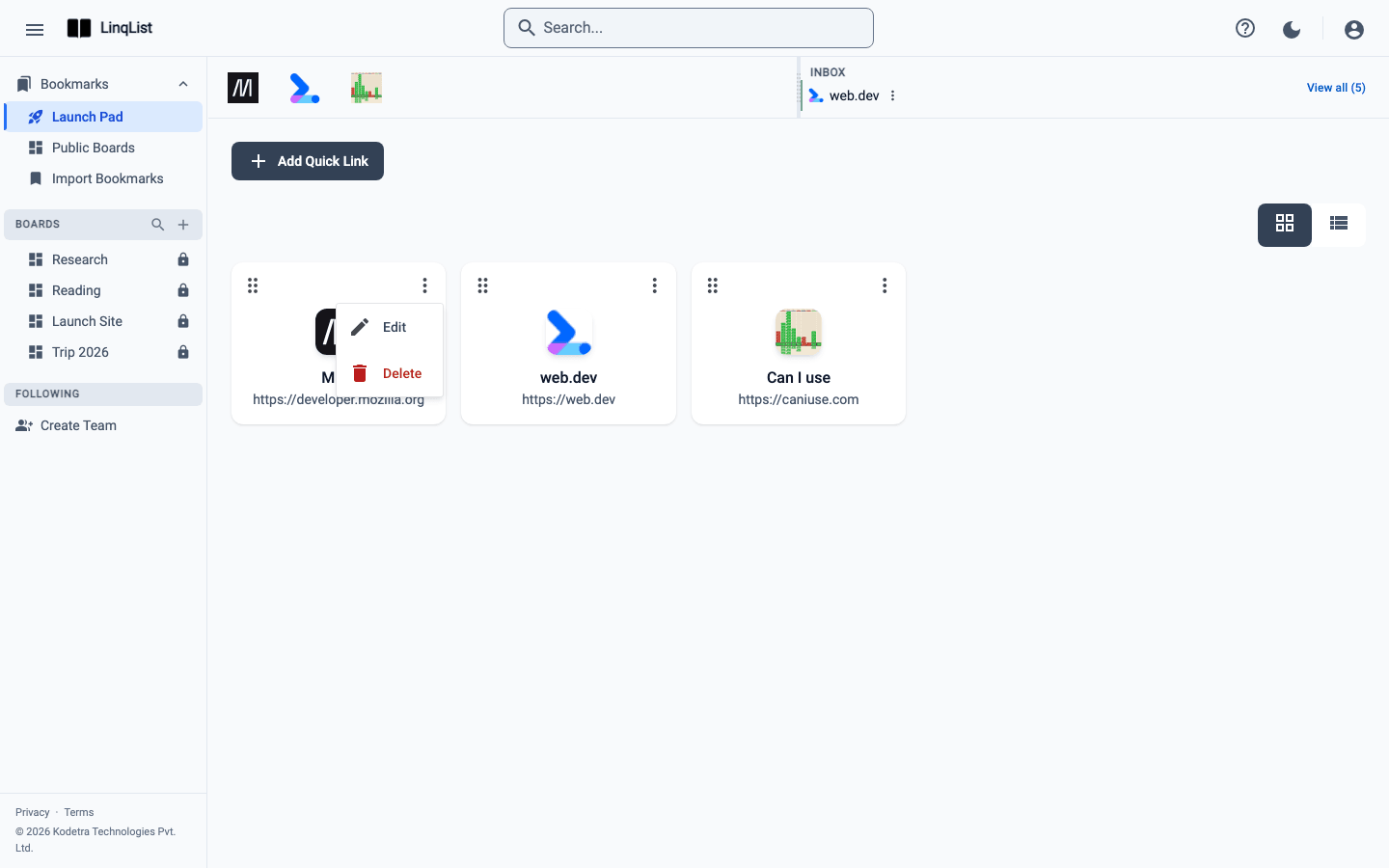
Each of your own quick links has a three-dot menu with Edit (Pro) and Delete, which asks you to confirm. Click any card to open its site in a new tab.
Tips
- Treat the Inbox as a weekly chore: open View all, move what is worth keeping, delete the rest.
- Bringing in a whole folder of old links? Use Import your browser bookmarks instead of the Inbox.
- Once links are on a board, share the board with the people who need them.
Why an Inbox at all
Filing a link properly means choosing a board, a category and sometimes a title, and that is exactly the moment most people give up and leave the tab open. The Inbox removes the choice. Save first, decide later. The Inbox also takes the links that arrive from the extension popup when you have not yet opened a board, so nothing is lost if you close the browser.
Titles can be fixed later with Edit on the row, and the favicon is filled in automatically.
A weekly routine
- Open the Inbox drawer with View all.
- Use the row menu to Move to Board anything worth keeping.
- Delete what you no longer need, so the Inbox count stays small.
- Check your quick links and swap out any you no longer use.
The Inbox is only a holding area. Links there are not on any board, so nobody you have shared a board with can see them.