Invite collaborators to a board
A shared board is more useful when other people can add to it: a trip plan, a research folder, a launch checklist full of links. Collaborators get the board in their own account, so there is no copying and no stale exports.
Invite people
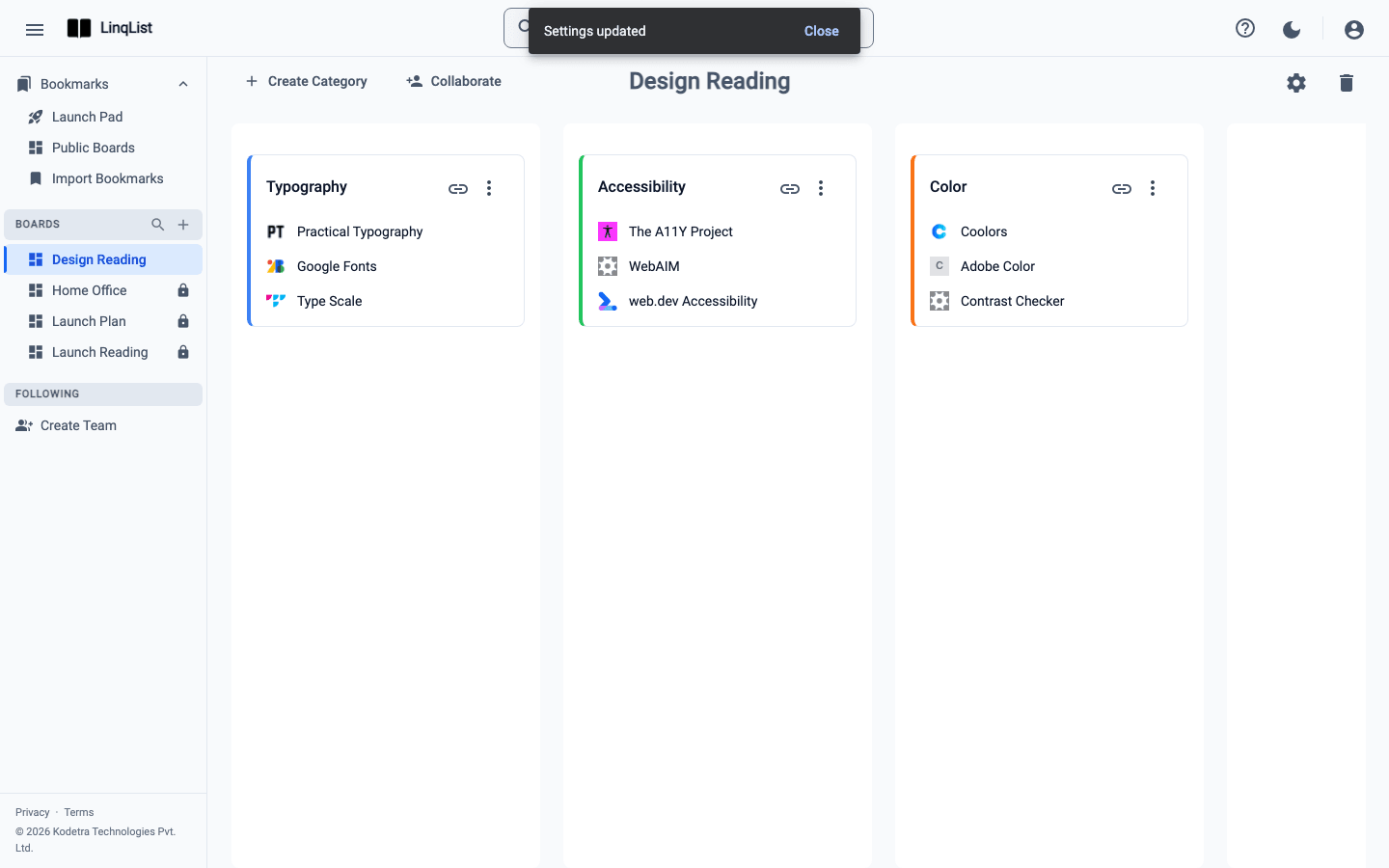
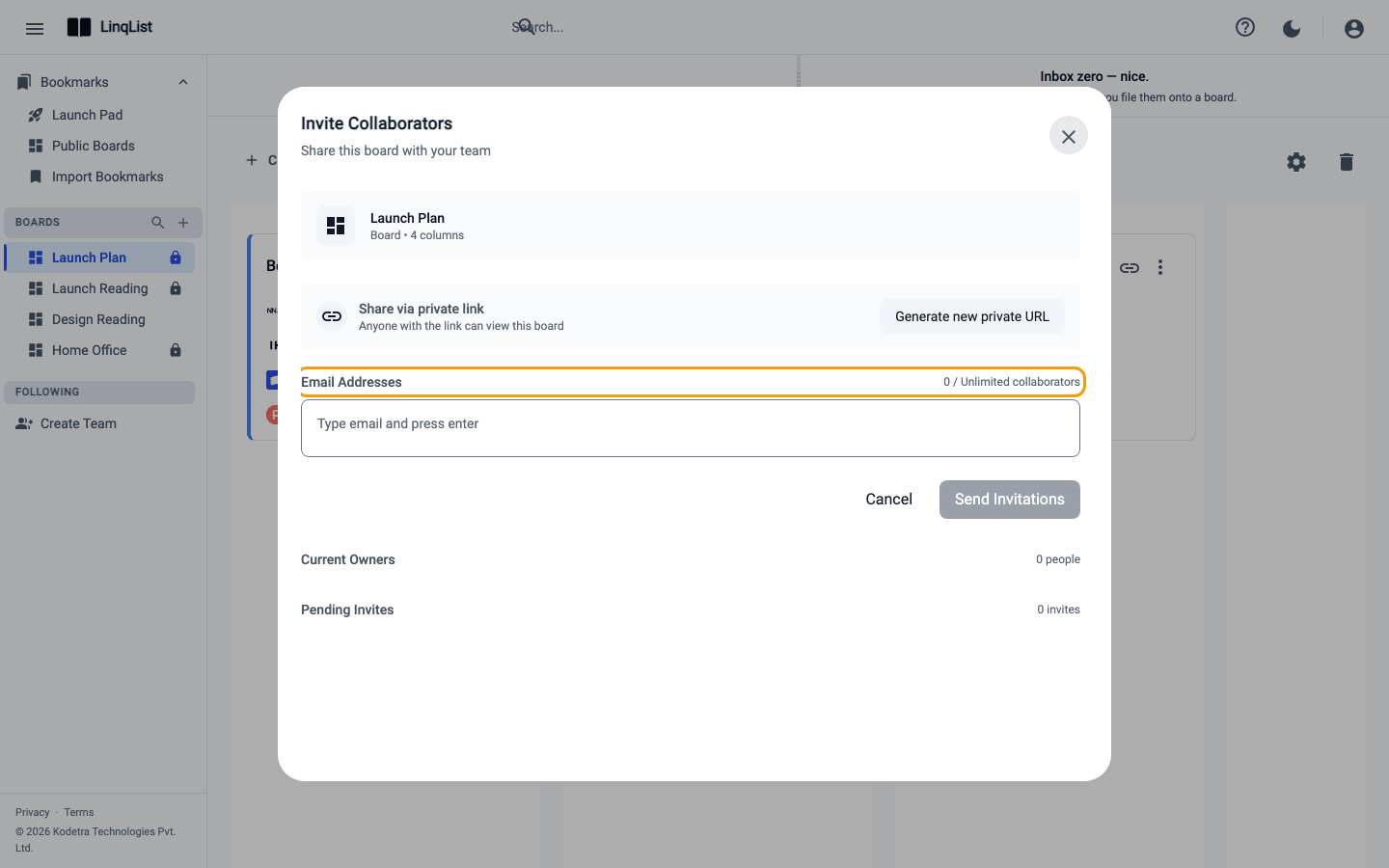
- Open one of your boards and click Collaborate in the board header. Only the board's owner sees this button.
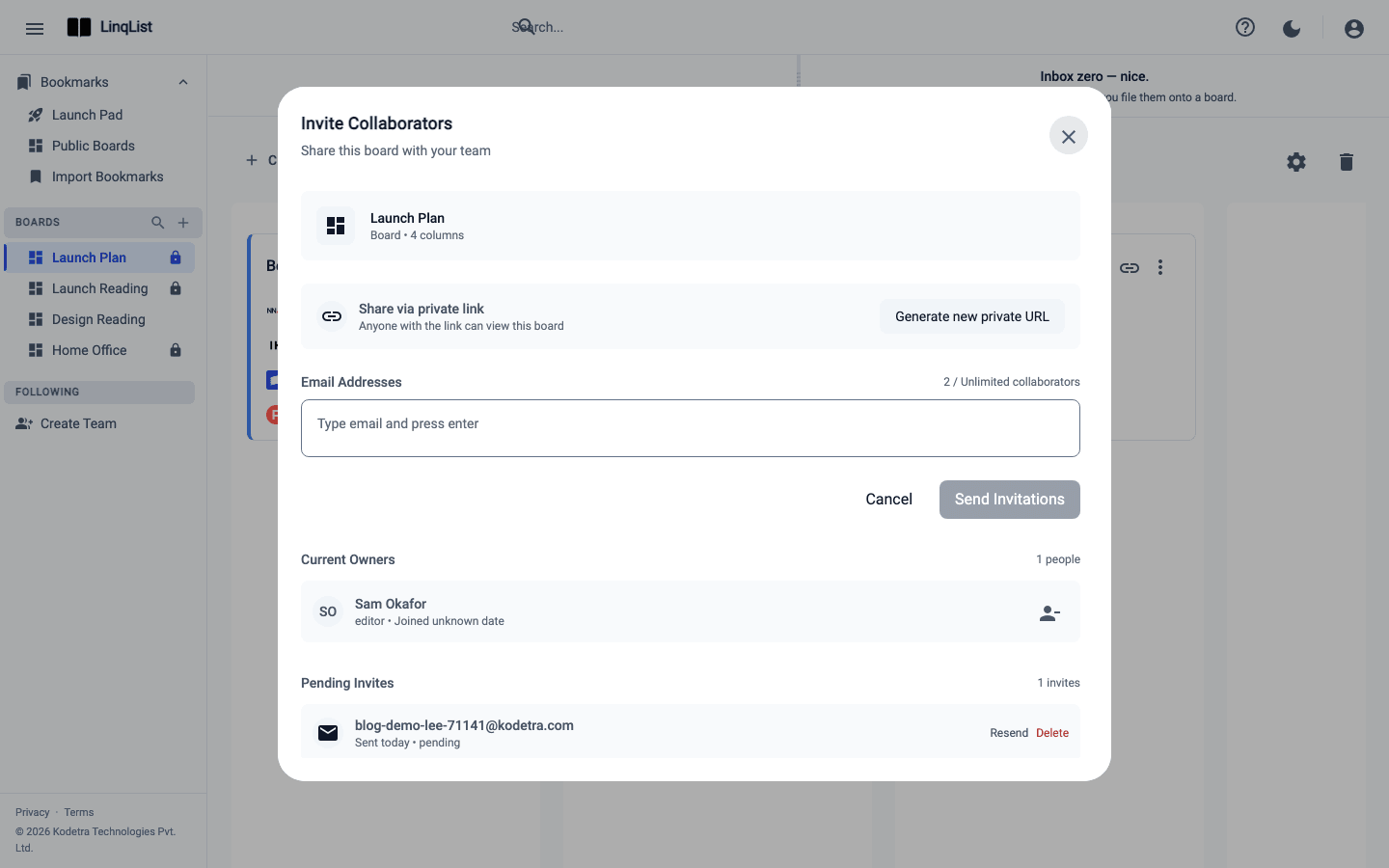
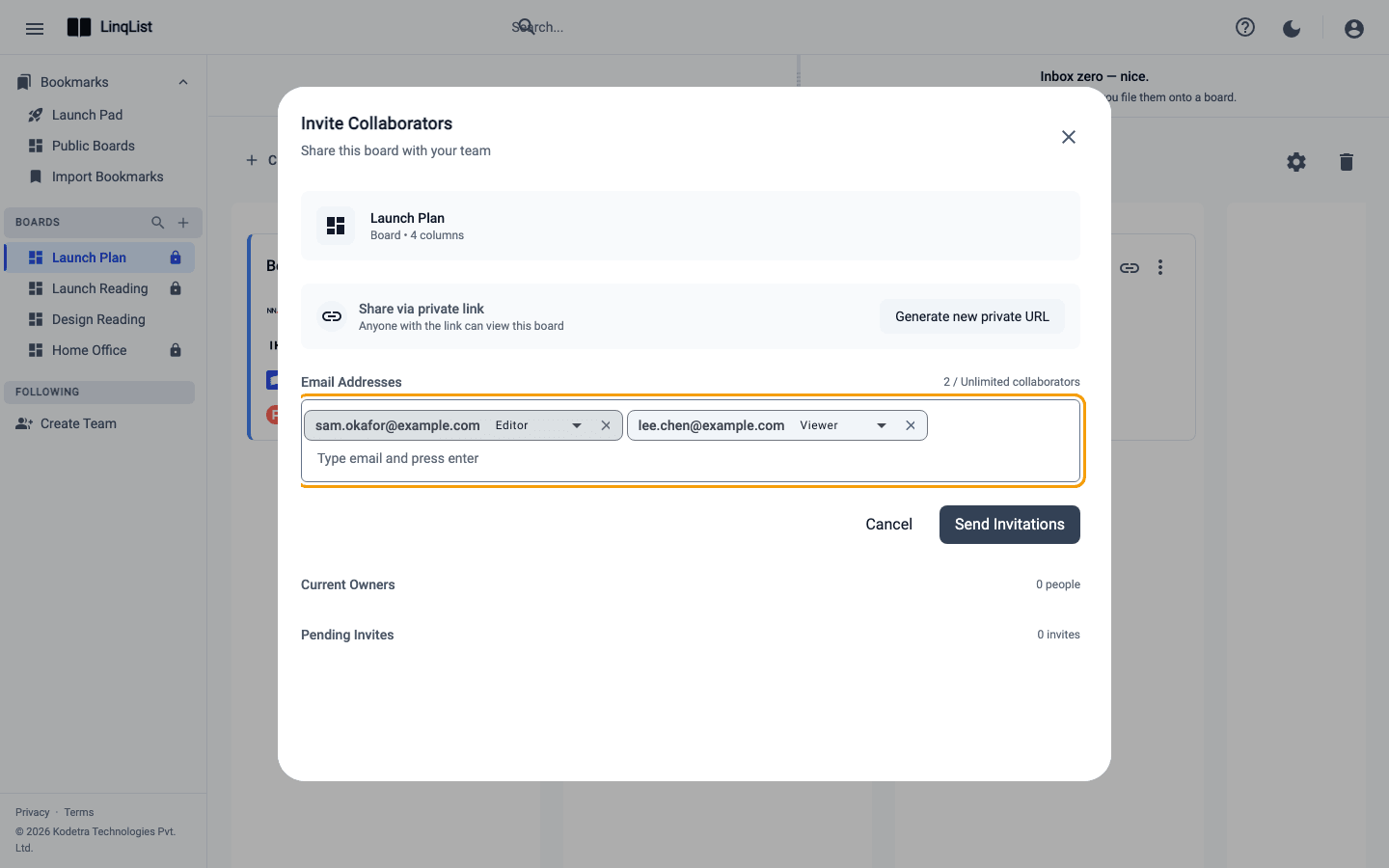
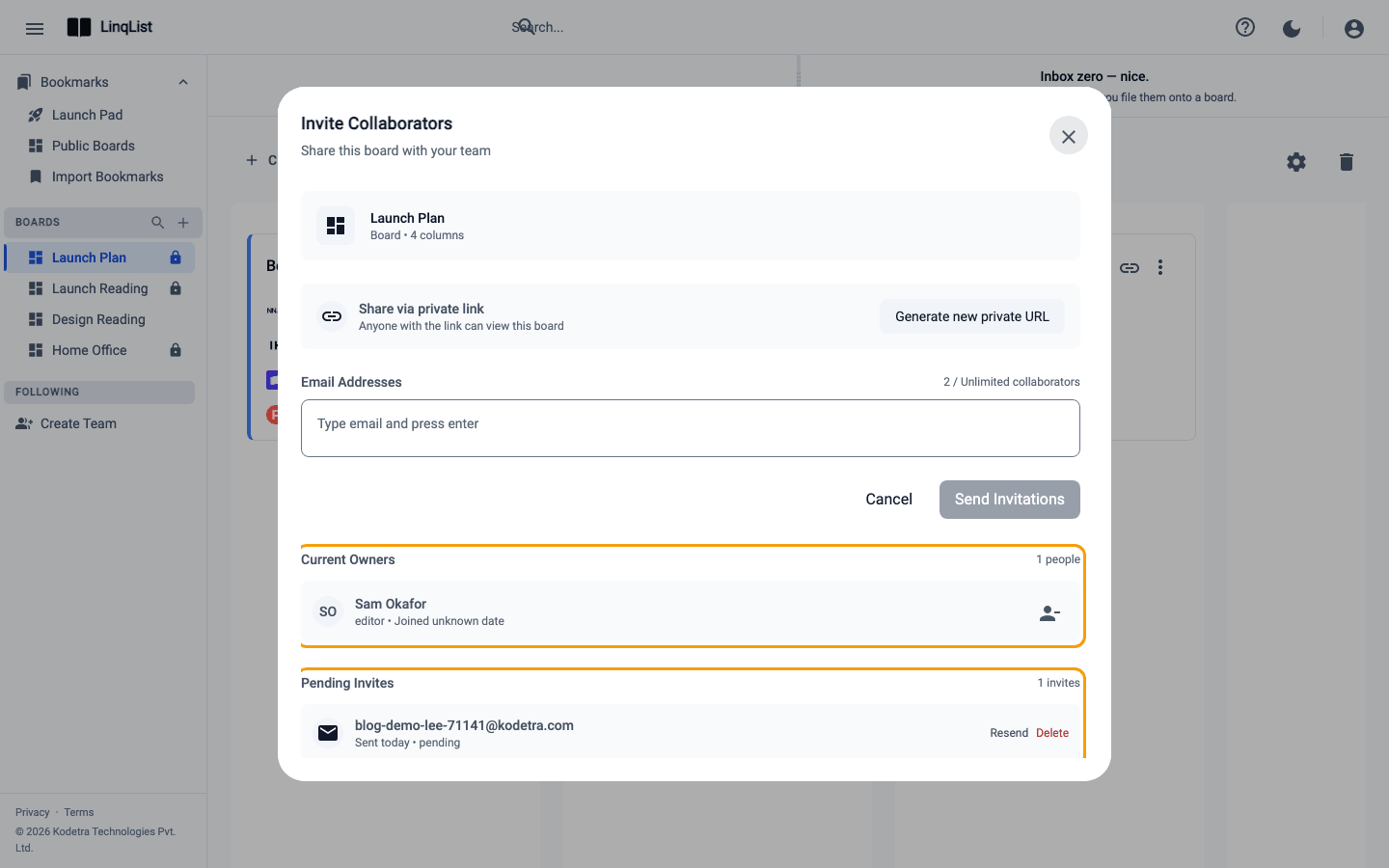
- In the Email Addresses field, type an address and press Enter. It turns into a chip. Add as many as you need. If an address is wrong you will see Invalid email format; duplicates show Email already added, Already a collaborator or Invite already sent.
- Each chip has a role menu with two choices: Editor or Viewer. New chips start as Viewer, so change the role before you send if you want someone to edit.
- Click Send Invitations. The button reads Sending... for a moment, and each address moves to the Pending Invites list below.
What each role can do
- Editor: add, edit, move and delete bookmarks and categories on the board, and drag things around.
- Viewer: open the board and its links, but the add, edit and drag controls are not available.
- Owner: you. Only the owner can invite people, remove them, and delete the board.
Accept an invitation
Your collaborator gets an email with a link. Here is what happens when they open it:
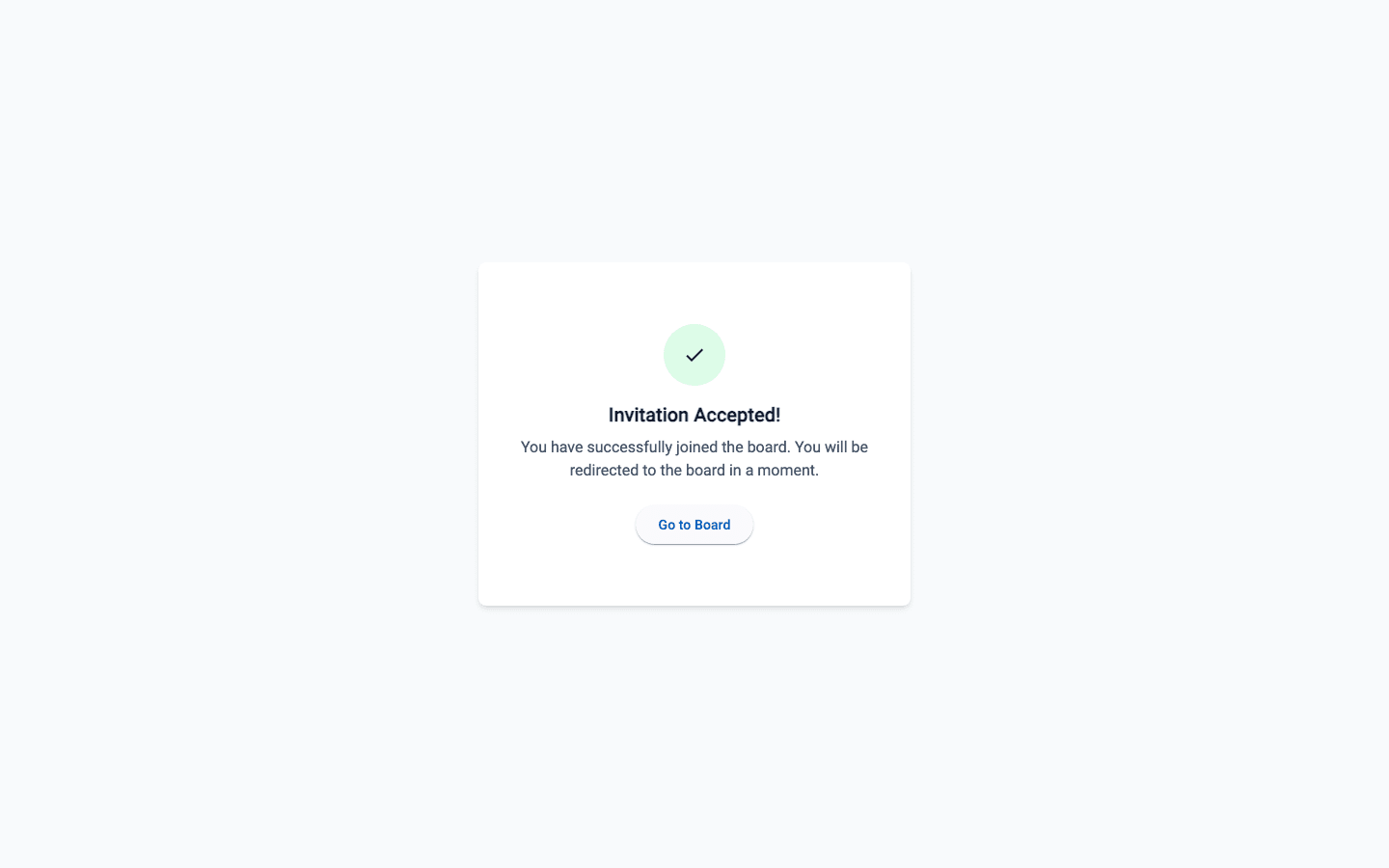
- If they already have a LinqList account, they land on an Invitation Accepted! page, then LinqList takes them to the board after two seconds. The Go to Board button skips the wait.
- If they have no account yet, they see Registration Required and a Register Now button. Once they sign up, the invitation link carries over to the new account.
- If they are already inside LinqList when you invite them, a banner shows Maya invited you to collaborate on "Board name" with Accept and Dismiss buttons.
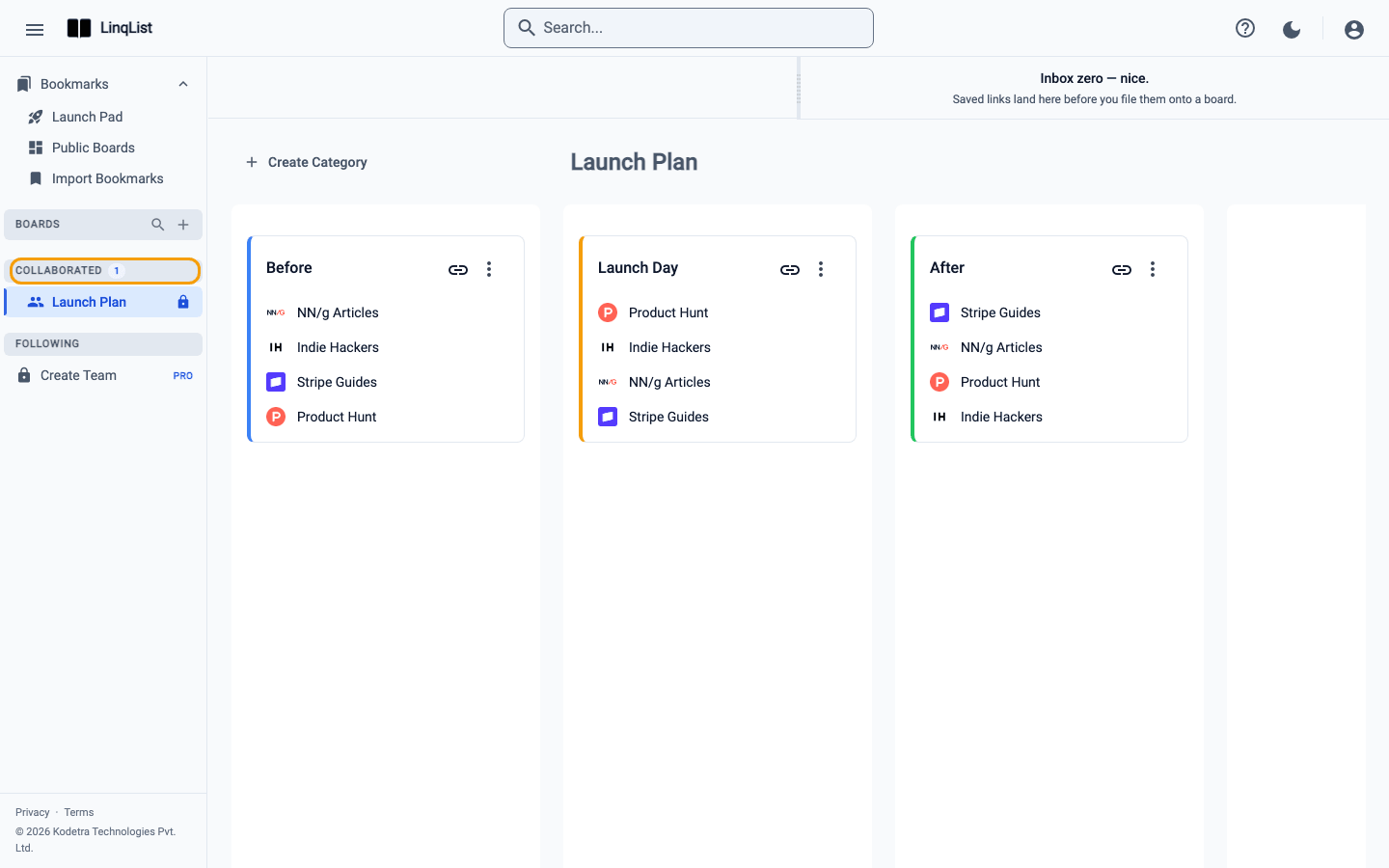
Accepted boards appear in the collaborator's sidebar under Collaborated, separate from their own boards.
Manage who has access
Reopen Collaborate at any time. Current Owners lists the people you have added, with their role. The person icon on a row (Remove access) takes someone off the board. Under Pending Invites you can Resend an email that got lost or Delete an invite you no longer want.
Limits
The number of collaborators per board depends on your plan: 1 on Free, 2 on Starter, 5 on Pro and unlimited on Premium. The dialog shows your count next to the email field (for example 1 / 2 collaborators). When you hit the limit, the dialog says You've reached this board's collaborator limit — upgrade for more seats. and Send Invitations is disabled. See the Pricing page for current numbers.
Tips
- Start people as Viewer and promote later by removing and re-inviting as Editor if you are unsure.
- For a read-only audience that is bigger than your seat count, use a private link or a public board instead.
- If you want one shared home for many boards, set up a team workspace.
Before you invite
- Agree on categories first. A board with clear category names is easier for a second person to add to without making a mess.
- Use the email address your collaborator signs in with. The invitation is tied to that address.
- If the email does not arrive, ask them to check spam, then use Resend in the Pending Invites list.
- Keep ownership with one person. The owner is the only one who can change access or delete the board.