Private links: share a board with only the people who have the link
Sometimes you want to share a board with a few people but not with the internet: a client, a study group, the people on one project. A public board is too open for that, and inviting everyone as a collaborator is more than you need. A private link sits in between. Anyone you give the link to can view the board, and nobody else can find it.
Private links are a Premium feature. On other plans the button is shown with a lock so you can see where it lives (more on that below).
Create the link
- Open the board you want to share. You need to be its owner, because the Collaborate button only appears on your own boards.
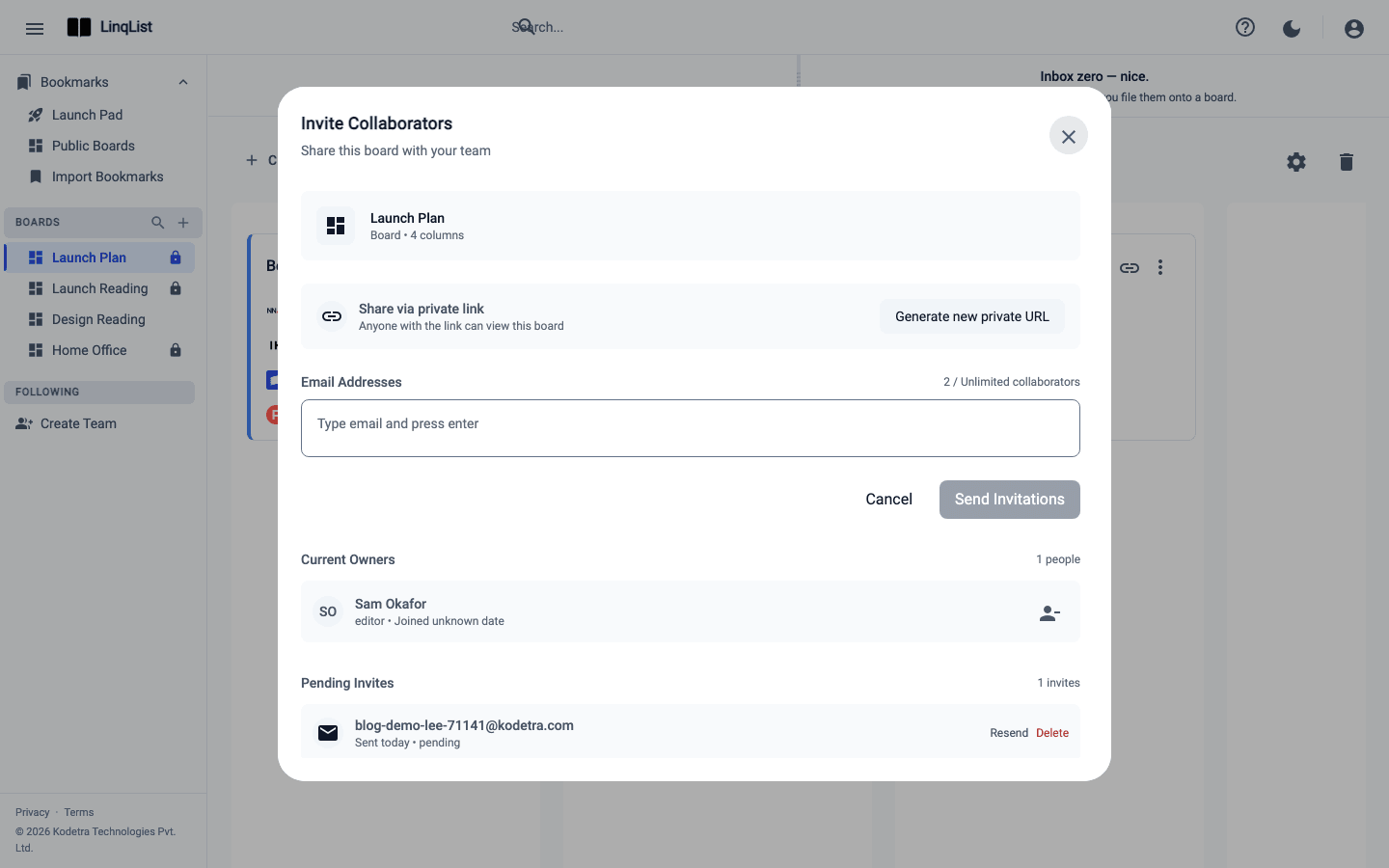
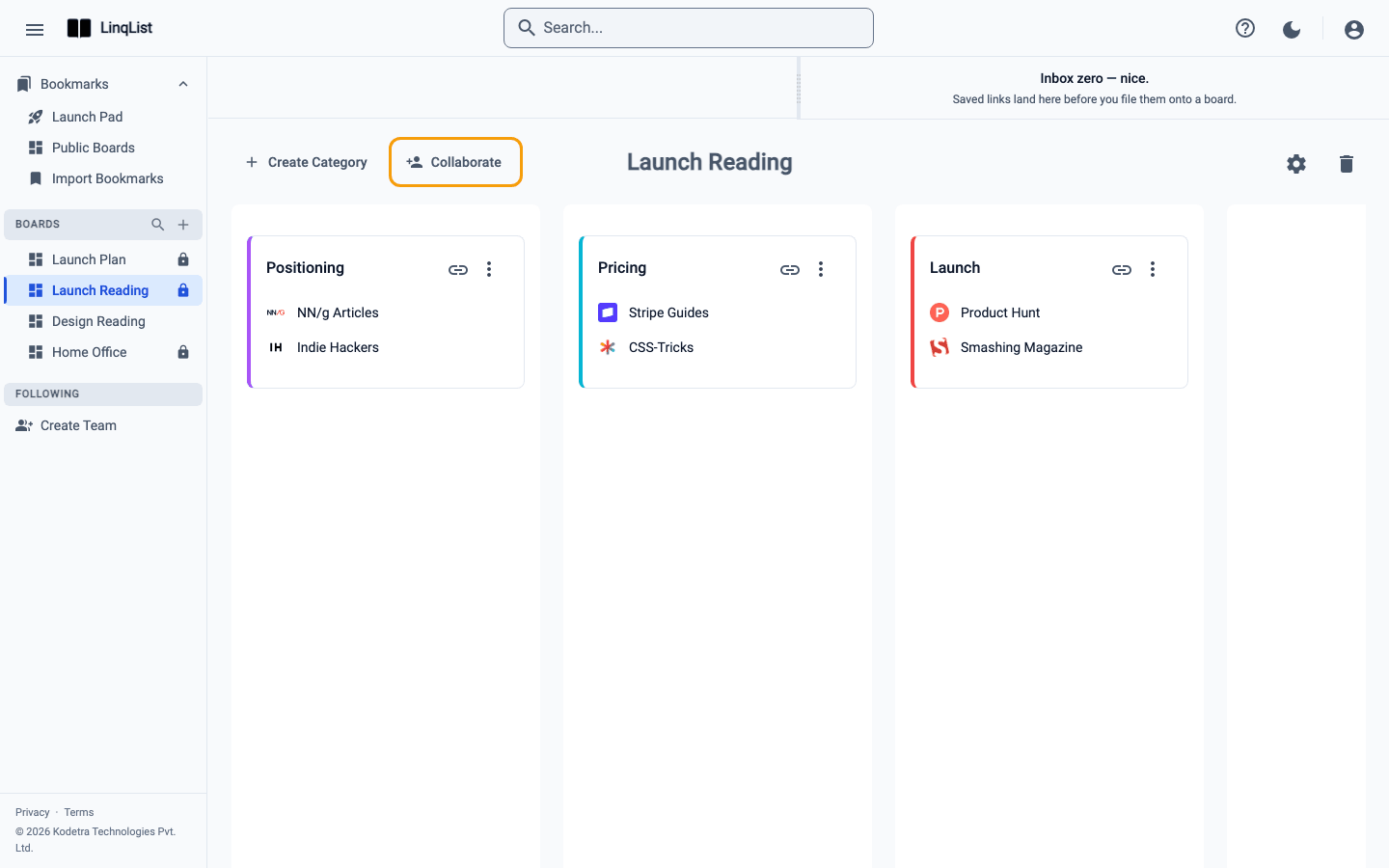
- Click Collaborate in the board header. The Invite Collaborators dialog opens.
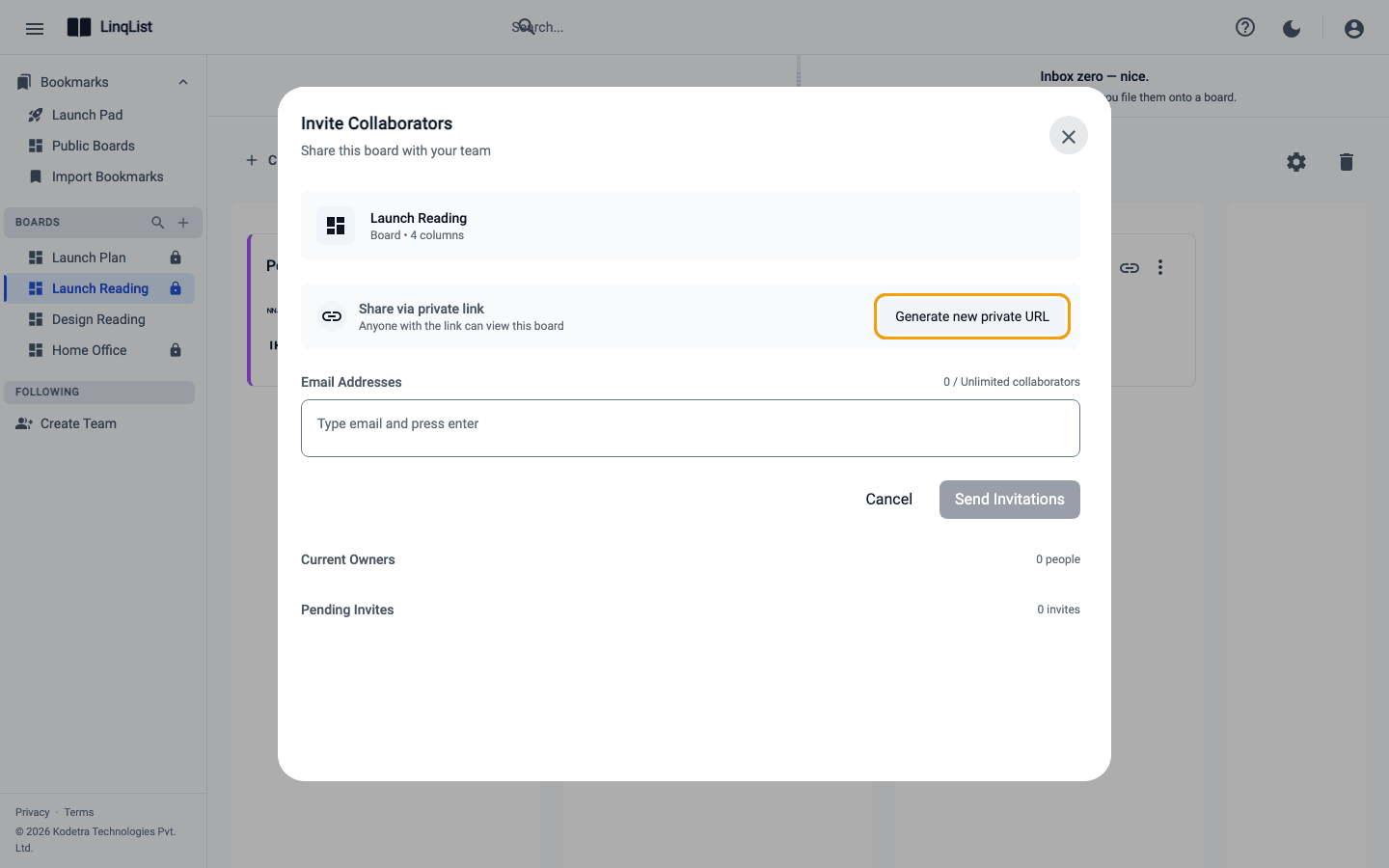
- In the Share via private link section (Anyone with the link can view this board), click Generate new private URL. LinqList shows Private link generated successfully.
Copy it and check it
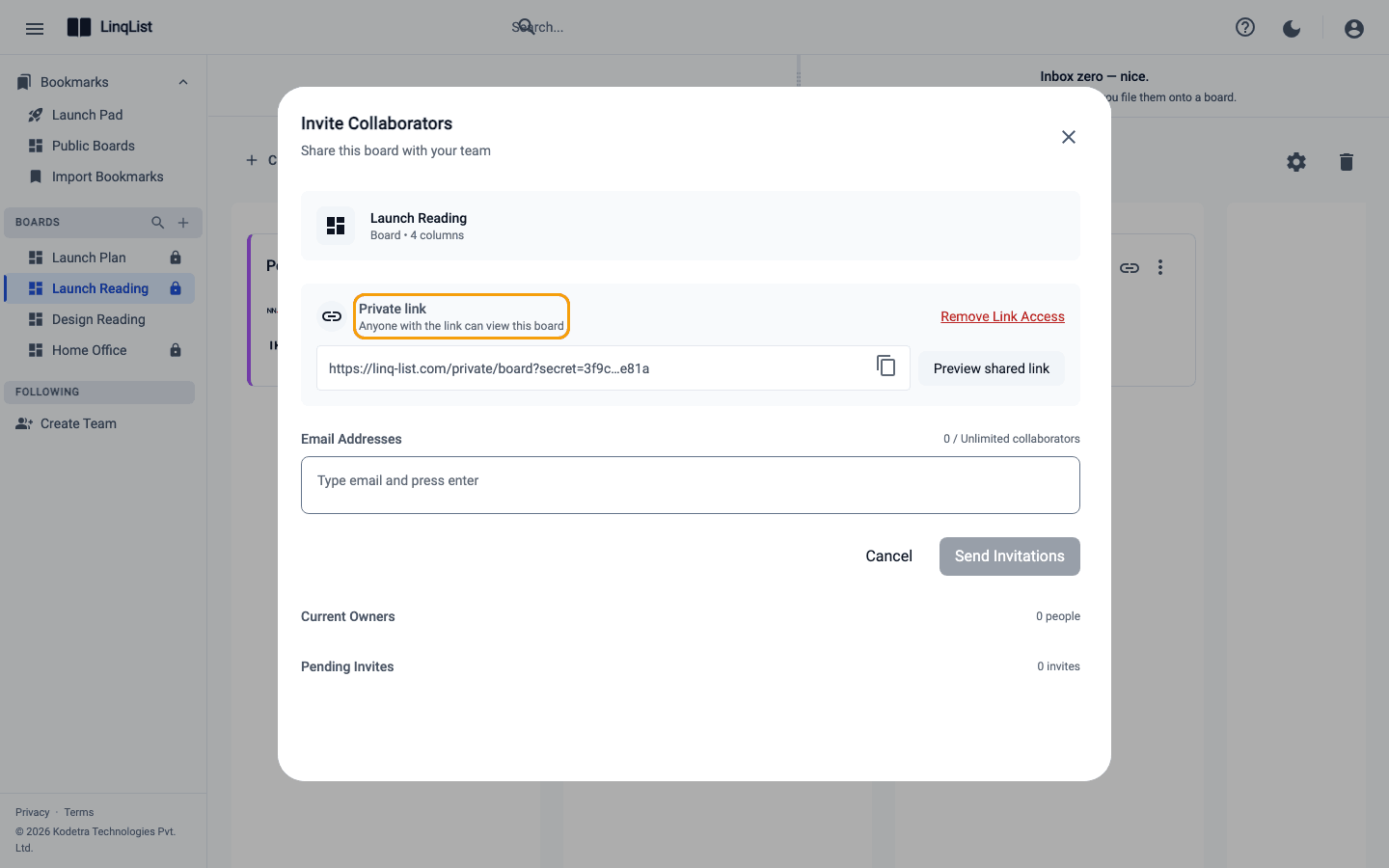
- The section now shows the full link under the heading Private link. Click the copy icon next to it. You will see Link copied to clipboard.
- Click Preview shared link to open the link in a new tab and see what your recipients will see.
- Paste the link into an email or chat. Anyone who opens it can view the board, signed in or not.
What people see
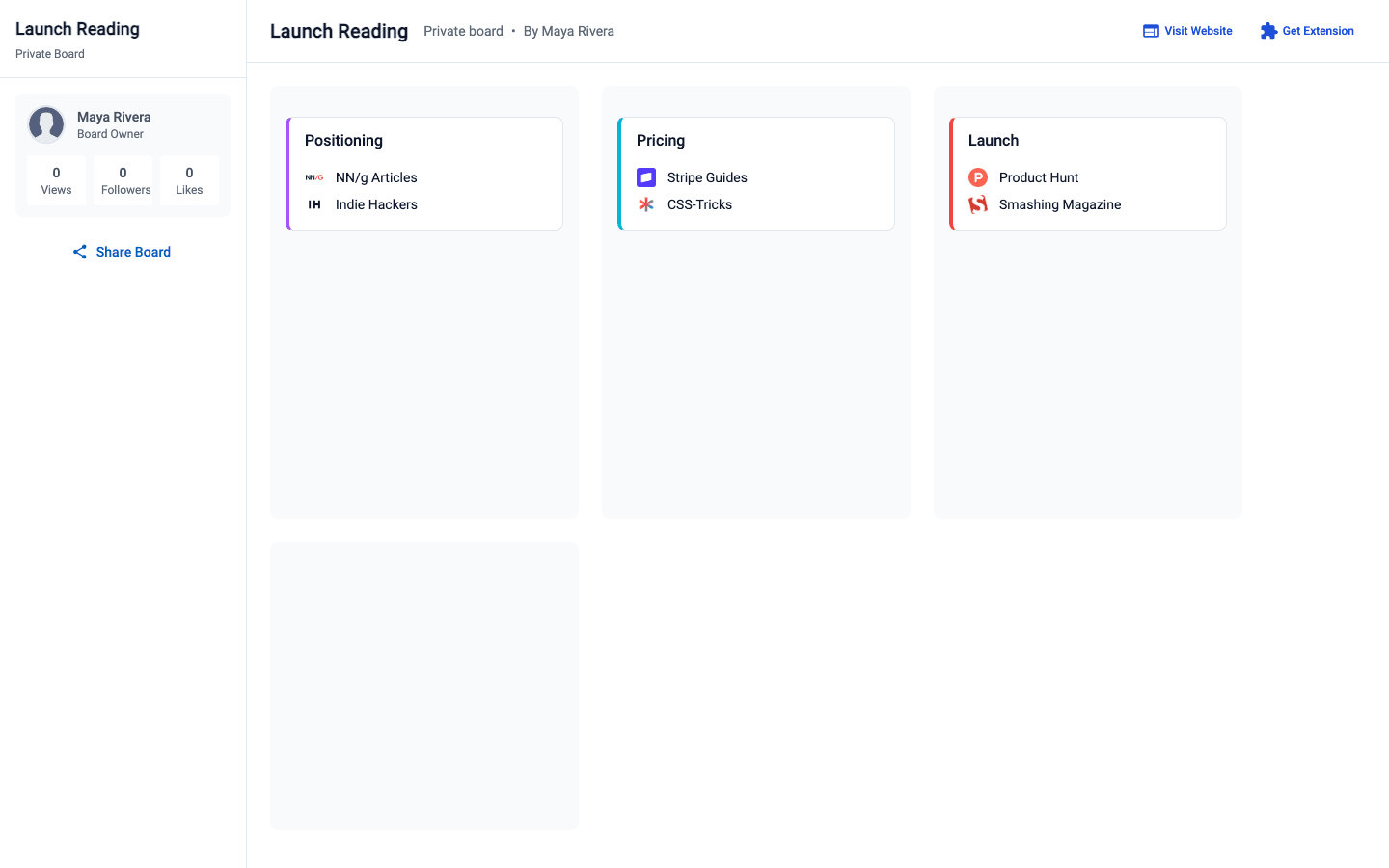
The link opens a read-only page at /private/board?secret=.... It shows the board title, the owner's name, view, follower and like counts, and all columns, categories and bookmarks. Bookmarks open in a new tab. Visitors cannot edit anything. A Share Board menu lets them pass the link along to social apps, email or text, or use Copy link to clipboard, so treat the link like a password: whoever has it can forward it.
Turn the link off
Open Collaborate again and click Remove Link Access. LinqList confirms with Private link disabled successfully. The old link stops working at once: anyone who opens it gets an error page instead of the board. Generating a new URL later gives you a different link, so people you shared the first one with stay locked out.
If you are not on Premium
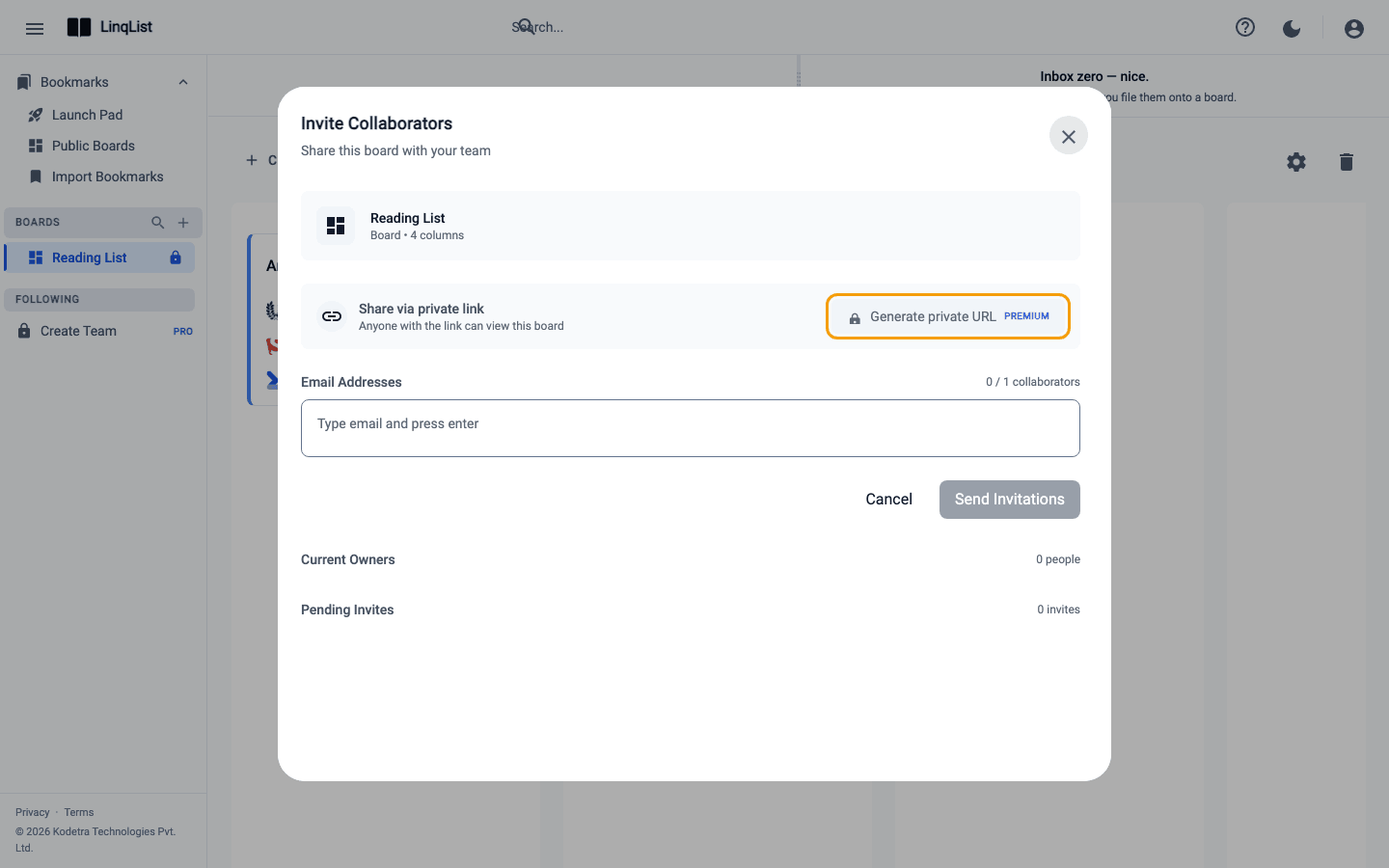
On Free, Starter and Pro the section shows Generate private URL with a lock icon and a Premium badge. Clicking it opens the plan dialog. You can still share the board two other ways: make it public (Share a board publicly) or invite people by email (Invite collaborators to a board). Compare plans on the Pricing page.
Tips
- Use a private link for read-only sharing. If someone needs to add or edit bookmarks, invite them as a collaborator instead.
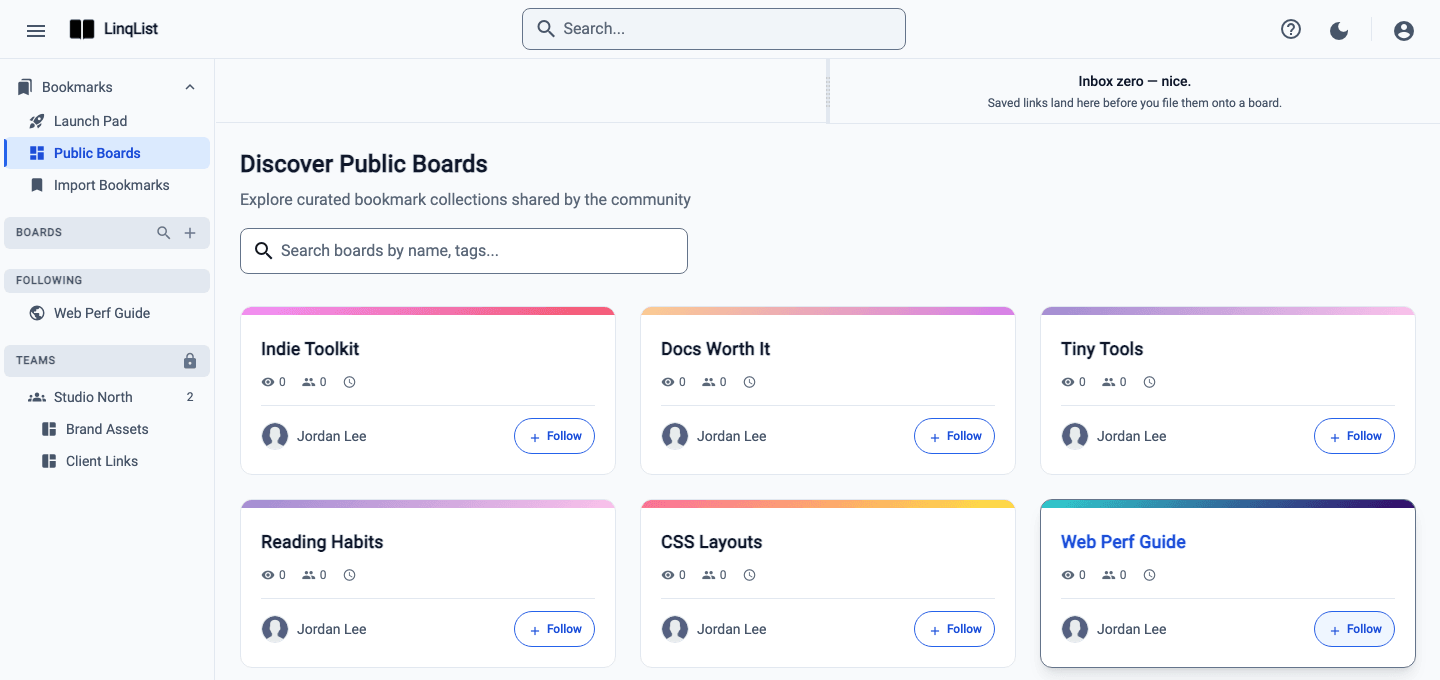
- Creating a link does not change the board's Private setting. A board that is private never appears on the Public Boards page.
- Name boards clearly. The title is the first thing a recipient reads, and board names are capped at 15 characters.
Private link or collaborator?
Pick the tool that matches what the other person needs:
- Private link: the person only needs to read. They do not need an account, and you do not need to know their email address.
- Collaborator: the person should add or change bookmarks. They need a LinqList account, and each board has a seat limit that depends on your plan.
- Public board: you want anyone to find it, and you are fine with the board appearing on the Public Boards page.