Share a board publicly
You found a good set of links and want to hand it to someone: a reading list for a teammate, a resource page for a class, a collection for readers. Pasting thirty URLs into a chat is a bad way to do it. A public board gives you one link that shows everything, organized the way you built it.
New boards in LinqList start out private (you see a lock icon next to them in the sidebar). Making one public takes two clicks and does not need a paid plan.
Make the board public
- Open the board you want to share from the Boards list in the left sidebar. If the sidebar is hidden, use the menu button at the top left.
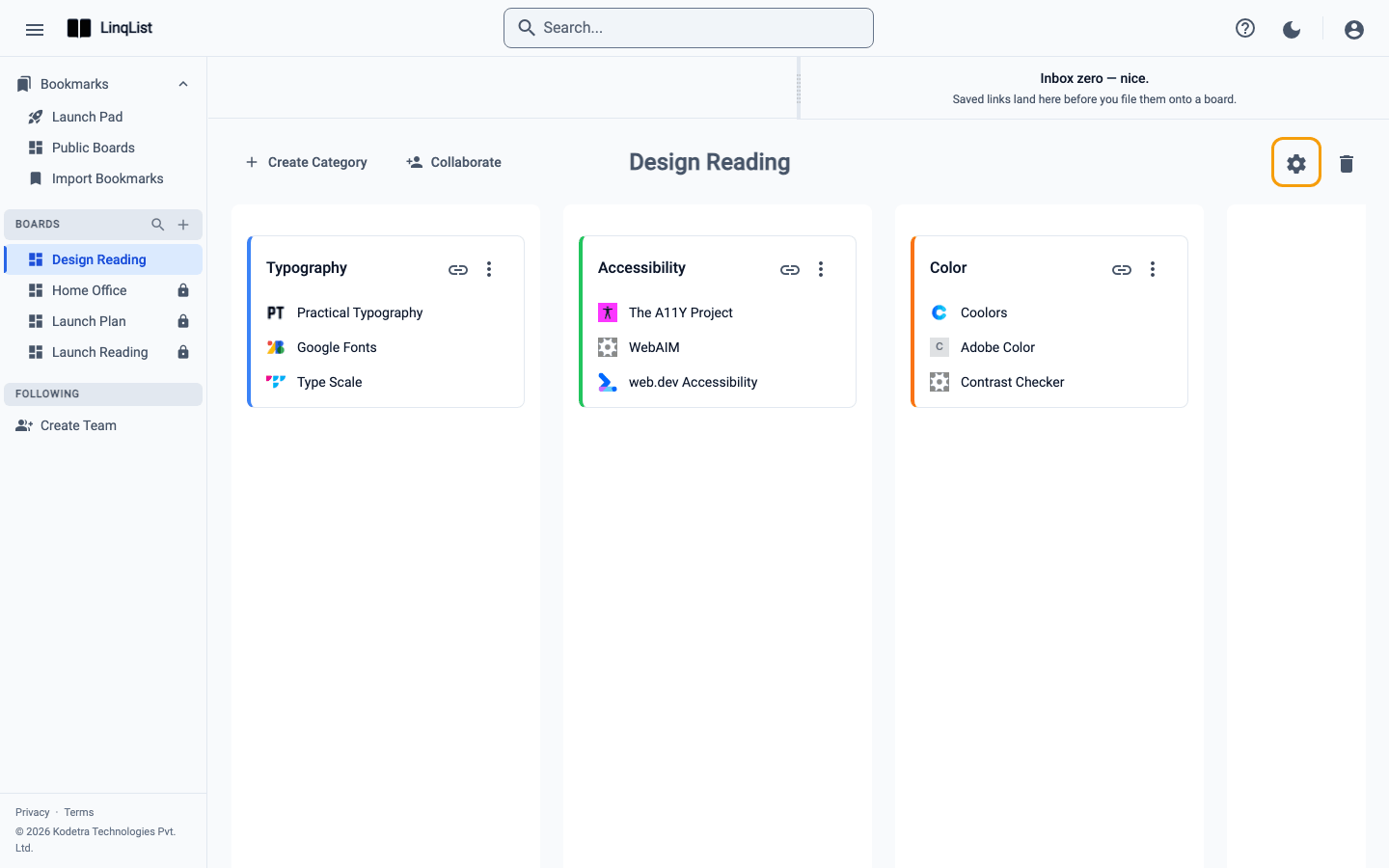
- Click the Settings gear icon in the board header, next to the board title. The board is replaced by its settings panel.
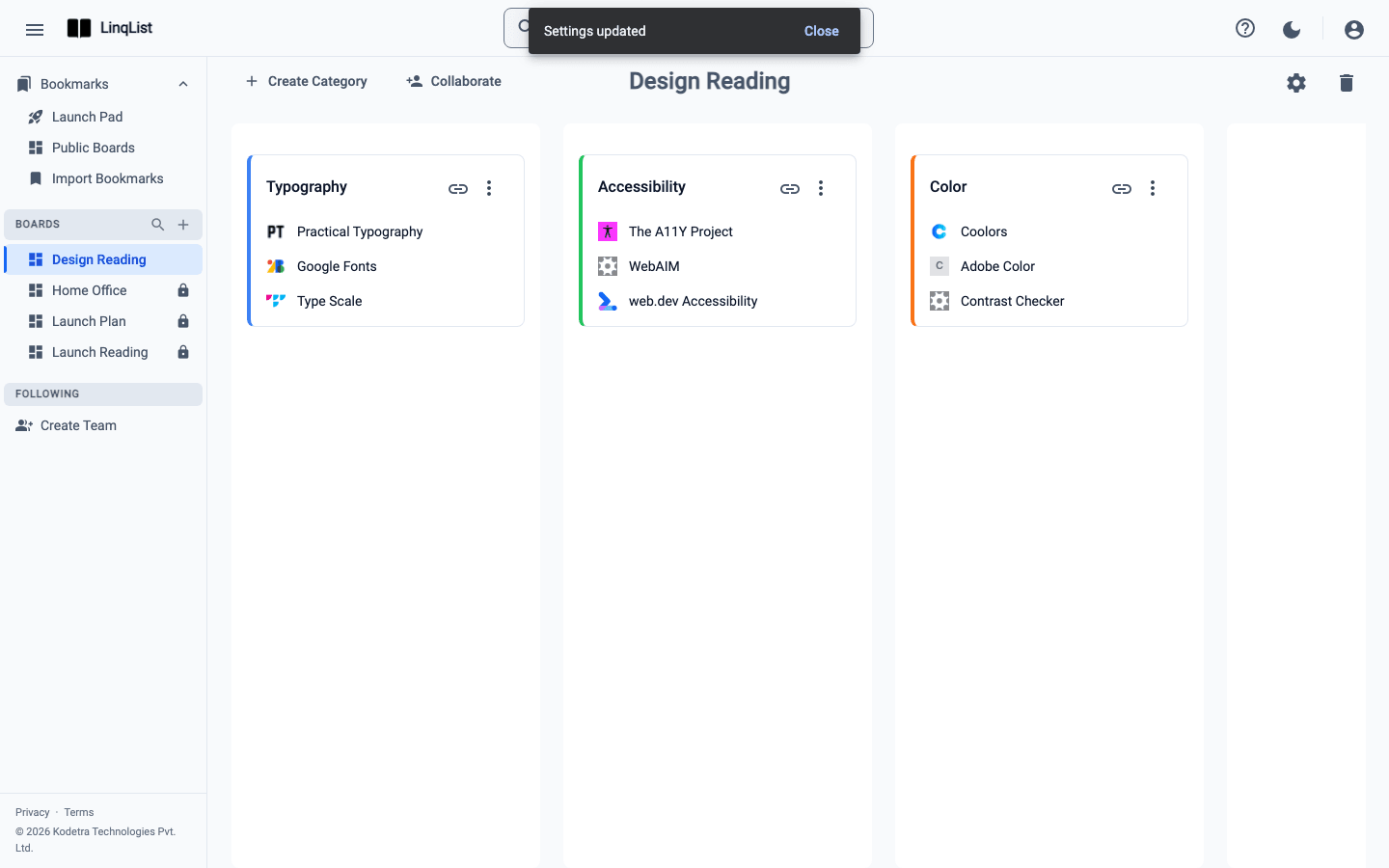
- Find the setting named Private and click No. LinqList saves right away and shows a Settings updated message. There is no separate save button.
- Click Done Editing at the top right of the panel to go back to your board. The lock icon next to the board's name in the sidebar is gone.
Choose whether Google can list it
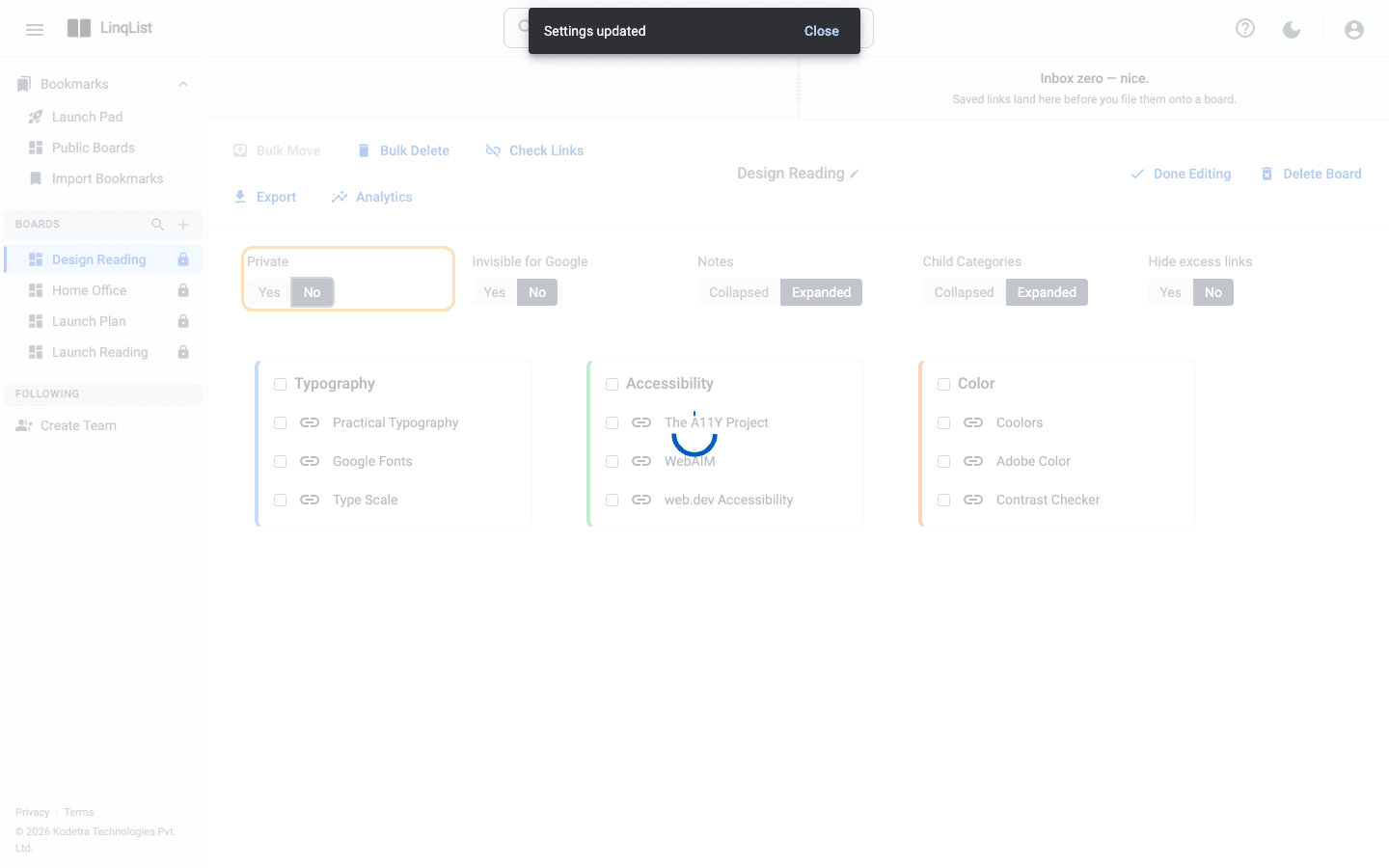
Right beside Private is a setting called Invisible for Google. Pick Yes if you want a board that people can reach with the link but that you do not want showing up in search results. Pick No if you are happy for it to be found. Picking Yes also keeps the board off the Public Boards page. Like the other settings it saves the moment you click.
Get the public link
- Open the board. Its address in your browser ends in
/workspace/boards/<board id>; that id is all you need. - Your public link is
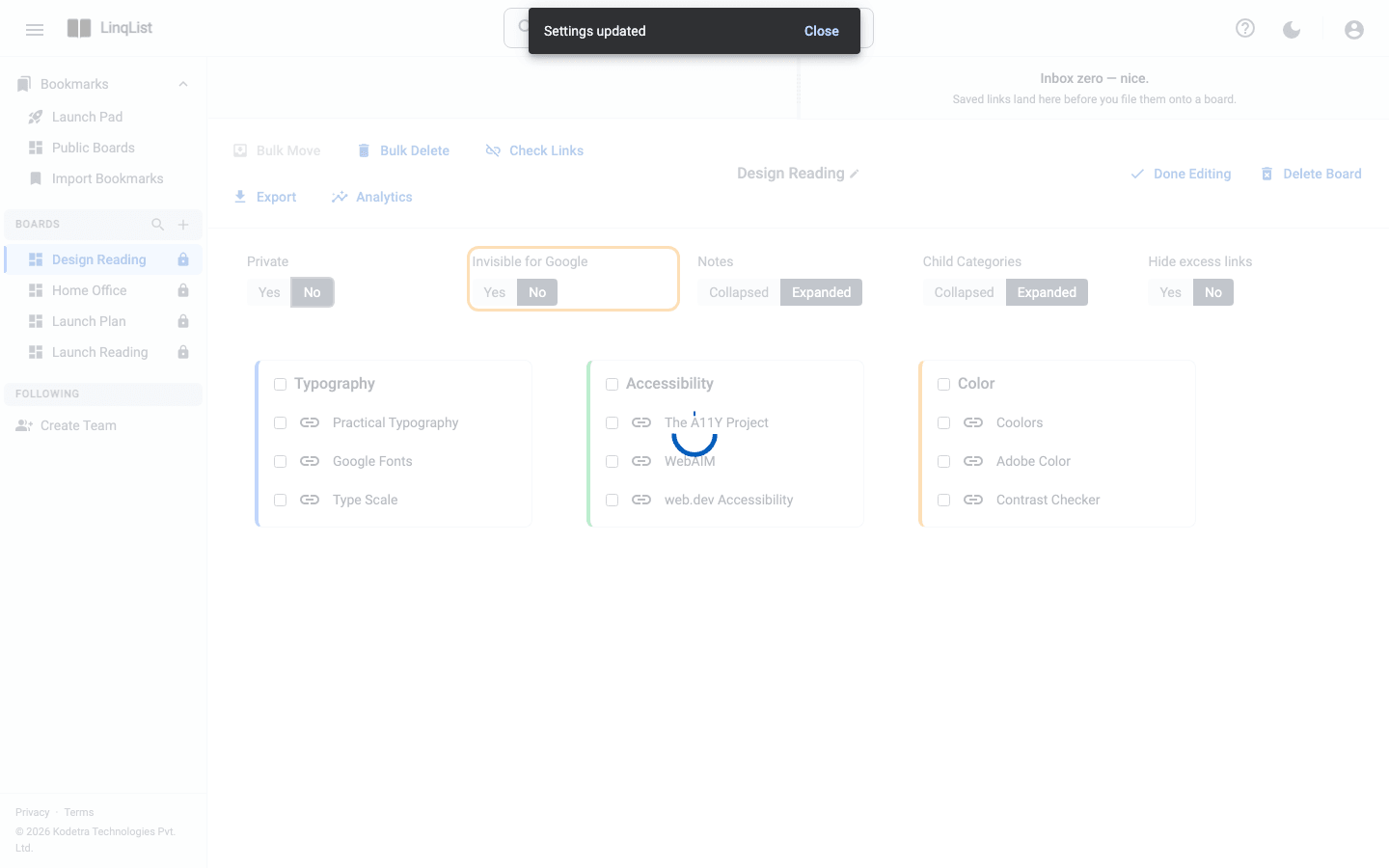
https://linq-list.com/board/<board id>. Your own boards are not listed on your own Public Boards page, but other signed-in people find the board there. - When someone else opens the board's card on Public Boards, the preview has a Copy public link icon at the top right, so they can pass it on too.
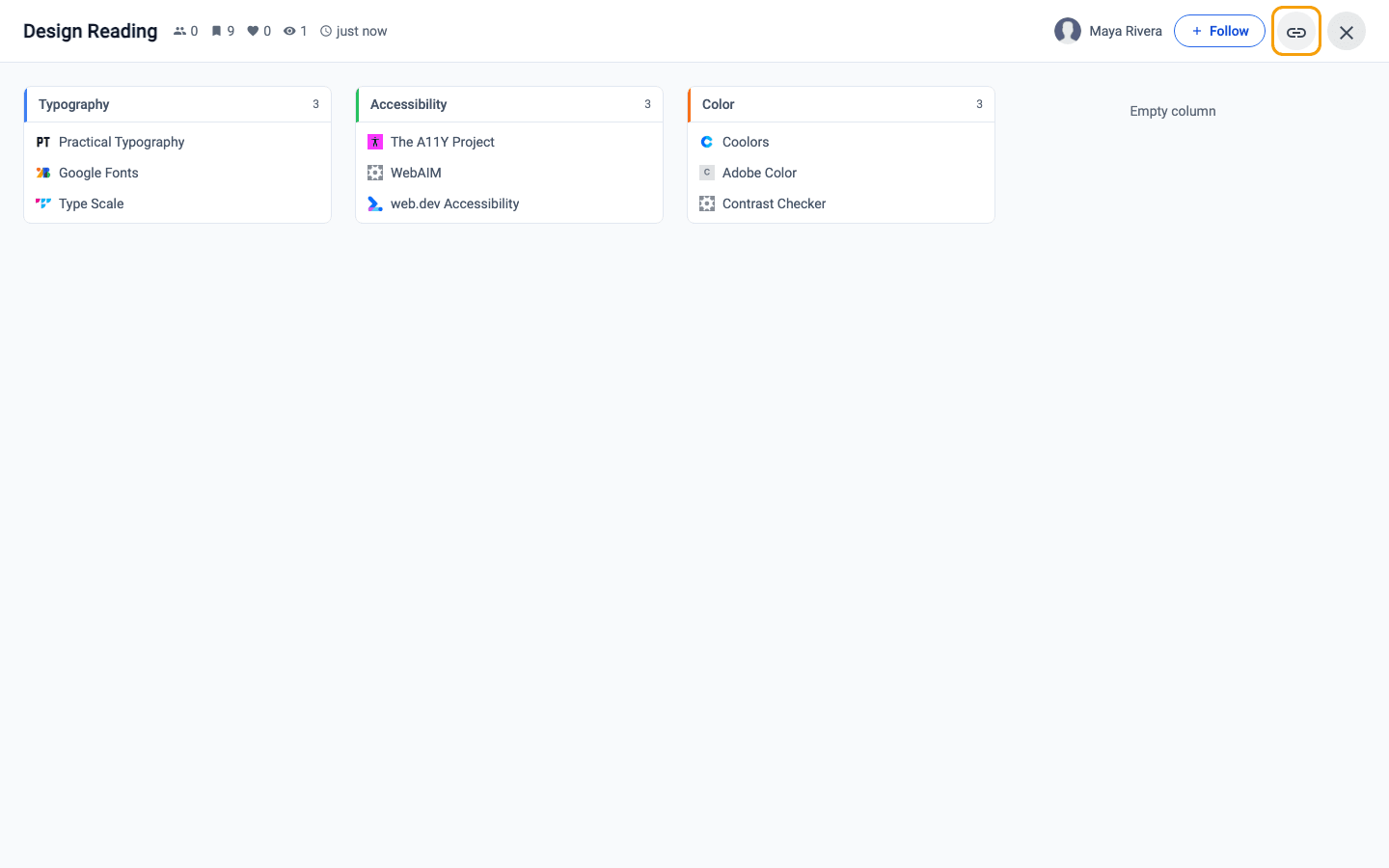
Send the link anywhere: a chat, an email or a class page.
What visitors see
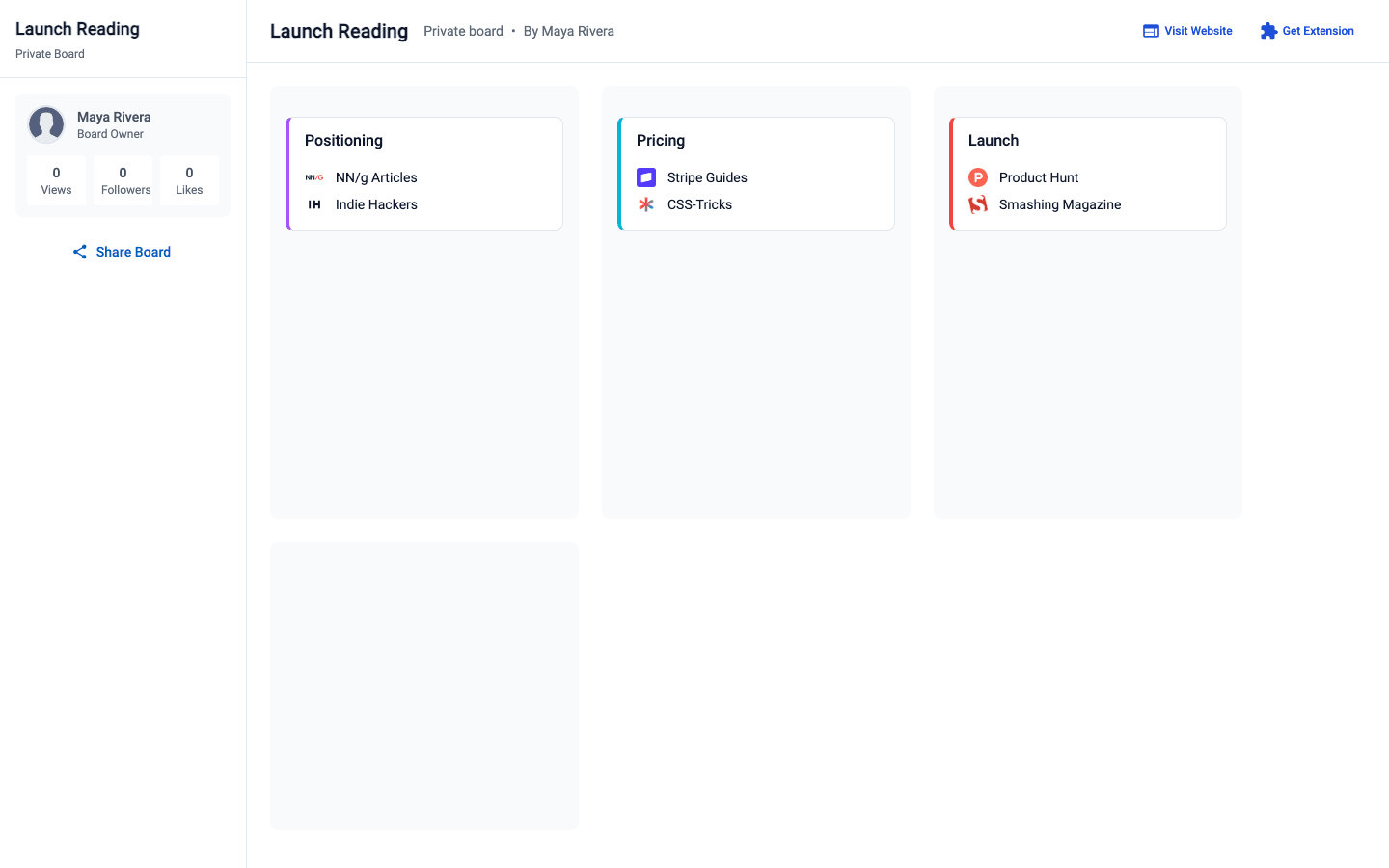
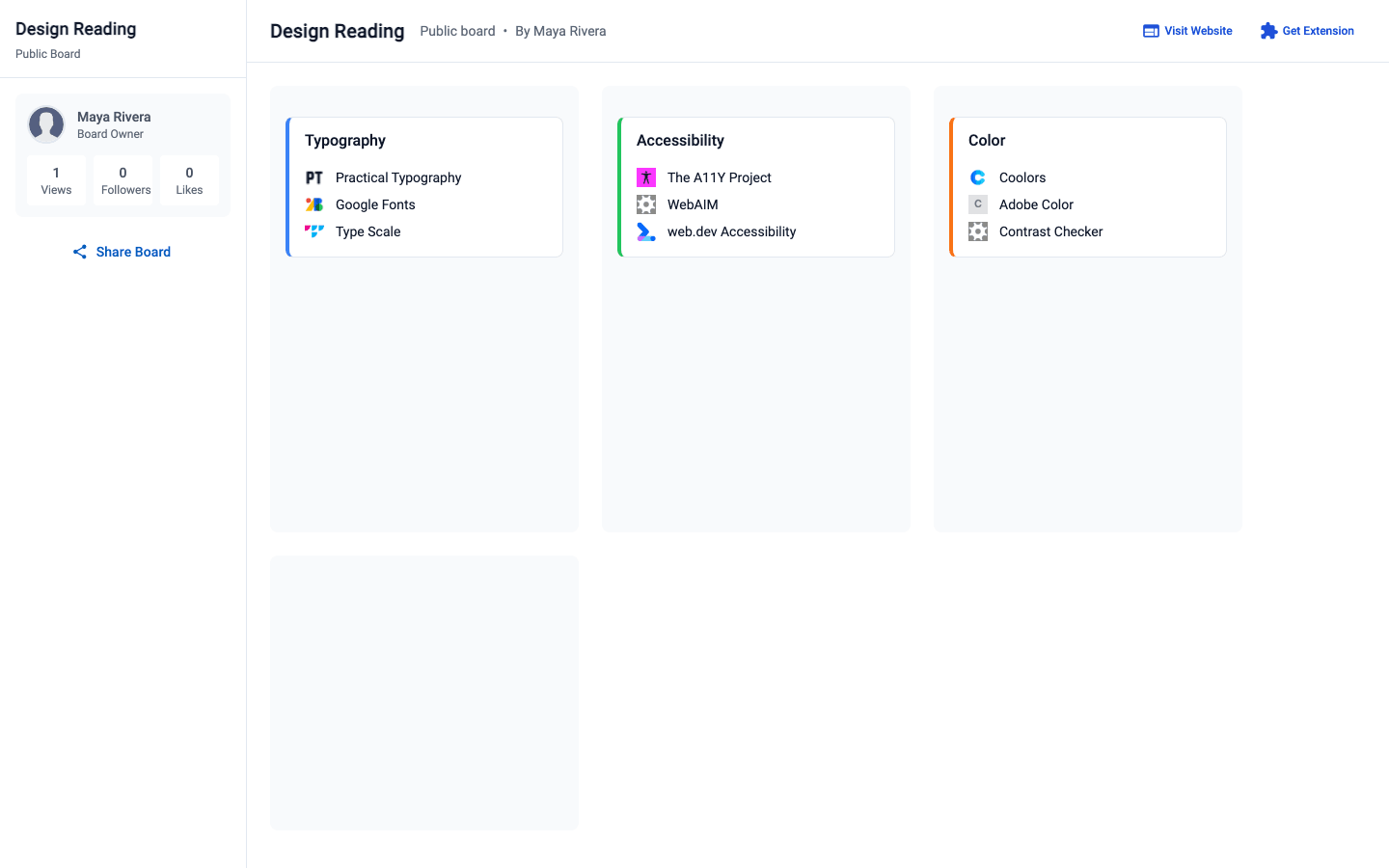
Anyone with the link can open it without an account. They get a read-only page with the board's title, your name as the board owner, its view, follower and like counts, and every column, category and bookmark. Clicking a bookmark opens the site in a new tab. They cannot change anything, and they see a Get Extension button and a Visit Website button if they want LinqList for themselves.
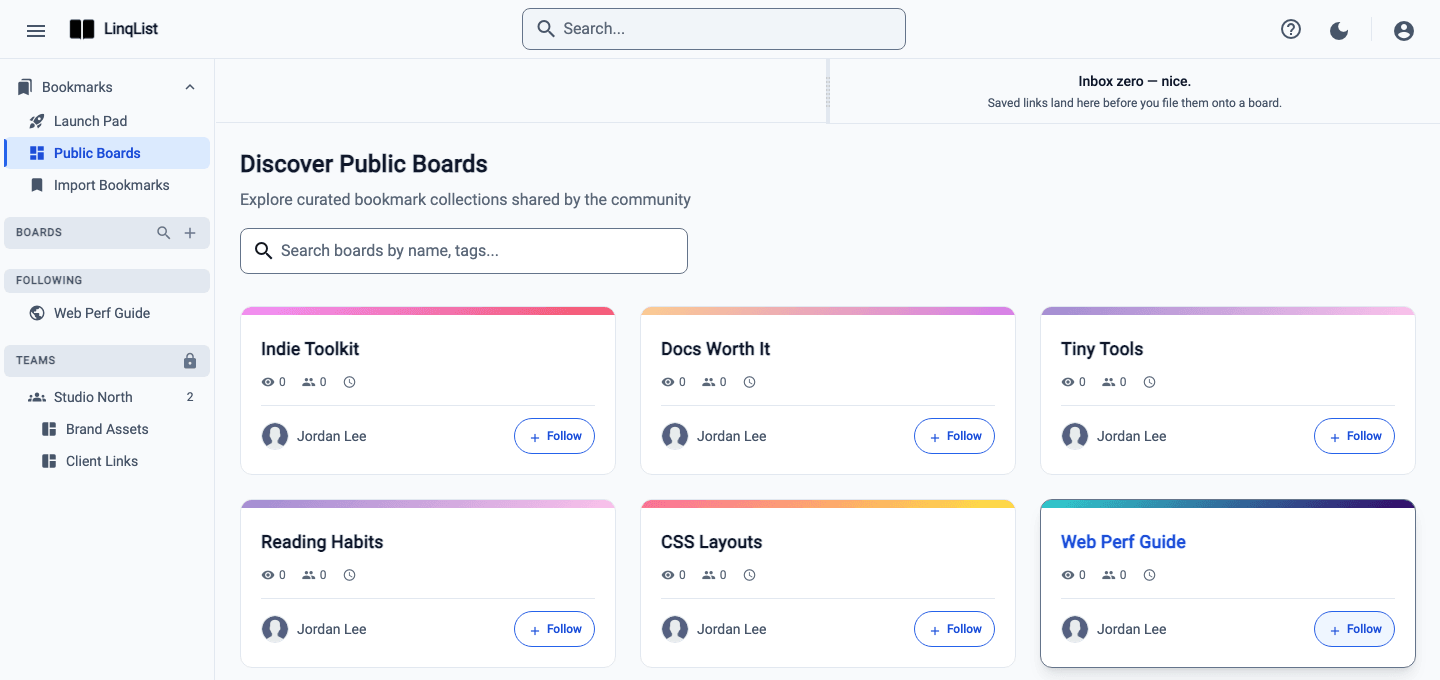
People who are signed in to LinqList can also find the board on the Public Boards page, search it by name, and follow it. That is covered in Follow public boards.
Tips
- Edits show up for visitors as soon as you make them. Reorder categories or add links later and the same URL stays current.
- Switching Private back to Yes takes the board off the Public Boards page, and the public link stops working. Setting Invisible for Google to Yes also keeps a public board off that page.
- Only public boards appear to others. Boards you have not made public, and private links, are never listed.
- Public sharing is included on every plan. Private links, which hide a board from the list entirely, need Premium; see the private links guide.
Common questions
- Can strangers find my board? Yes, unless Invisible for Google is set to Yes. Once it is public, it is listed on the Public Boards page, where signed-in LinqList users can search by name and follow it.
- What do visitors learn about me? The page shows your display name and profile picture. It does not show your email address.
- Can I share only one category? No. Visibility is a setting of the whole board, so keep a public board for things you are happy to show and use separate private boards for the rest.
- Can I change my mind? Yes, as often as you like. Set Private back to Yes and the board is hidden again.