Find anything fast with search
Once you have saved a few hundred links, scrolling stops being the way to find things. Search takes you to the right bookmark in a few keystrokes.
Open search
There are three ways in:
- Press Cmd+K on Mac or Ctrl+K on Windows and Linux, from anywhere in the workspace.
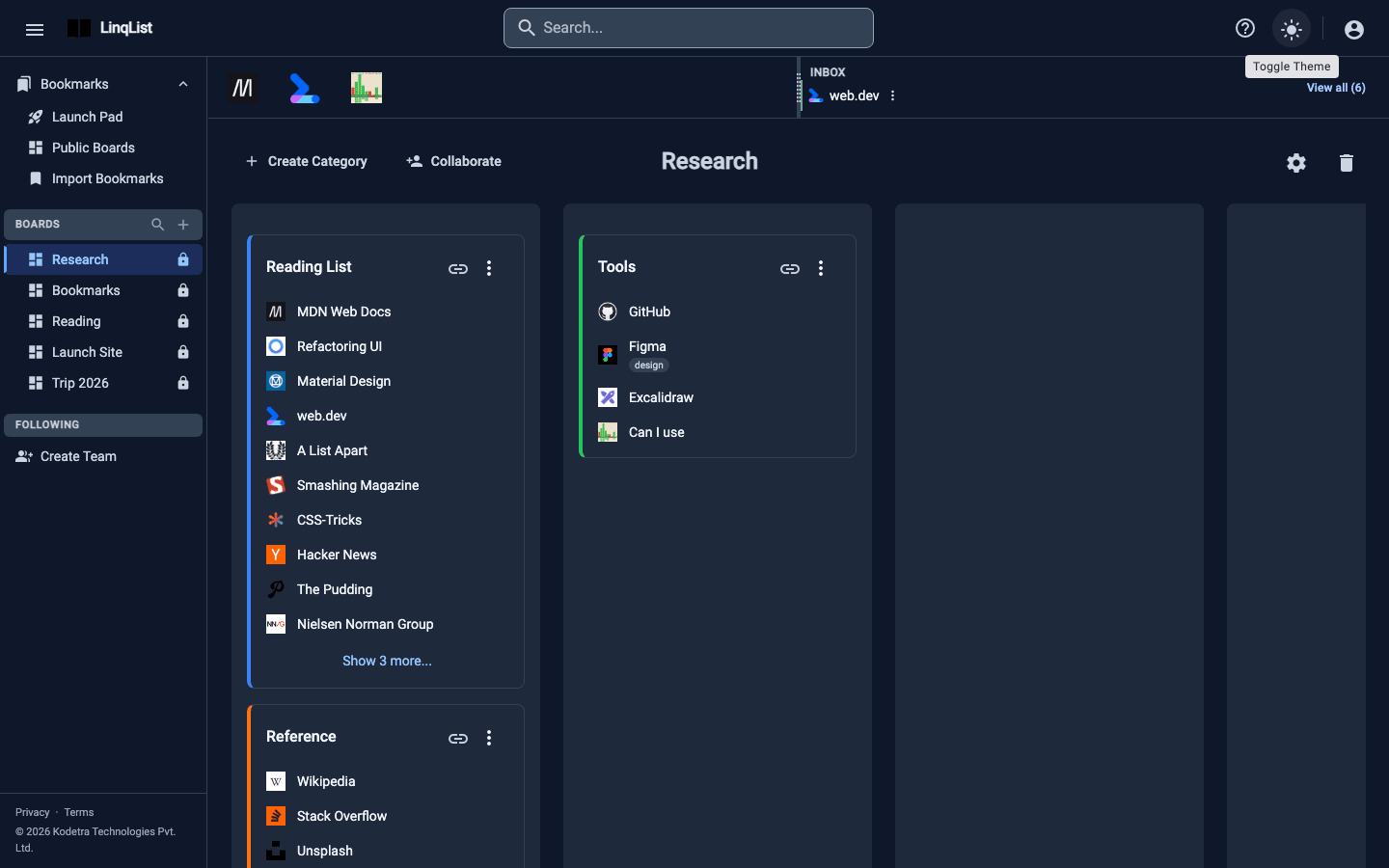
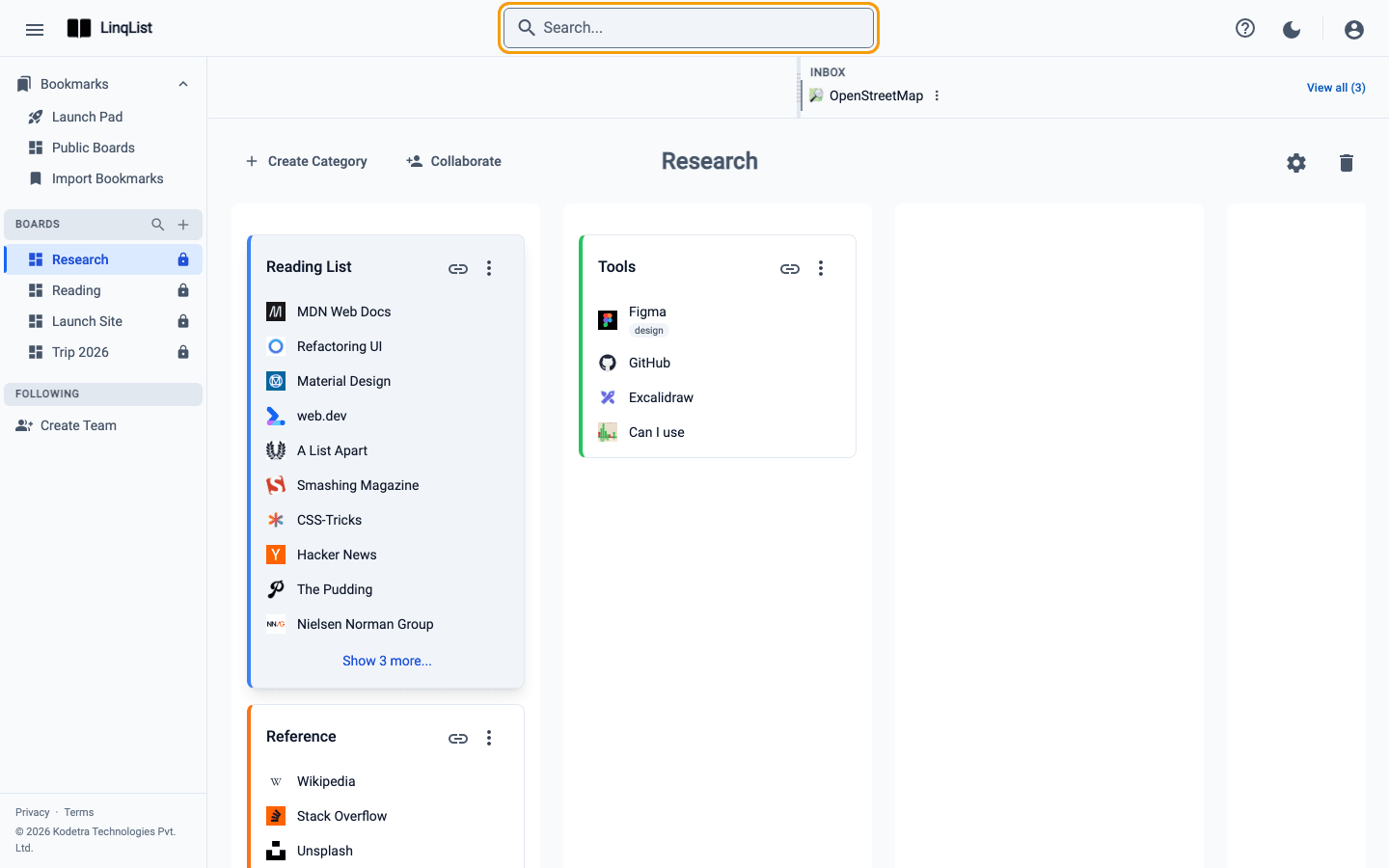
- Click the Search... box in the top bar.
- On a small screen, tap the same box; it stays in the top bar.
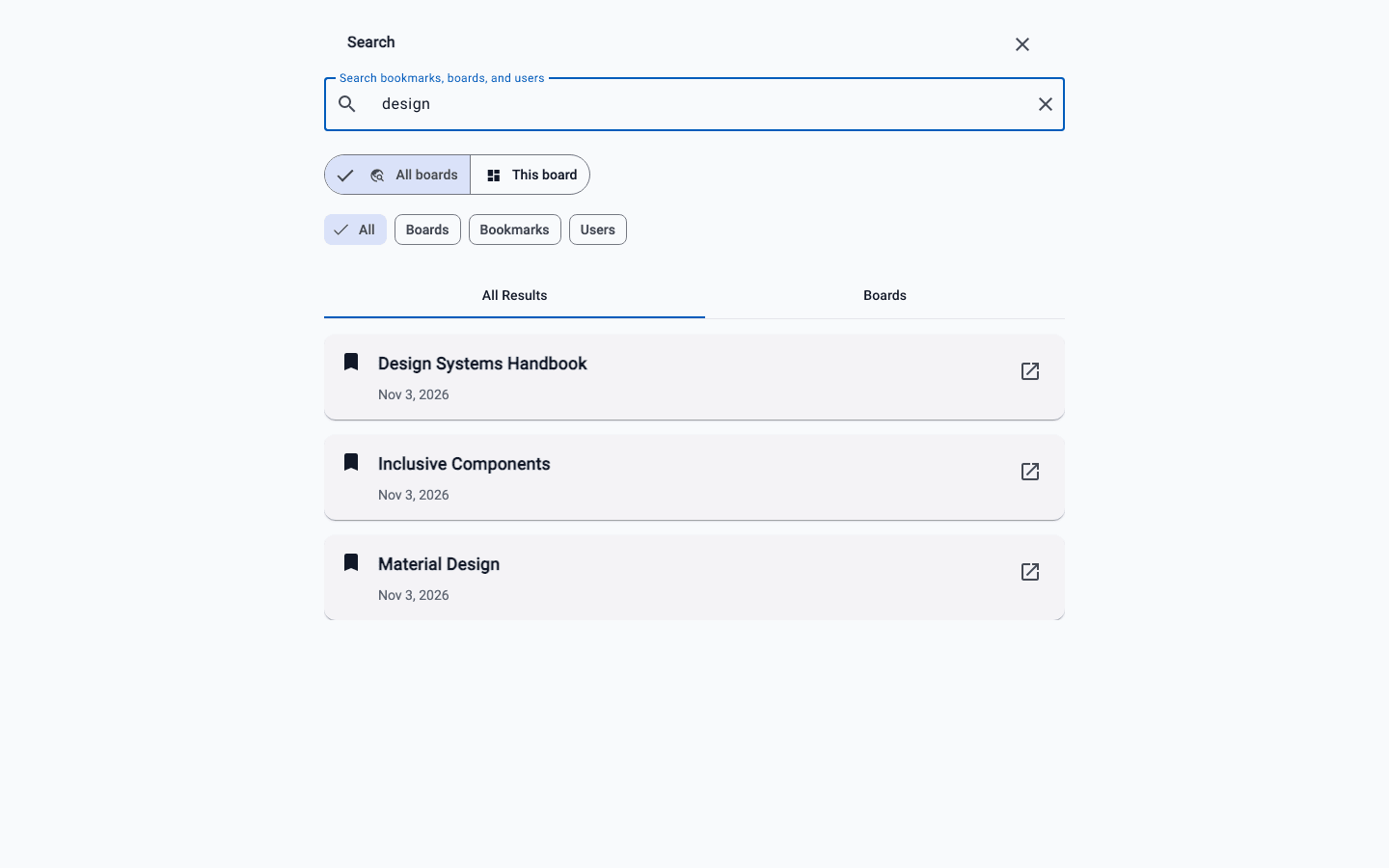
A full-screen Search panel opens with the cursor already in the box. Press ? at any time to see the other keyboard shortcuts.
Run a search
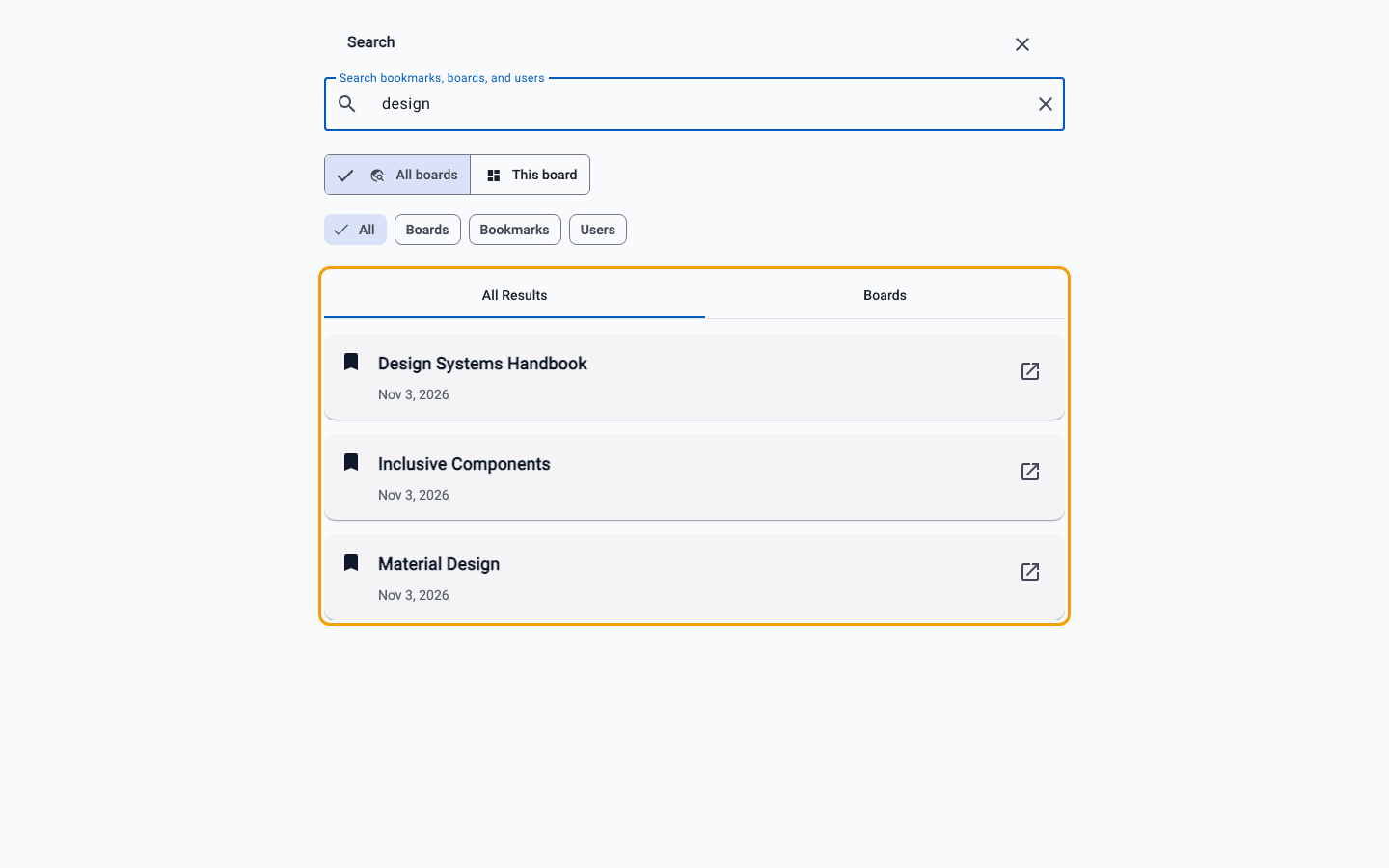
- Type at least two characters in the box. Results appear after a short pause, with no need to press Enter (though Enter works too).
- Each result shows a title and, where there is one, a description, tags and an open-link button. Boards and people appear alongside them.
- Switch between the All Results and Boards tabs above the list to see everything or only boards.
- Click the open icon on a bookmark to visit it in a new tab. Click the x in the box to clear and start again.
If nothing matches you will see "No results found". Try a shorter or different word.
Search all boards or just this one
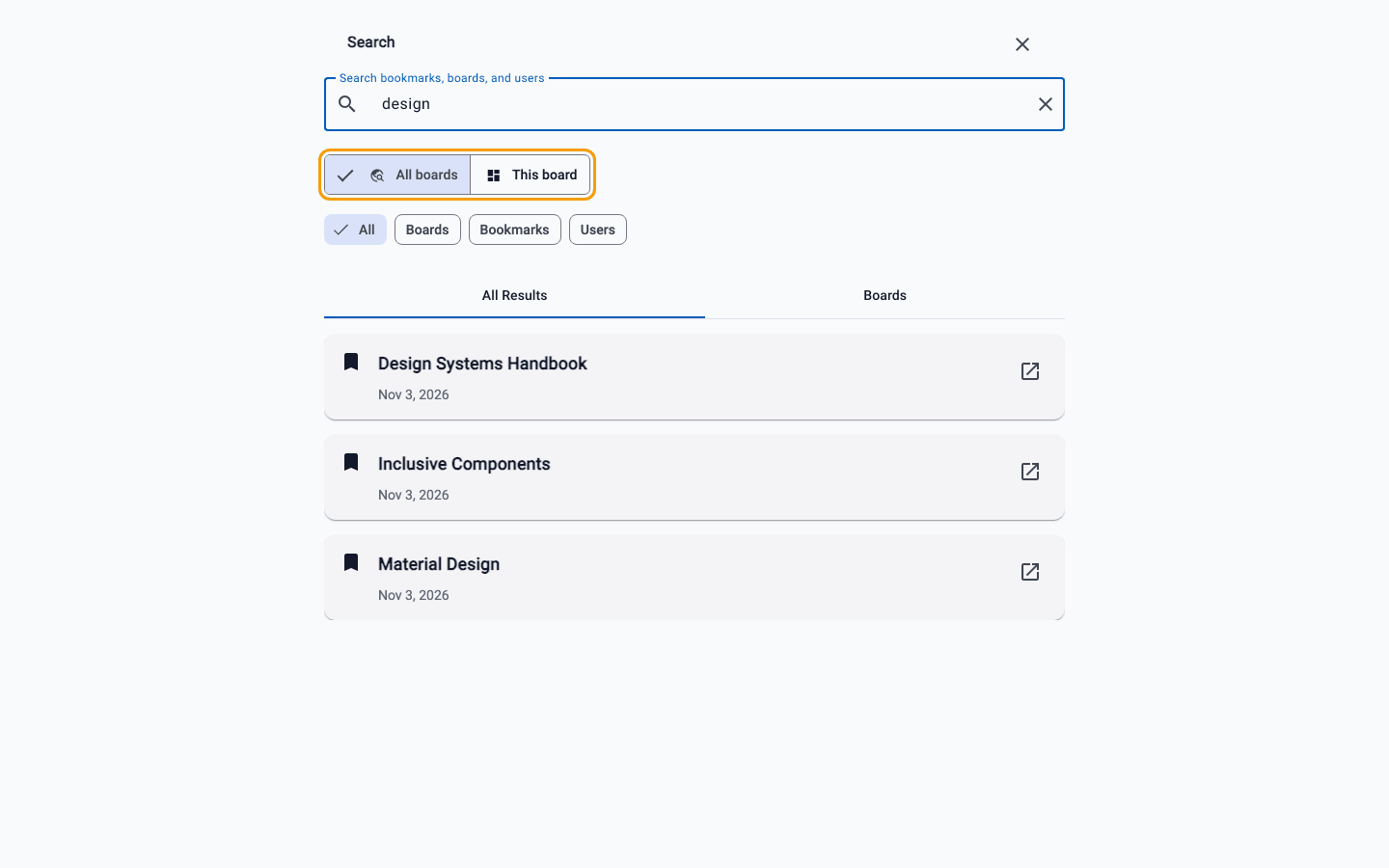
If you open search while viewing a board, a switch appears under the box with All boards and This board.
- All boards asks the server and searches everything you can access.
- This board filters the board in front of you instantly, which is handy when you know the link is somewhere on this page.
Filter by type
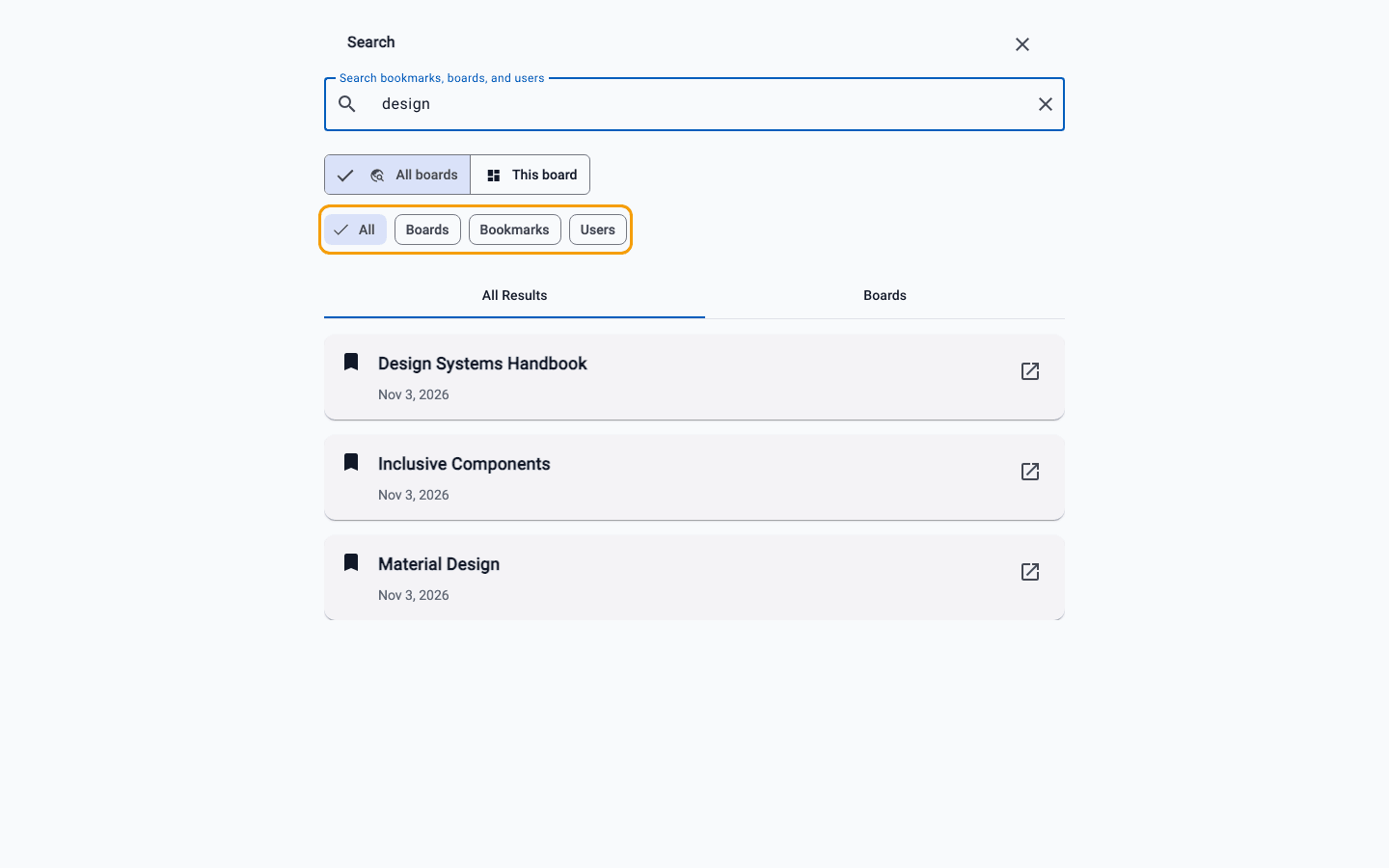
On the Free and Starter plans search is basic keyword search, which finds most things. With All boards selected, a dashed Filter by type chip with a Pro label shows what is available: on the Pro and Premium plans you get chips for All, Boards, Bookmarks and Users to narrow results. If you click the locked chip, a plan dialog opens; there is no pressure, basic search stays free.
Tips
- Give bookmarks clear titles when you save them; a good title is what you will most likely type later.
- Use a distinctive word rather than a whole title.
- Use This board for quick lookups while you work, and All boards when you cannot remember where you put something.
When search finds nothing
Check the spelling first, then try a single distinctive word instead of a phrase. If you opened search while on a board, look at the switch under the box: This board only looks at the page you are on, so switch to All boards if the link might be elsewhere. Links that are still in your Inbox have not been filed on a board yet, so open the Inbox to look there.
A quick workflow
Press Cmd+K or Ctrl+K, type two or three letters, and click the open icon on the result you want. Once it becomes a habit, you will use search more than scrolling, and the way you organise boards matters less. That does not mean skip organising, though: a tidy board is still the nicest way to browse.