Import your browser bookmarks
You probably have hundreds of bookmarks sitting in your browser already. You do not have to retype them. Export them to a file from your browser, upload that file to LinqList, and they arrive as a new board, with your browser's folders turned into categories.
Importing is included with the paid plans (Starter, Pro and Premium). If your plan does not include it, the Import page says so and offers a See plans button instead of the uploader.
Step 1: export from your browser
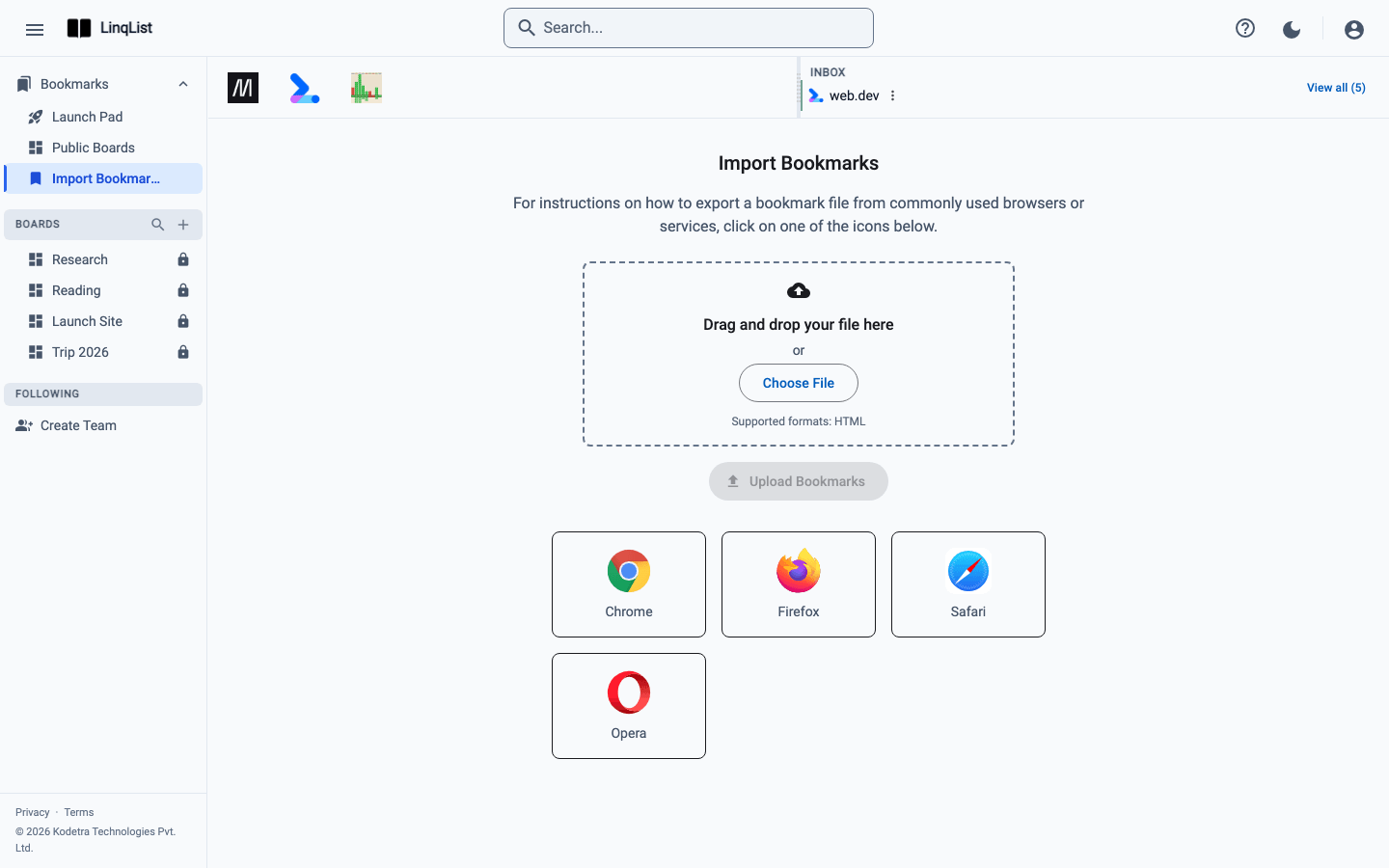
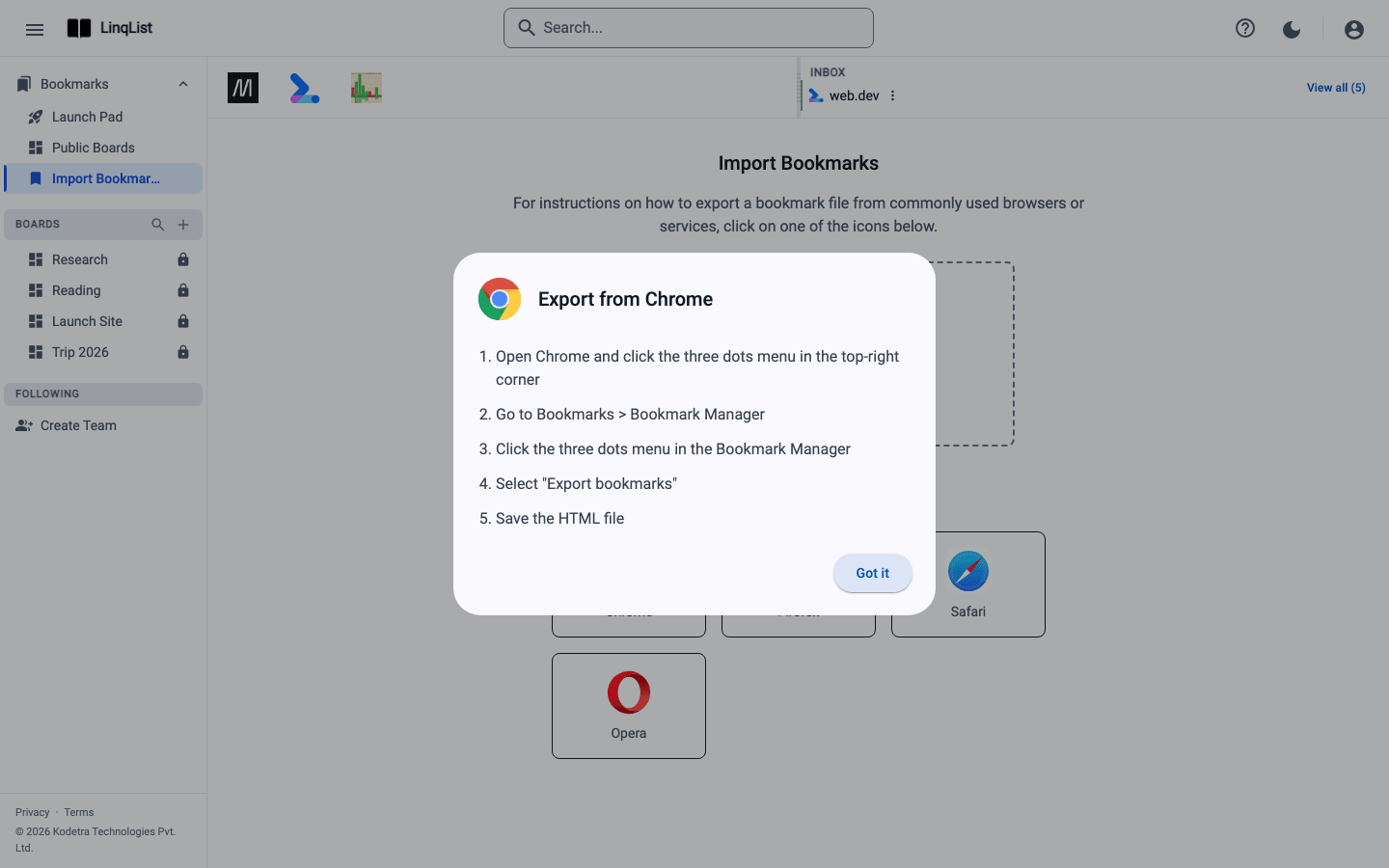
LinqList reads the standard bookmarks HTML file that every major browser can produce. The Import page has instructions for each; click the browser's icon to read them. The short versions:
- Chrome (also works the same way in Edge and Brave): menu, Bookmarks, Bookmark Manager, the three dots menu, Export bookmarks.
- Firefox: Library button, Bookmarks, Manage Bookmarks, Import and Backup, Export Bookmarks to HTML.
- Safari: File, Export Bookmarks.
- Opera: menu, Bookmarks, Show All Bookmarks, Import and Export, Export bookmarks as HTML file.
Step 2: upload the file
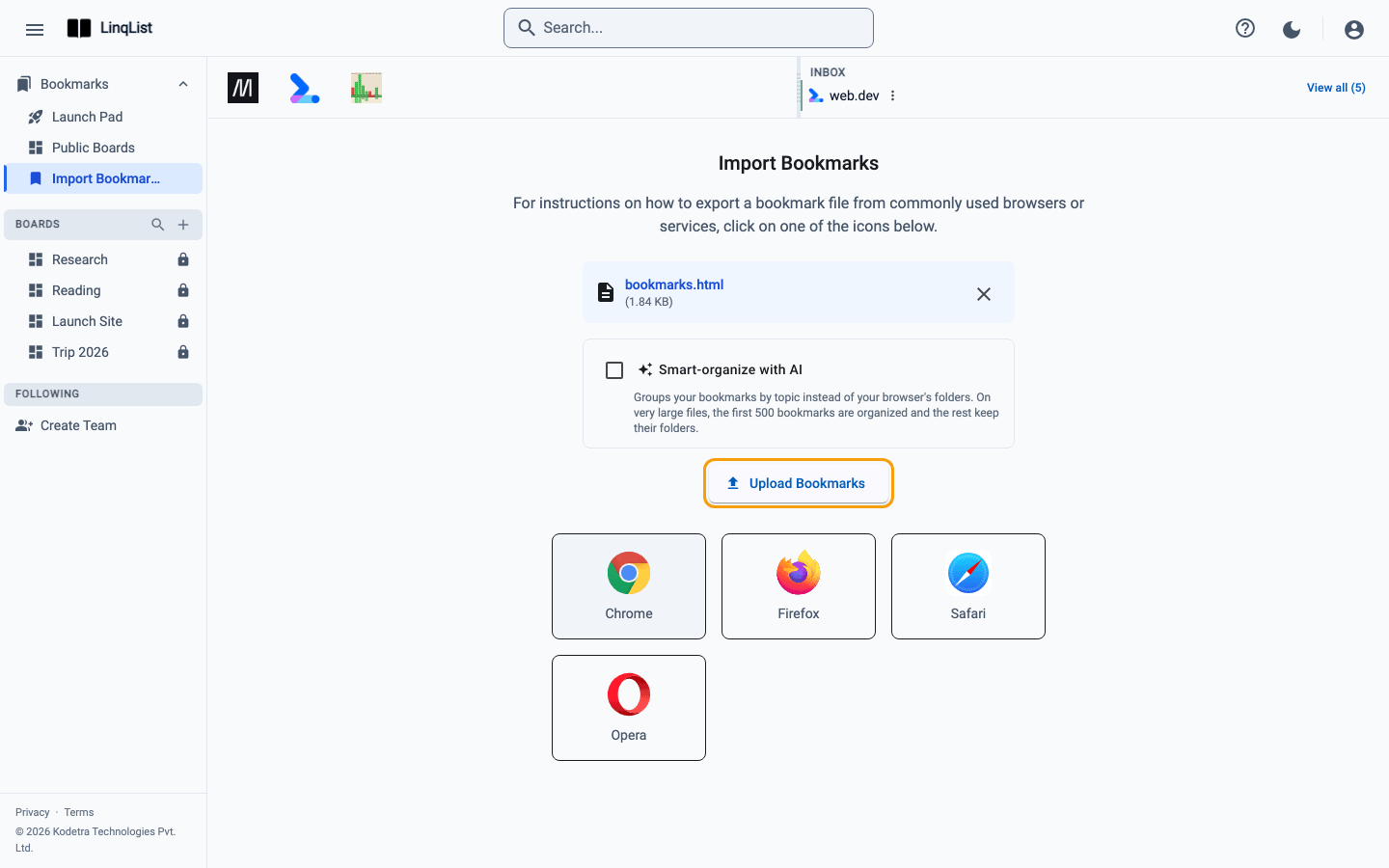
- In LinqList, open Bookmarks in the sidebar and choose Import Bookmarks.
- Drag your file onto the box that says Drag and drop your file here, or click Choose File and pick it. Only
.htmland.htmfiles are accepted, up to 10 MB. - Optional: tick Smart-organize with AI if you would rather have bookmarks grouped by topic than by your browser's folders. On very large files, the first 500 bookmarks are organized by topic and the rest keep their folders.
- Click Upload Bookmarks.
Step 3: let it finish
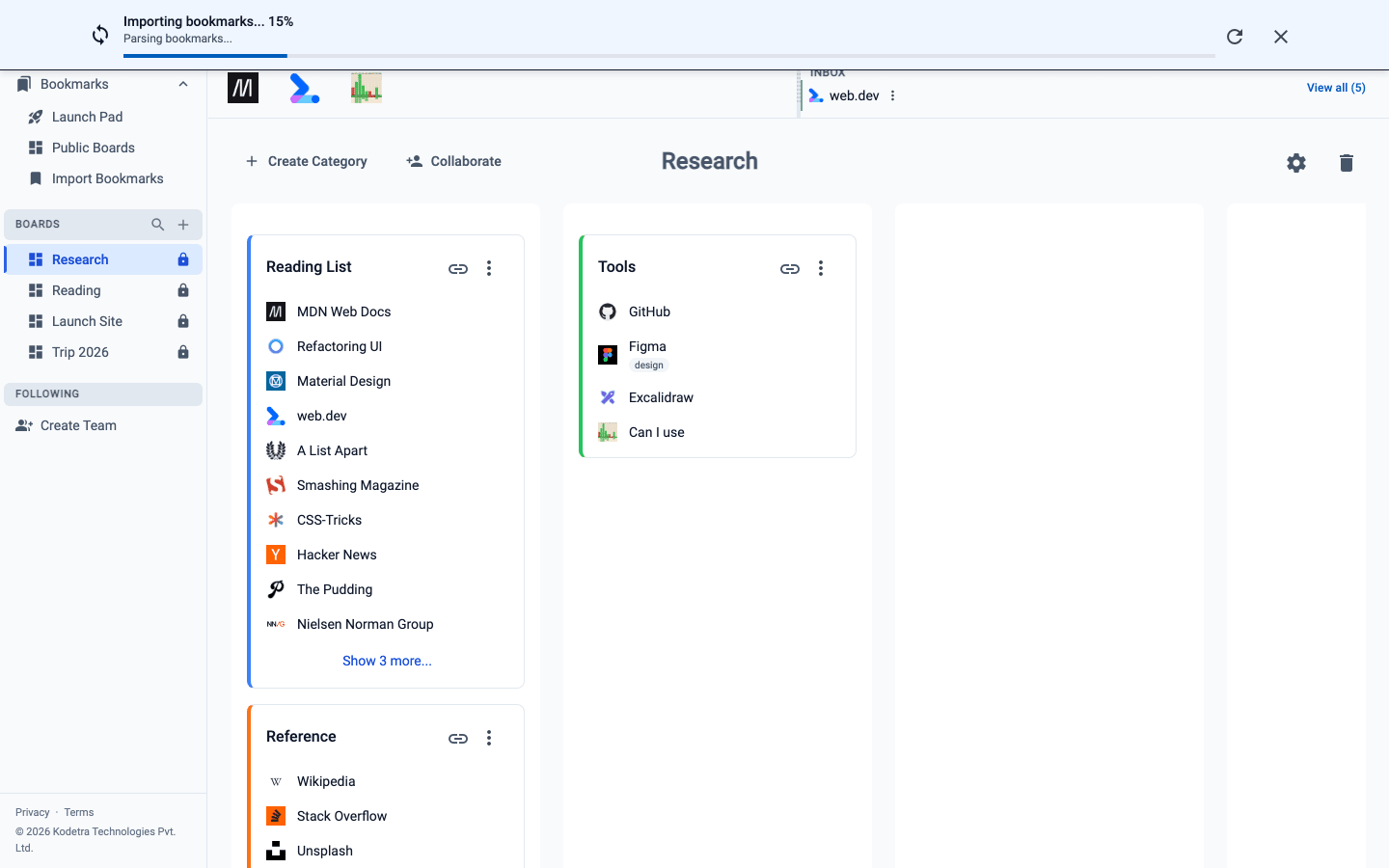
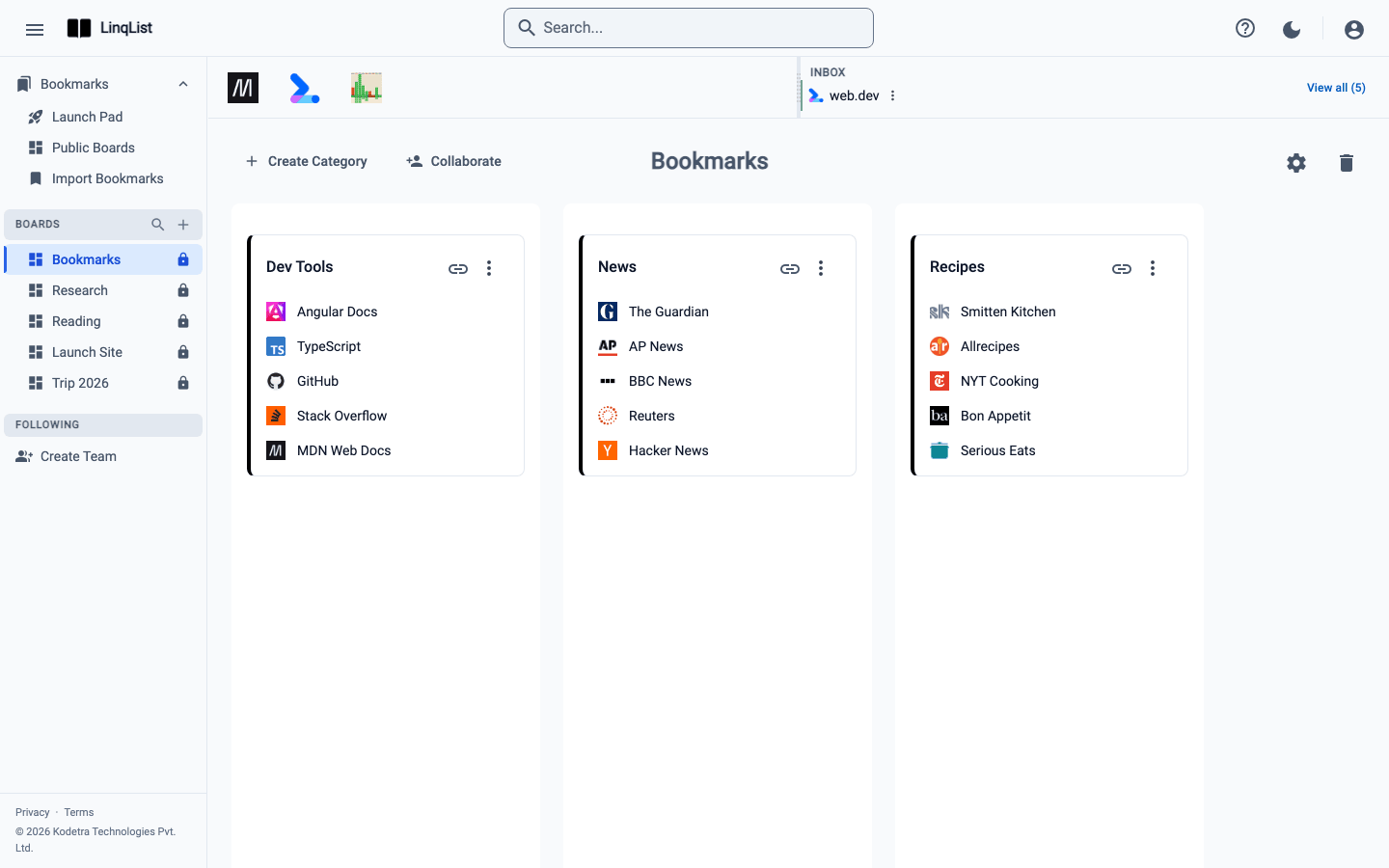
A progress panel shows the upload. When it is done, LinqList sends you back to your workspace, and the import's progress appears at the top of the page. The result is a new board, named after your file (shortened to the 15-character board-name limit), with a category for each folder. The new board starts as private, so nobody else can see it until you decide to share it.
If you import the same file twice
LinqList notices. A Duplicate import dialog says the file was already imported as a board with a given name, and asks whether to replace it. Choose Replace to delete that board and import again, or Cancel to keep it.
Tips
- Tidy your browser bookmarks first if you can: delete dead links and empty folders. It makes the imported board much cleaner.
- After importing, use Share a board publicly or invite collaborators to share the result.
- Plans have limits on boards and bookmarks per board. A very large export may need a higher plan; check the Pricing page.
If something goes wrong
- File size exceeds 10MB limit. Choose a smaller file. Exporting a single folder instead of the whole bookmarks bar is one way to do that.
- The file is rejected. Make sure it ends in
.htmlor.htm. Some browsers can also export JSON or CSV, which the importer does not read. - Failed to upload file. Please try again. Check your connection and upload again. A second upload of the same file shows the Duplicate import prompt rather than creating copies.
- You see Browser import is a paid feature. Your plan does not include import. Use See plans to compare.
After the import
Open the new board and give it a look. Drag categories into the order you want, merge folders that ended up with similar names, and delete what you no longer need. Once it looks right, you can share it or leave it private as your personal library.