Save any page in one click with the browser extension
Copying a link, switching tabs and pasting it somewhere is the reason most bookmark habits die. The LinqList extension removes those steps: you click once and the page is saved with its title.
Supported browsers
LinqList has an extension for Chrome, Firefox, Edge, Opera, Brave, Kiwi and Vivaldi. Install it from your browser's extension store (the Add to Chrome button on linq-list.com is the quickest route in Chromium browsers), then sign in with your LinqList account.
Method 1: the floating button
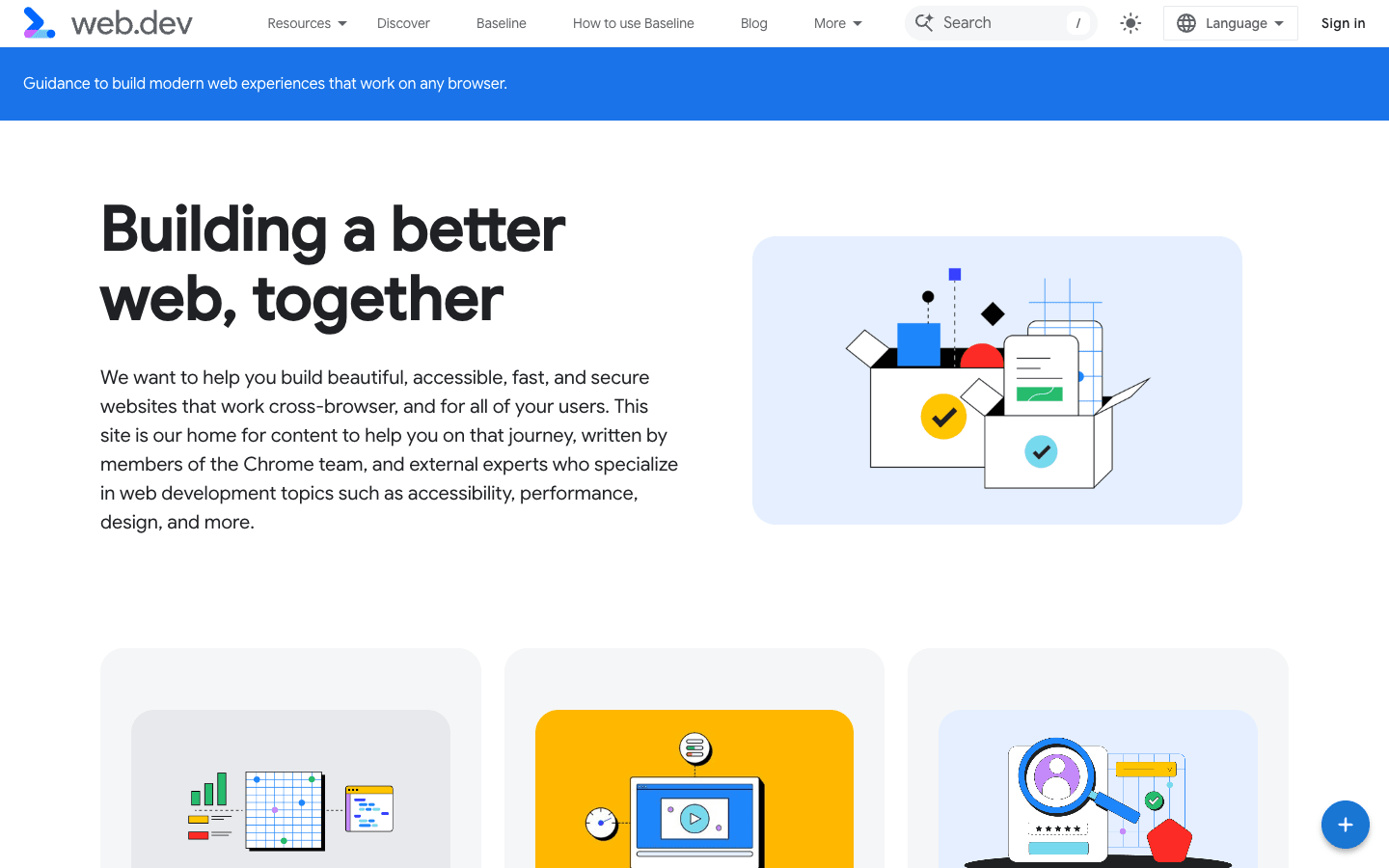
On most web pages you will see a round blue button with a plus sign in the bottom-right corner.
- Open any page you want to keep.
- Click the button. It turns into a green check mark and its tooltip says Saved to LinqList.
- After about two seconds it goes back to the plus sign.
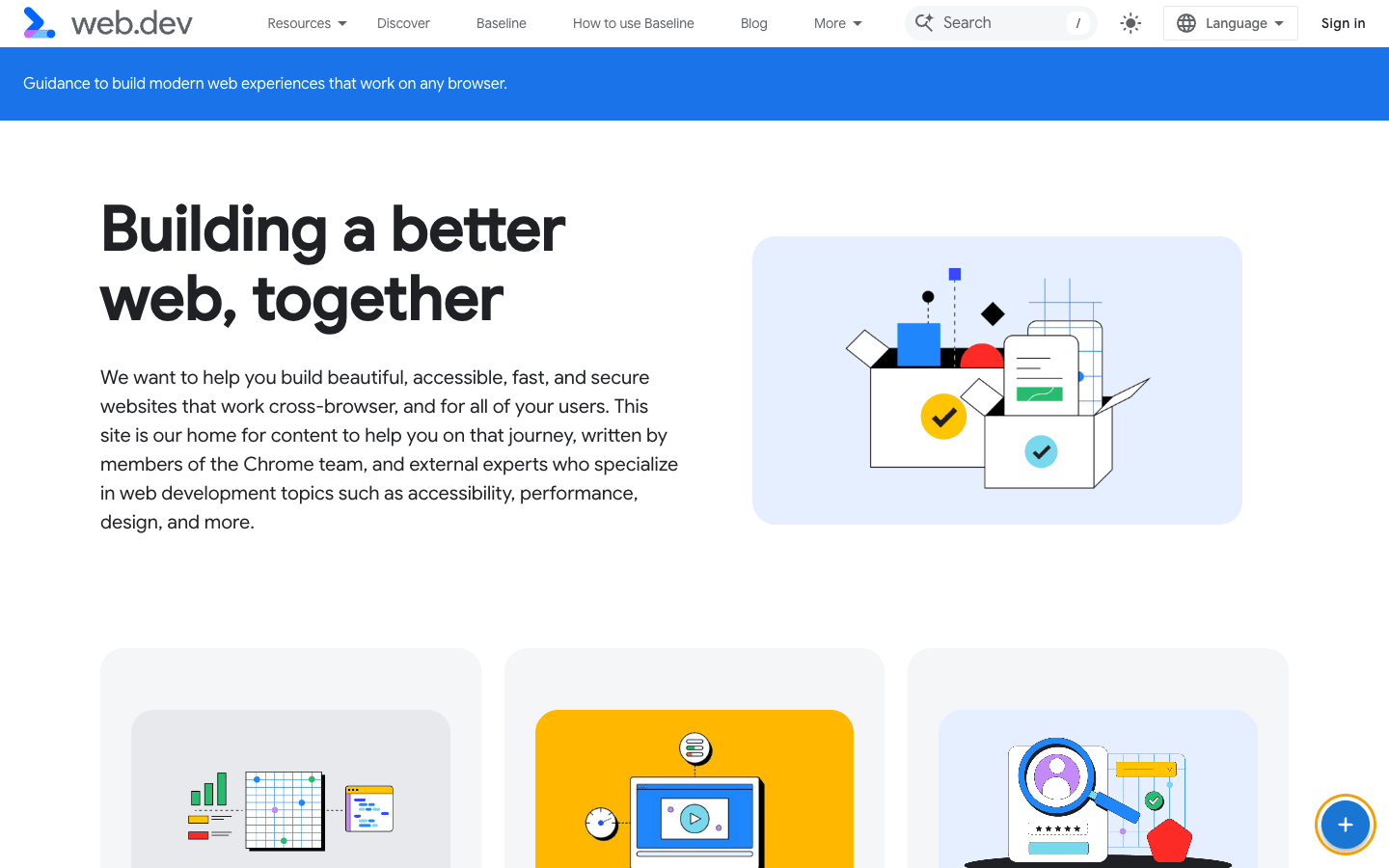
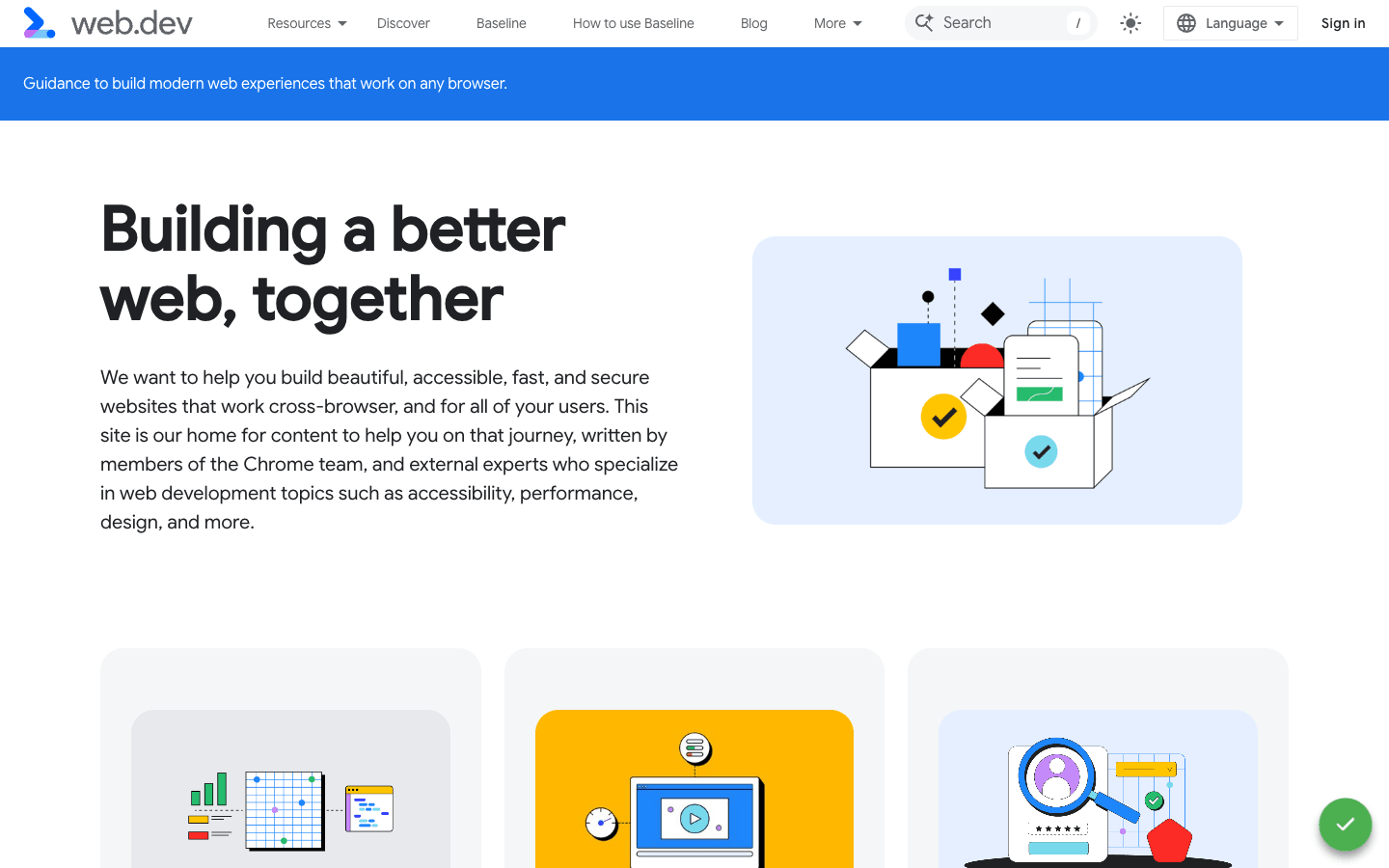
Other colours mean something too: orange with a clock means you are offline and the save will be retried, and red means you need to sign in or the save failed. The button does not appear on browser pages such as chrome:// or about: pages, or on local files.
In the way? Drag the button to another spot. It snaps to the left or right edge and remembers where you left it.
Method 2: the toolbar popup
- Click the LinqList icon in your browser toolbar.
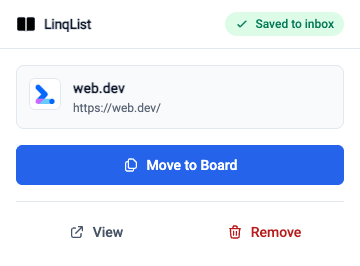
- The popup saves the current tab straight away and shows Saved to inbox, with the page title and address.
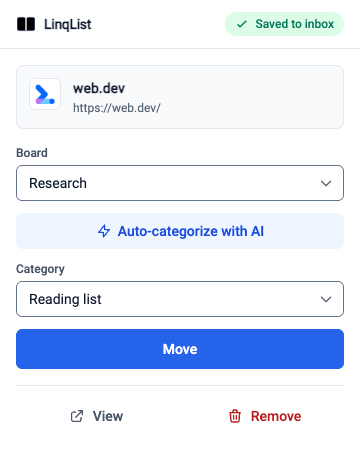
- To file it now, click Move to Board, pick a Board and a Category, then click Move. You can create a category on the spot with + New category.
- Changed your mind? Click Remove. View opens your saved bookmark.
Method 3: right-click
Right-click a page, a link or selected text and choose Save to Linqlist. LinqList opens in a new tab with a small save dialog so you can choose where the link goes.
Where do saved pages go?
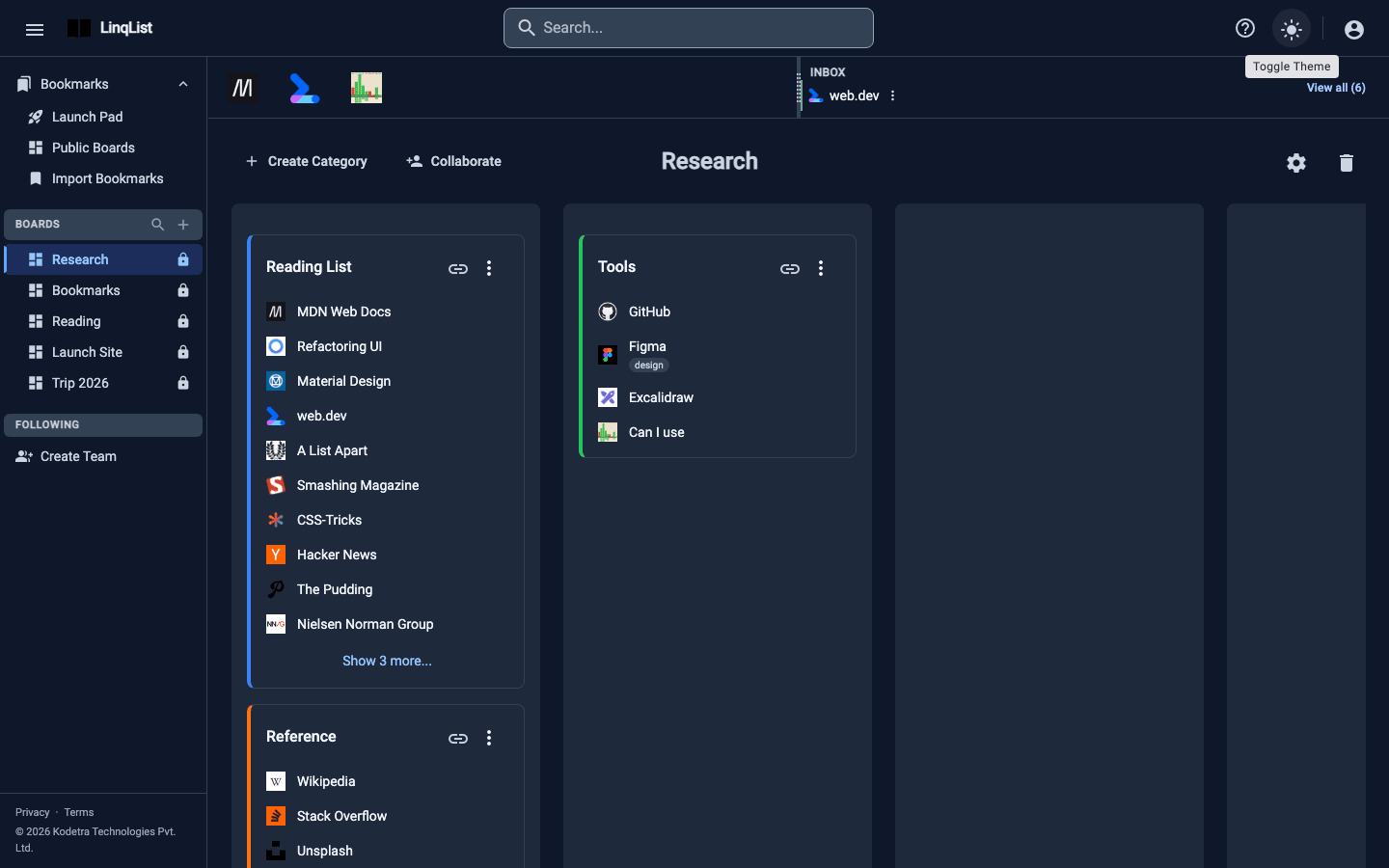
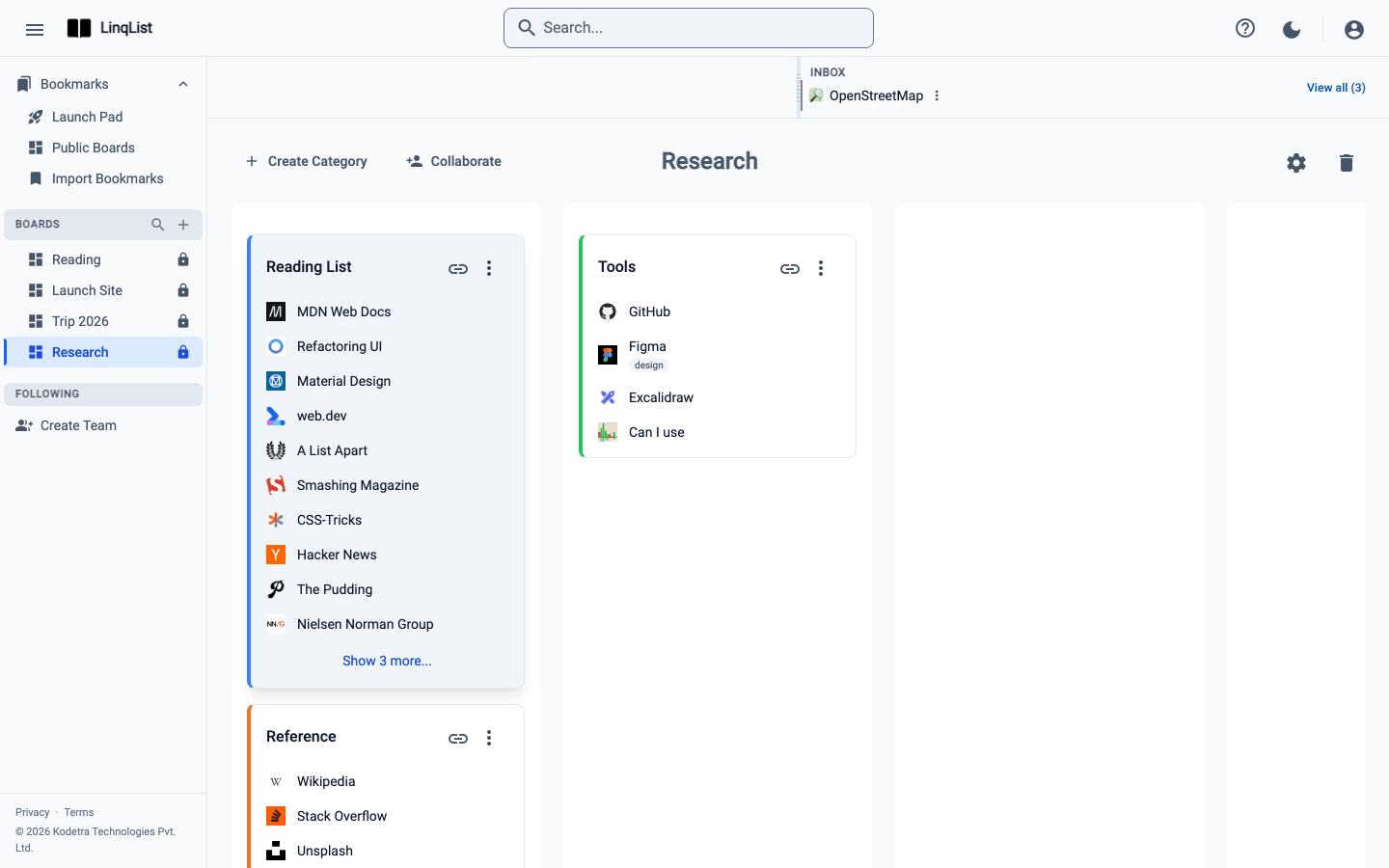
The floating button and the popup both save to your Inbox first. You will find the inbox in the web app: open it and drag items onto a category when you are ready. Nothing is lost if you never file them, but the point of LinqList is that boards stay tidy, so a minute of filing now and then helps.
Troubleshooting
- No floating button? Reload the page, and check you are signed in. It will not show on restricted browser pages.
- Red button? Open the extension and sign in again.
- Offline? The orange clock means the save is queued and will retry.
Which method should I use?
Use the floating button when you just want to grab something and keep reading; it is a single click and you never leave the page. Use the toolbar popup when you already know where the link belongs, because you can file it right away. Use the right-click menu for individual links on a page, such as a source cited in an article, since you do not have to open that page first. All three end up in the same account, so mix them freely.
Signing in and privacy
The extension uses the same account as the web app, and it only talks to the LinqList servers. If you sign out in the extension, the button turns red the next time you try to save so you know to sign back in.